ANY-maze Help > The ANY-maze reference > The Data page > Sorting the data
Sorting the data

Overview
You can sort the Data page spreadsheet using any of the columns which are shown. This can be very useful if you want to copy or save just a selection of cells, as it can help you to organise the rows so the relevant cells are contiguous. For example, if you just want to copy the data for Male animals then sorting by Gender will ensure that they're all grouped together.
By default, the spreadsheet is sorted on Test number.
Details
To sort the spreadsheet, simply click the title of the column you want to sort on and choose the sort order from the menu which appears - see figure 1.
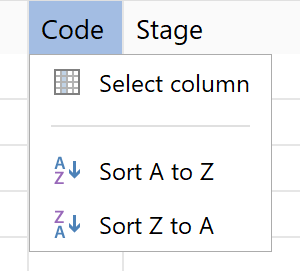
Figure 1. To sort on a column you should click the column's title.
When a column is being used to sort the rows of the spreadsheet, the column title will include a small sort indicator, showing whether the column is being sort in ascending or descending order.
Some columns can be sorted based on a logical order as well as, or instead of sorting alphabetically. For example, if you sort the data based on a column for the day of the week, you would expect the order used to be Monday, Tuesday, Wednesday, etc., so a day of the week column only offers the option to sort logically. Other columns, such as Stage can be sorted both alphabetically or logically - see figure 2. In this case the logical order is the order in which the stages were performed in the experiment (which is based on the order in which they appear in the protocol).
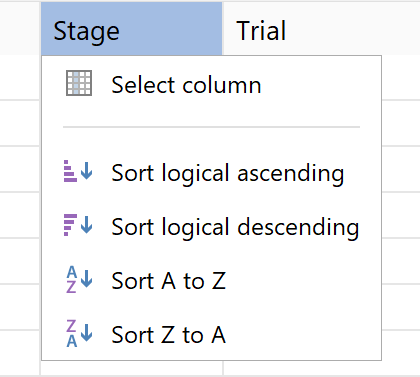
Figure 2. Sorting stages logically, puts them into the order in which they were performed in the experiment.
Columns which can be sorted logically are:
| Treatment | Sorts based on the order in which the treatments appear on the Experiment page. |
| Treatment code | Sorts based on the order in which the treatments appear on the Experiment page. |
| Stage | Sorts based on the order in which the stages were performed, which in turn is based on the order in which they appear in the protocol. |
| Stage and trial | Sorts the stages based on the order in which the stages were performed and within each stage sorts on trial number. |
| Apparatus | Sorts based on the order in which the apparatus appear in the protocol. |
| Test day of the week | Sorts Monday, Tuesday, Wednesday ... Sunday. |
| Time periods | Sorts based on the order in which the time periods appear in the protocol. |
| Location of a moveable zone | Sorts based in the order in which the moveable zone's positions appear in the protocol. |
| Choice fields | Sorts based on the order in which the choices are listed within the field's definition in the protocol. |
If you want to, you can perform a hierarchical sort by selecting second and third sort columns too. In this case, the rows will initially be sorted on the first column you select, then on the second and then on the third. However, you can change this by clicking on the column title of a column that is part of the sort and choosing one of the sort order options - see figure 2.
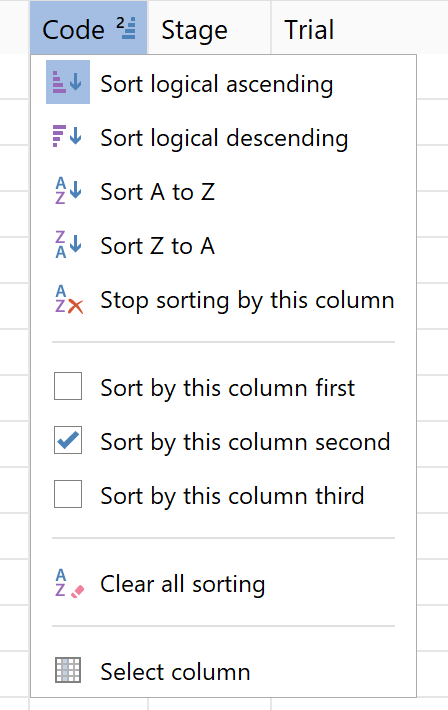
Figure 3. You can change the order in which columns are sorted by clicking in the column title of a column that is part of the sort.
You can also remove a column from the sorting and clear all the sorting entirely, in which case the rows will go back to the default of being sorted on Test number.
See also:
| • | Choosing what data is shown |
| • | Selecting cells, columns or rows |
| • | Copying and saving data |

© Copyright 2003-2026 Stoelting Co. All rights reserved
ANY-maze help topic T0884