ANY-maze Help > The ANY-maze reference > The File page > Viewing experiment information > File protection window
File protection window

 | Although ANY-maze can provide a reasonable level of casual security for your ANY-maze files, it is neither highly secure (an expert could probably 'crack' an ANY-maze file quite quickly) nor does it provide a complete solution. For example, while ANY-maze can protect your files so other users can't open them, it can't prevent someone else from moving, copying or deleting them - for that you will need to use Windows' native file security features. |
Overview
The File protection window is accessed from the Experiment information shown on the File page. Here you can add, edit or delete the password used to protect a file and optionally encrypt the file contents.
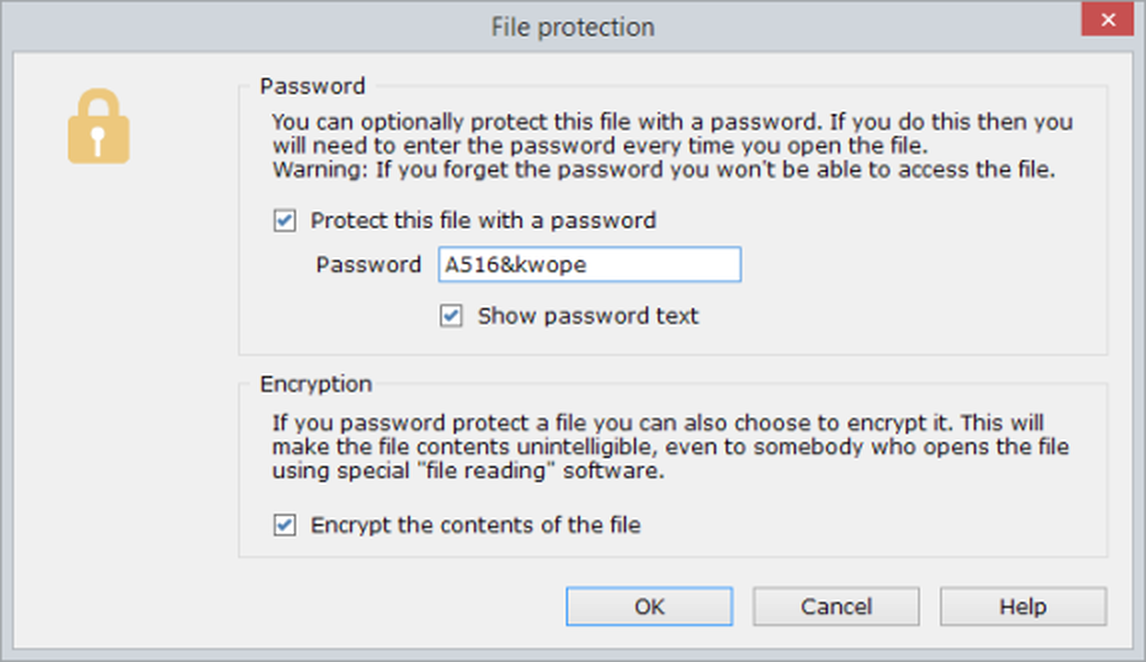
Figure 1. Using the File protection window, you can password protect and encrypt a file.
Password protecting a file
When you save an experiment in ANY-maze, you have the option to enter a password, but what if you forgot to enter a password at the time, or you want to change the password, or you want to remove the password you had set? Well, all these things can be done using the File protection window.
Here you can specify that you do (or don't) want the file to be protected, and you can enter the password you want to use. You can enter anything you like as the password, but it must be between 5 and 15 characters long.
By the way, if you expect you will usually want to secure your files and you are using ANY-maze users then you can set ANY-maze to automatically protect files using your ANY-maze user password. This has the added benefit that ANY-maze won't require you to enter your password each time you open a protected file, provided you're logged on under your own user account and you haven't changed your user password since you saved the file. For more details, refer to Editing your user account details.
Encrypting a file
Password protecting a file simply means that it can't be opened in ANY-maze without first entering the password. But that doesn't mean that someone couldn't open the file in another program (such as a binary file viewer) and look at your data that way. In fact, much of the data would be quite hard to interpret, but some things (such as notes) are stored as plain text and could be read very easily. To address this, ANY-maze can encrypt your files.
In fact, it will do this automatically if you save the file with a password, but you can use the options on the File protection window to change this; for example, you could save a file with a password but without encrypting it.

© Copyright 2003-2026 Stoelting Co. All rights reserved
ANY-maze help topic T0063