ANY-maze Help > The ANY-maze reference > Working with files and reports > Sending reports and data by e-mail
Sending reports and data by e-mail

 | The ability to send a report, document or spreadsheet by e-mail will only be available if your computer is connected to the internet. |
Overview
You can send reports, spreadsheets, etc. directly from ANY-maze by simply clicking the  Send as e-mail button shown in the ribbon bar. Alternatively, you can right click anywhere on the report and select
  Send as e-mail... from the menu which appears. The Send this document by e-mail window will open, where you can address your e-mail, write a message and choose the format in which the document will be sent.
| • | The 'Send document' window |
| • | Formats in which documents can be sent |
The Send this document by e-mail window
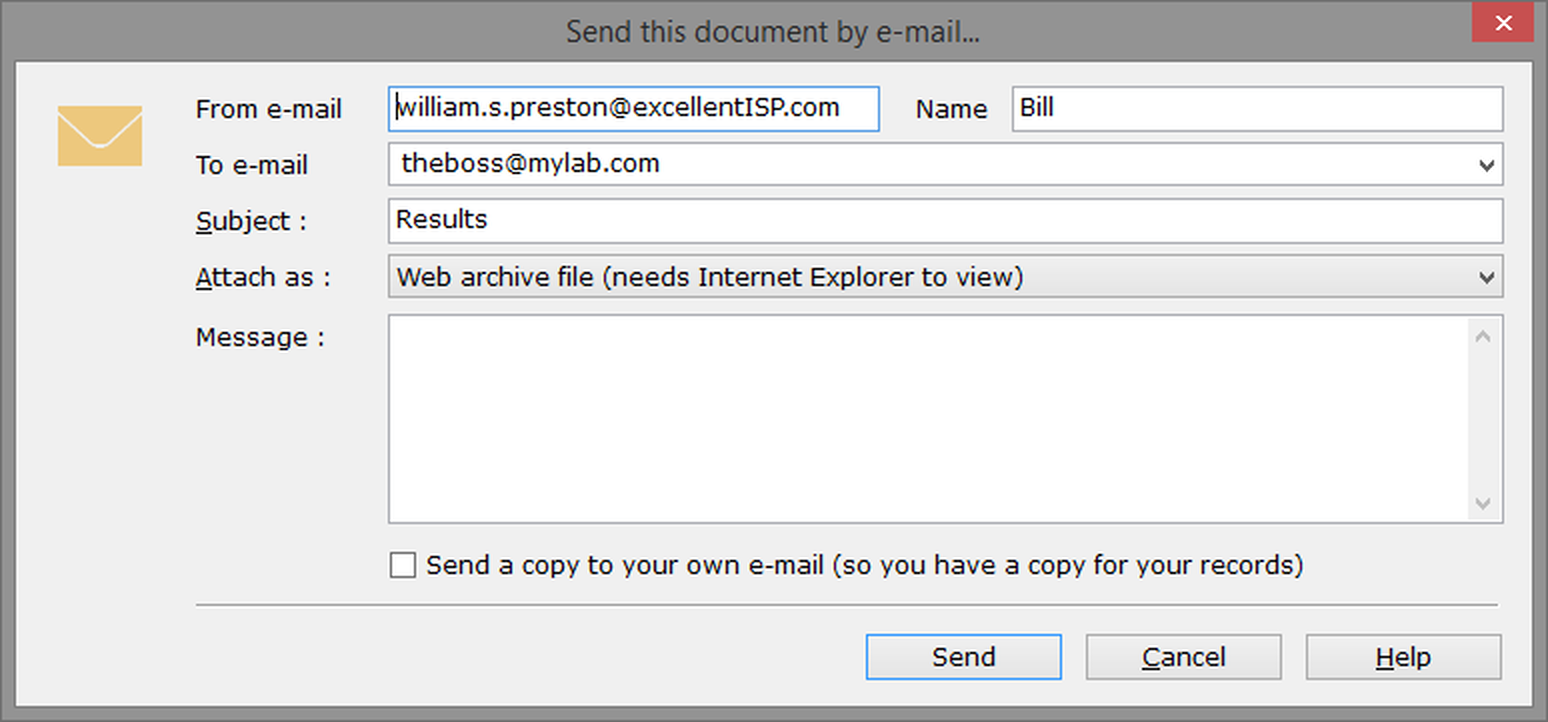
Figure 1. The Send this document by e-mail window
| From e-mail | Enter the e-mail address that you want to send the e-mail from. If the recipient replies to the e-mail, the reply will be sent to this e-mail address. |
| Name | Enter your name here. This name will be combined with the From e-mail to show the recipient who the e-mail is from. |
| To e-mail | Enter the e-mail address to send the document to (for example, support@anymaze.com). The e-mail addresses that you send documents to will be stored, and the next time you open this window, will be available for selection by clicking the drop-down arrow next to this field. |
| Subject | Optionally enter the subject of the e-mail. ANY-maze may fill this in with the title of the document you're sending, but of course you can change this if you wish. |
| Attach as | The document you're sending will be attached to your message as a file. Use this list to select the format for the file. The options available are described in detail below. |
| Message | Optionally enter a message for the e-mail. If you don't enter anything, then the e-mail will appear to be blank, although the document will still be attached correctly. |
| Send | Creates the message, attaches the file(s) from the document, and sends both the message and the attached file to the recipient. |
Note that files are sent in the background, so you can carry on working while this happens. The status bar at the bottom of the ANY-maze window will show the current progress of the files being sent:

Figure 2. The ANY-maze status bar, showing the progress of files being sent.
At any time, you can click on this section of the status bar to show a small pop-up window containing a list of the current files being sent, with their progress. You can cancel the sending of an individual message using the  button next to an e-mail in this popped-up list.
You can carry on doing anything else in ANY-maze while this message is being sent - you can even start to send another report or document using the  Send as e-mail button! Note however that if you try to exit from the ANY-maze software while files are still being sent, you'll be shown a message warning you of this and asking if you really want to exit and cancel the sending of the files.
| Cancel | Closes this window, without sending the document. |
| Help | Opens this help topic. |
Formats in which documents can be sent
When you send a document (or data) from within ANY-maze, the document is actually attached to your message as a file. ANY-maze supports the following formats for such attached files:
Formats for text documents:
| HTML | HTML is the format used for web pages. Sending a document in this format has two big advantages - all formatting and graphics will be preserved (i.e. the attached document will look exactly as it does on the screen), and the recipient will be able to open the resulting file on any computer which is equipped with a web browser, such as Microsoft Edge, Mozilla Firefox or Google Chrome (including an Apple Mac). |
However, there is one disadvantage to this format - any graphs, track plots or other graphical images shown in the report will be saved in individual files; in other words, rather than attaching just one file, you may end up attaching lots. Although all files will be zipped into a single file, when they are unzipped by the recipient, this can be rather confusing and can make it hard for them to move or copy the received document.
| Web archive | Web archive format (.mht format) has almost all the advantages of HTML format (see above) without the disadvantage of creating lots of files - a document attached in web archive format is always placed in a single file. However, there is a downside - this format can only be read by Microsoft Internet Explorer; other web browsers don't support it. Nevertheless, if you know the recipient has Internet Explorer, then this is the best format to use. |
| Rich Text Format | Rich Text format (also called RTF format) is supported by Microsoft Word and many other word processing programs. If you expect that the recipient will want to edit the document, then this is the best format to use. As for web archive format, documents will be attached as just a single file. By the way, you may be tempted to send documents which the recipient is only expected to view in RTF format, or to send documents which will be edited in HTML format. While both ideas would work, we don't recommend them - HTML produces a more accurate rendering of the original document and so is better for viewing, whereas RTF produces a version which is far easier to edit. |
| Text Format | Text format (TXT format) has the advantage of being almost universal - the recipient should be able to read the document no matter what computer or software they're using. However, the BIG disadvantage of text format is that most formatting and all graphics are lost. |
Formats for data (i.e. spreadsheets):
| Symbolic link format | Symbolic link format (also known as SYLK format) was designed by Microsoft for transfer of data between spreadsheet programs. As you'd expect, it's supported in many spreadsheet programs, most notably Excel. Saving data in SYLK format has the advantage that formatting (such as fonts and column widths) is preserved. |
| Comma-separated values | The Comma-separated values format (also known as CSV format) is widely used by spreadsheet and database programs. |
| dBase III/IV format | dBase format was developed for use with the once popular dBase database program. As this program was once the de facto standard database, almost all database and statistics programs support this format. |
This is definitely the best format to use if you expect that the recipient will want to manipulate ANY-maze data using a program like Microsoft Access. However, bear in mind that versions of Access from 2013 onwards no longer support this file type, so for newer versions of Access, you'll need to transfer by saving to a comma-separated (CSV) or tab-separated (text) file.
| Tab-separated format | Tab-separated format is another common data format, and is also widely supported by spreadsheet and database programs. In this case data is saved as a text file with 'tab' characters between each item. |
Note that whichever format you use to send the document, it will be compressed by being zipped into a single file.

© Copyright 2003-2026 Stoelting Co. All rights reserved
ANY-maze help topic T0996