|
ANY-maze Help > I/O devices supported by ANY-maze > The ANY-maze interface device family > The ANY-maze Digital interface > The ANY-maze Digital interface pellet dispenser ports
The ANY-maze Digital interface pellet dispenser ports

Contents
This topic contains full details about ANY-maze Digital interface pellet dispenser ports, and covers:
An introduction to pellet dispenser ports
The ANY-maze Digital interface TTL output ports can be configured to control pellet dispensers that operate using TTL signals. In fact, ANY-maze also supports pellet dispensers with a higher voltage inputs, using the ANY-maze Relay interfaceANY-maze Relay interface.
Types of pellet dispenser supported by ANY-maze
Currently, only one specific type of pellet dispenser is supported by ANY-maze - that's the Ugo Basile pellet dispenser. All other types of pellet dispenser will need to be set up as a 'Generic' pellet dispenser - this simply generates a TTL output pulse of a given duration to control the dispenser.
Selecting the Ugo Basile pellet dispenser will remove any other options from the configuration window, since ANY-maze already knows how to set up this pellet dispenser to correctly dispense a pellet when the port is activated. The following description outlines the options available for 'generic' pellet dispensers.
Configuring a pellet dispenser port
To configure a port as a pellet dispenser, you should open the ANY-maze Digital interface configuration window, select the appropriate port and then select Pellet dispenser from the Use this port as a drop down list. This is described in detail here.
When a port is configured as a pellet dispenser, some additional options are available in the configuration window - see figure 2, below:
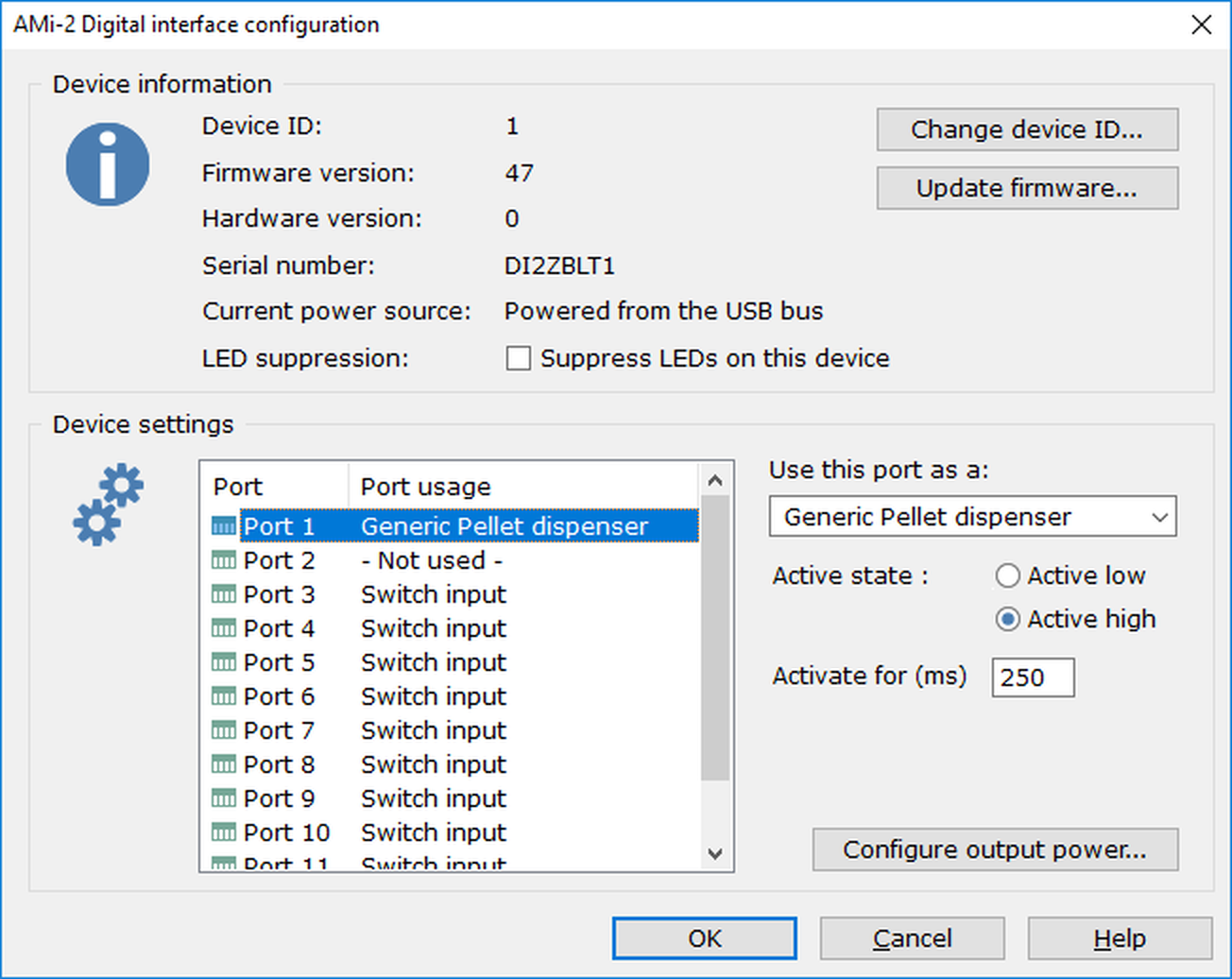
Figure 1. The pellet dispenser port options.
Changing the port's active state
As you'd probably expect, the ANY-maze Digital interface will output a TTL HIGH signal when it is active and a LOW signal when it is inactive. This is usually correct, but you may find that the pellet dispenser that you're connecting to has 'active low' inputs - i.e. to activate it, one needs to output a LOW signal. In this case, you can use the port's Active state options to change the output's configuration accordingly.
Changing the port's activation time
To dispense a pellet, the port needs to activate for a specific amount of time (this information will be available from the manufacturer of your pellet dispenser). You need to enter this time here, in units of milliseconds - if you're not sure what to enter, a value of around 250ms is usually about right.
Connecting to the port
Each connector on the ANY-maze Digital interface contains two ports, the odd numbered port is on pins 1 and 2 and the even numbered port is on pins 3 and 4.
Connecting to an Ugo Basile pellet dispenser
The Ugo Basile pellet dispenser uses both the ports on a connector. You should connect the 'Dispense' signal to pin 1 and the 'Feedback' signal to pin 3. You should also connect GND to either pin 2 or 4. Note that you MUST connect both the signals and one GND line to the pellet dispenser that you want to control.
| | Pin 1 | 'Dispense' TTL output to Ugo Basile pellet dispenser |
| | Pin 3 | 'Feedback' TTL input from the Ugo Basile pellet dispenser |
Connecting to a Generic pellet dispenser
You should connect the TTL signal to pin 1 and GND to pin 2 (if you are using an odd numbered port for the pellet dispenser), OR connect the TTL signal to pin 3 and GND to pin 4 (if you are using an even numbered port for the pellet dispenser). Note that you MUST connect BOTH the TTL signal line and the GND line to the pellet dispenser that you want to control.
For an odd numbered port:
| | Pin 1 | 'Dispense' TTL output to pellet dispenser |
For an even numbered port:
| | Pin 3 | 'Dispense' TTL output to pellet dispenser |
Testing a pellet dispenser port
After you have connected your pellet dispenser to a pellet dispenser port, you will of course want to test it. This is easily done using the I/O page.
| | 1. | Open the ANY-maze Digital interface in the list on the left side of the I/O page. | |
| | 2. | Select the interface's Pellet dispensers, again, in the list on the left side of the page. | |
| | 3. | The right hand side of the page will show all the ports that are configured as pellet dispensers; they will all be shown as inactive (red). | |
| | 4. | Click on one of the ports to activate it - it will change the display to show that the pellet dispenser is 'busy' (like Port 1 in figure 3, below) and the output will momentarily change to the 'active' TTL signal (which will normally be HIGH). A pellet dispenser connected to the output should then dispense a pellet, and the display will revert to the non-busy image. | |
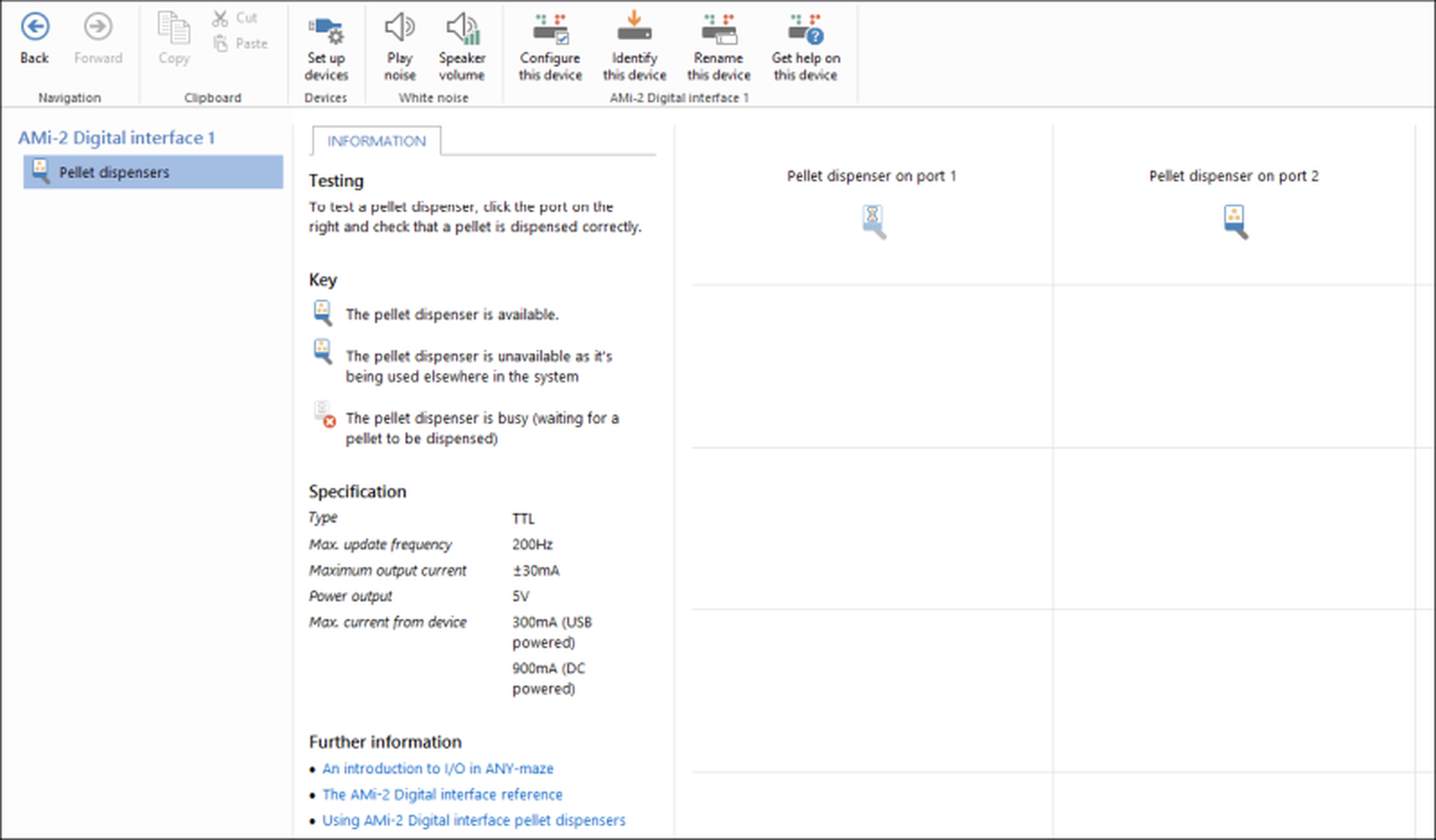
Figure 2. Testing the ANY-maze Digital interface on the I/O page. Here the pellet dispenser connected to port 1 has been activated and is 'busy' dispensing the pellet.
If you find that a pellet does not dispense when you activate the port, then:
| | • | Check the port you're activating is indeed the port you've connected the pellet dispenser to | |
| | • | Check the port's active state and alter it if necessary. | |
| | • | Check that the Activate for... time that you have specified for this pellet dispenser is adequate to cause the pellet to be dispensed. | |
| | • | Check that the pellet dispenser actually contains some pellets! | |
If all else fails, then contact ANY-maze Support who'll be happy to help.
TTL output port specification
| | Maximum update frequency | 200Hz |
| | Maximum output current | ±30mA |
| | Output series resistor | 160 ohm |
| | Max power current | 300mA (USB powered), 900mA (DC powered) |
See also:

© Copyright 2003-2026 Stoelting Co. All rights reserved
ANY-maze help topic T1067
|