ANY-maze Help > The ANY-maze reference > The I/O page > The ANY-maze Watchdog > Setting up the ANY-maze Watchdog activities
Setting up the ANY-maze Watchdog activities

Introduction
To set up a watchdog activity you just have to complete the fields in the window shown below:
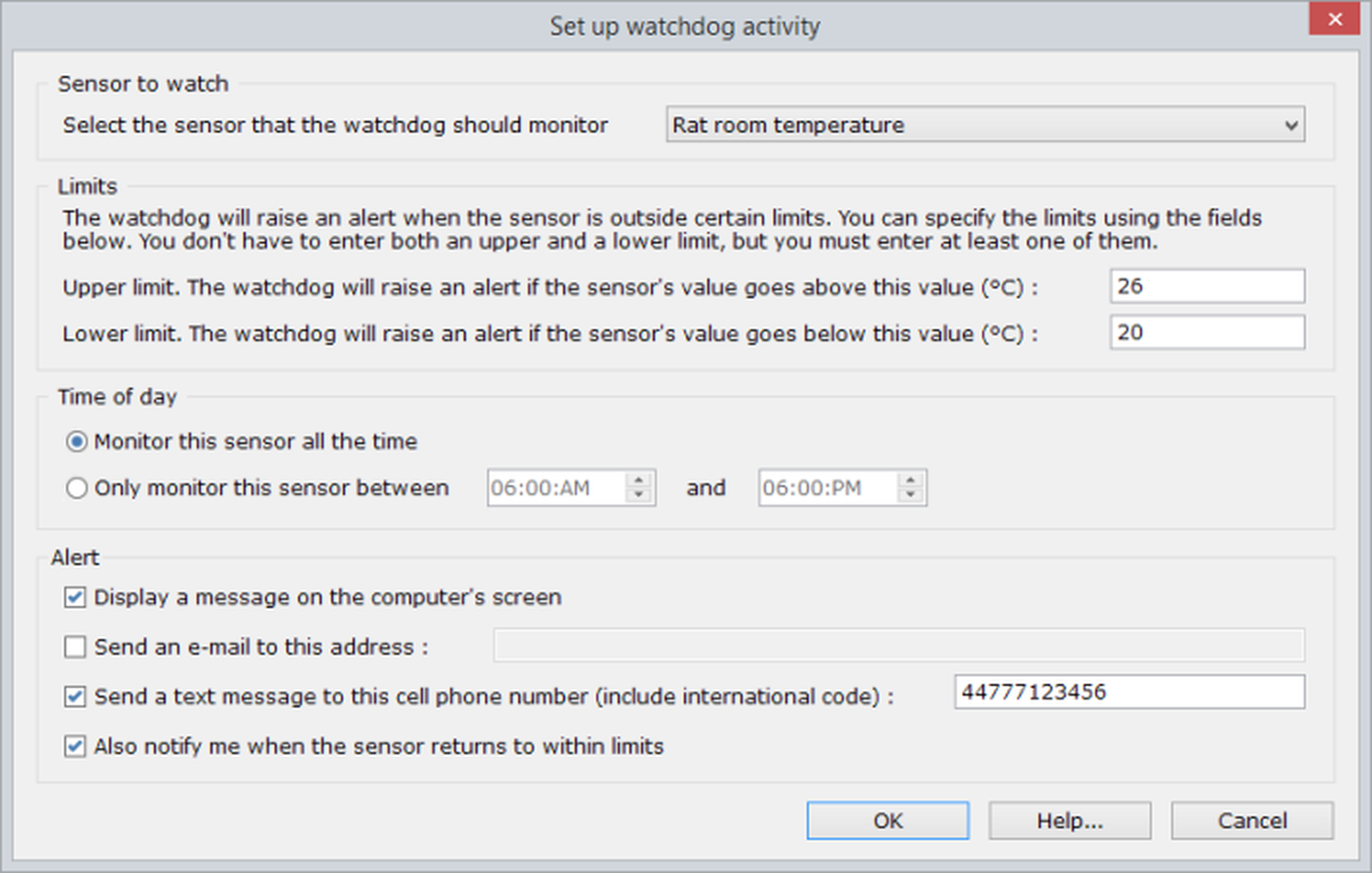
Figure 1. The Set up Watchdog Activity Window used to enter or edit the details of a watchdog activity.
| Sensor | Use this drop-down list to choose the sensor that the watchdog should monitor. All light, temperature and humidity sensors that are connected to your PC will be listed as will the sensor currently being monitored by this activity (when editing) even if it's not actually connected. |
It's very useful to understand that you can set up multiple activities to monitor the same sensor. There are many situations in which this is useful and there's no limit to how many times one sensor can be monitored.
| Limits | Enter the limits that the sensor value must stay inside. For example, if you enter 30 (degrees) as the upper limit for a temperature sensor then the watchdog will alert you when the temperature is greater than 30°C. You don't have to enter both an upper and a lower limit, so if you don't care how cold the sensor gets, you just want to know if it goes above 30°C, then you would leave the lower limit field blank. |
The entry you make must be a whole number with no units. You can enter a minus sign if you want to.
| Time of day | In most cases you will probably want to monitor a sensor all the time, but there may be occasions when you want to limit the monitoring to certain times of day. For example, imagine that you want to use the watchdog to confirm that the light/dark cycle in your animal room is running correctly. To do this you could create one activity that checks that the lights are on and another that the lights are off. You'd want the former to just monitor the light levels during the light period and the latter just during the dark period. In this case it would be wise to start monitoring about 10 minutes after the lights should come on and stop 10 minutes before they go off, just to avoid any problems with time differences between your computer's and your lighting system's clocks. |
| Alert | The watchdog has three ways it can alert you when a sensor goes out of its limits: By displaying a message on the screen, by sending you an e-mail or by sending a SMS message to your cell phone. |
| Message on screen | A message on the screen is the simplest alert, but of course it assumes you'll be near your computer. The message will pop up on top of all open windows and, if you've specified an Alert sound, a sound will play. |
| To send an e-mail you simply need to enter an e-mail address. Your computer doesn't need to have any e-mail software installed although, of course, it does need to be connected to the Internet. You can enter more than one e-mail address if you wish, just separate multiple addresses with commas. |
| SMS message | Perhaps the best way to receive an alert is as an SMS message to your cell phone. In this case you need to enter the cell phone number including the international code and excluding any leading zeros. For example if you are in the UK (international code 44) and your number is 0777-1234-567 then you would enter 447771234567. In this case you can't enter multiple phone numbers, but you can work round this by creating two identical activities with different numbers - when the watchdog detects that the sensor has gone outside its limits it will process both activities and send two SMS messages. |
In order to send SMS messages your computer must be connected to the Internet.
| Return to limits | As well as notifying when a sensor goes outside its limits, the watchdog can also notify you if it returns to within the limits. This can be useful as it allows you to wait and see whether a situation that's been reported, corrects itself. Note that the sensor must return to within limits and remain there for 2 minutes before a "Returned to limits" message will be sent. |

© Copyright 2003-2026 Stoelting Co. All rights reserved
ANY-maze help topic T0928