ANY-maze Help > The ANY-maze reference > Working with files and reports > Saving reports and data > Saving documents
Saving documents

 | In ANY-maze, reports are just one example of documents, and the techniques described here apply to all documents - not just reports. For example, this information also applies to saving a help topic to a file. |
Overview
You can save any report in ANY-maze simply by clicking the  Save button in the ribbon bar, or by right clicking somewhere over the report and selecting
  Save to file... from the menu which appears. This will cause the Save document window to be displayed, where you can specify a name and location for the file and choose the format it should be saved in.
| • | The 'Save document' window |
| • | Formats in which documents can be saved |
| • | Saving just part of a report |
The Save document window
You will probably be familiar with the Save document window already, as it's based on the standard 'save' window used in almost all Windows software.
 | It's often very useful to enlarge this window so you can see more files. You can do this by dragging the bottom right corner with the mouse. |
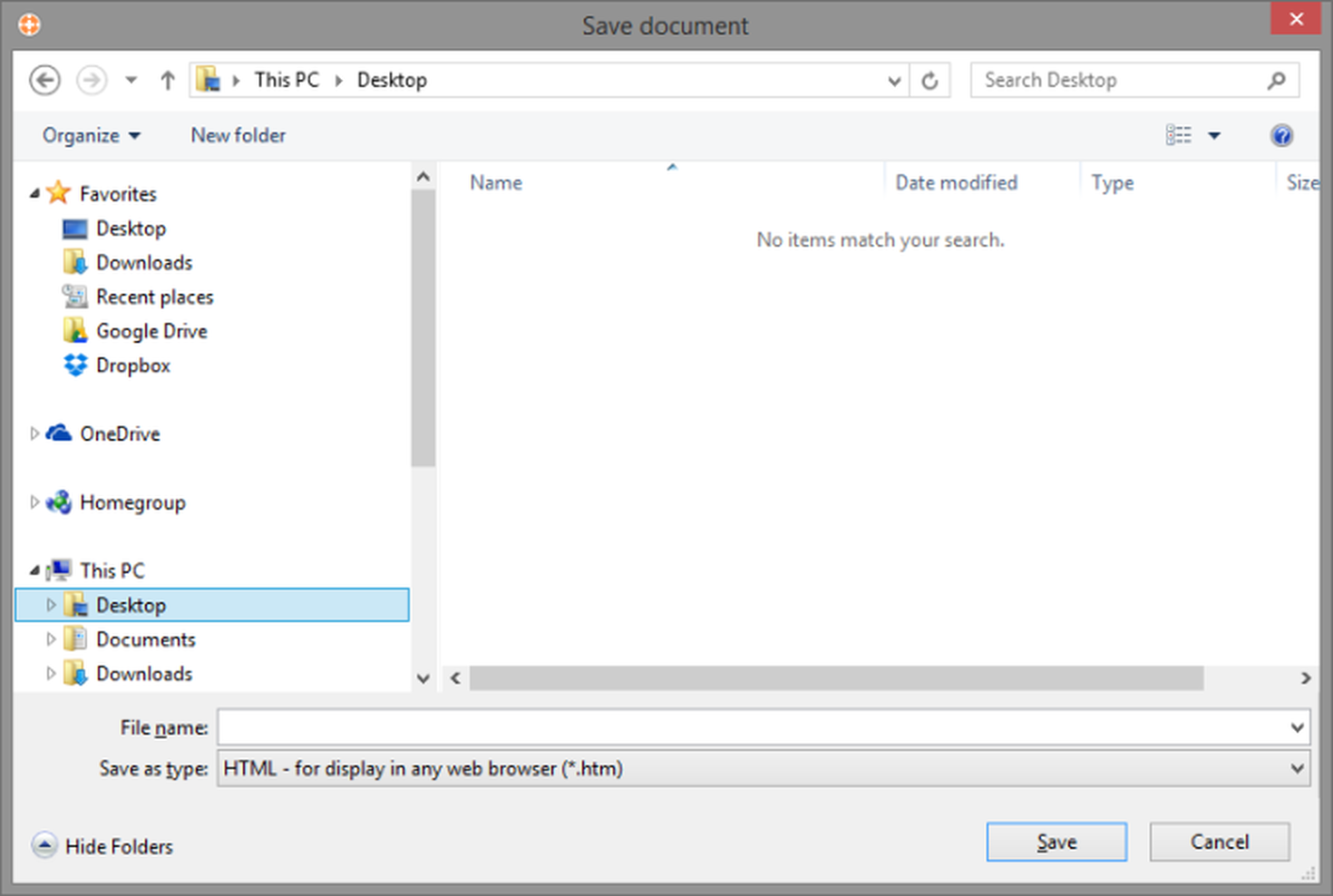
Figure 1. The Save document window.
| Files list | The files list shows the folders and files of the selected type (see Save as type, below) stored in the current location. You can double click a folder to open it, or you can click a file to transfer its name to the File name field. |
| File name | Use this field to enter a name for the file. You can enter up 255 characters, but your entry can't contain any of the following characters: \ / : * ? " < > |. |
| Save as type | You can save documents in a number of different formats, and you should choose the one you wish to use from the list displayed here. The formats themselves are described in detail below. |
Formats in which documents can be saved
| HTML | HTML is the format used for web pages. Saving a document in this format has two big advantages - firstly, all formatting and graphics will be preserved (i.e. the saved document will look exactly as it does on the screen) and secondly, you'll be able to open the resulting file on any computer which is equipped with a web browser, such as Microsoft Edge, Mozilla Firefox or Google Chrome. However, there is one disadvantage to this format - any graphs, track plots/heat maps or other graphical images shown in the report will be saved in individual files - in other words, rather than ending up with one file, you may end up with lots. This can make it rather tedious to move or copy the resulting files. |
| Web archive | Web archive format (also called .mht format) has almost all the advantages of HTML format (see above) but without the disadvantage of creating lots of files - a document saved in web archive format is always saved as a single file. However, there is a downside - this format can only be read by Microsoft Internet Explorer; other web browsers don't support it. Nevertheless, if you expect to view the saved file using Internet Explorer, then this is the best format to use. |
| Rich Text Format | Rich Text format (also called RTF format) is supported by Microsoft Word and many other word processing programs. If you intend to edit a saved file, or you want to cut and paste parts of it, then this is the best format to use. As for HTML and web archive files, the report's formatting and all graphics are preserved by this format. By the way, you may know that Word can also edit HTML documents, so you might be tempted to save a report as HTML and then open it in Word for editing. Although this is possible, we don't recommend it - you'll get better results using RTF. |
| Text Format | Text format (also called TXT format) has the advantage of being almost universal - if you want to read a saved report using a program which doesn't support one of the previous formats, then this is the one to use. However, the big disadvantage of text format is that most formatting and all graphics are lost. |
Saving just part of a report
It's easy to save just a part of a report by following these steps:
| 1. | Move the mouse to the report's left-hand margin, where the mouse pointer will change from a left-pointing arrow to a right-pointing one - see figure 2. |
| 2. | Click and hold down the left mouse button. |
| 3. | Drag the mouse up and down to select the lines of the report which you want to save. |
| 4. | Click the right-hand mouse button and select  Save to file... from the menu which appears. Just the area you selected will be saved. Save to file... from the menu which appears. Just the area you selected will be saved. |
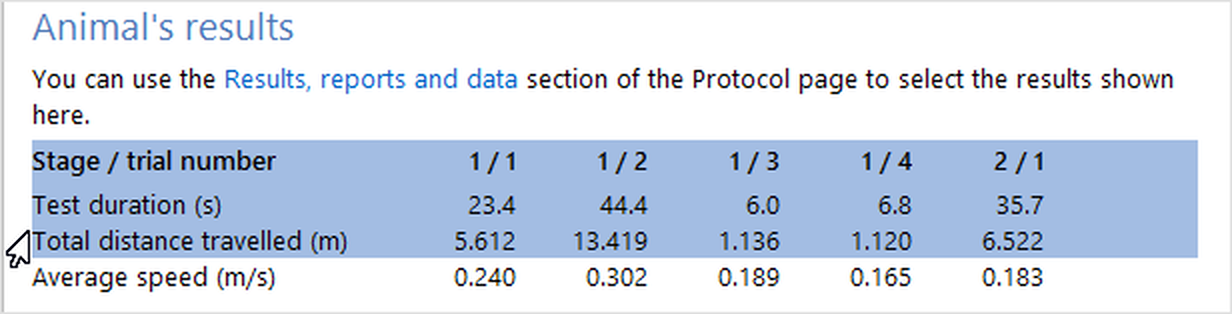
Figure 2. Using the mouse pointer, you can select just part of a report to save.

© Copyright 2003-2026 Stoelting Co. All rights reserved
ANY-maze help topic T0990