ANY-maze Help > Using ANY-maze > Transferring data to other programs > Selecting the data to transfer
Selecting the data to transfer

The Data page is structured like a spreadsheet, with one row for each test performed in an experiment and one column for each measure.
| • | Choosing the measures (columns) to show on the Data page |
| • | Choosing the tests (rows) to show on the Data page |
Choosing the measures (columns) to show on the Data page
As you may know, ANY-maze can analyse a wide range of measures, but in any particular experiment you will generally only use a small sub-set of them. For example, in a water-maze experiment the Test duration would probably be of interest, whereas in a plusmaze experiment it wouldn't be (as it would simply be the same for all your tests).
Fortunately, it's very easy to choose the measures (i.e. columns) which will be included on the Data page:
| 1. | Switch to the Data page. |
| 2. | Select the  Select data button in the ribbon bar. Select data button in the ribbon bar. |
| 3. | The page will change to show two lists; the top-most one includes all of the measures ANY-maze can analyse. |
| 4. | Select the measures you want included on the Data page. You will find that the measures are organised into groups such as 'Animal and test information', 'Apparatus measures', etc. To open a group, simply click its title. To select the measures to include, simply tick the boxes to the left of the measure names - see figure 1. |
| 5. | When you've selected all the measures you want shown on the page, click the  View spreadsheet button in the ribbon bar. The page will change to show the data table with just those measures you selected included. View spreadsheet button in the ribbon bar. The page will change to show the data table with just those measures you selected included. |
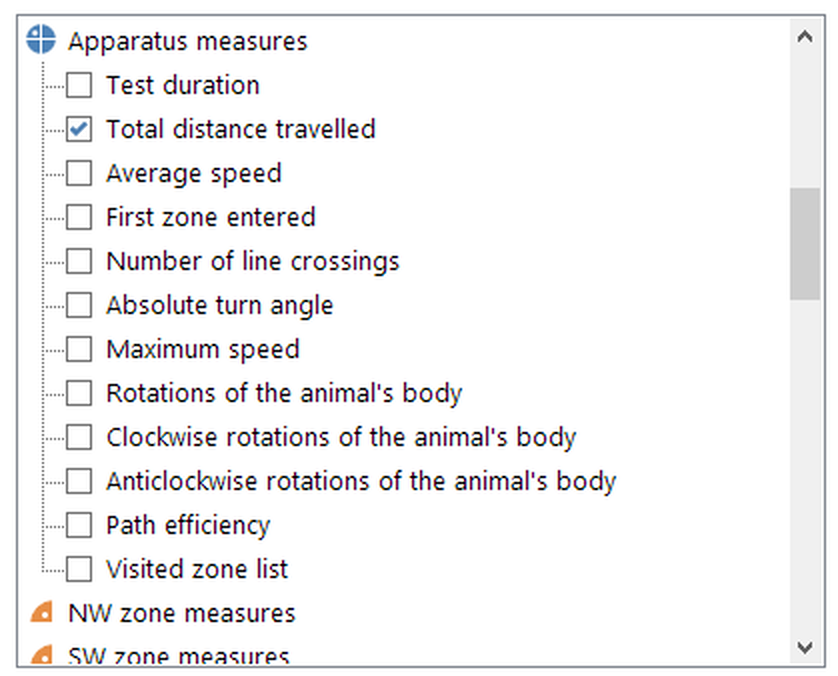
Figure 1. The measures to show on the Data page are organised into groups. Clicking a group's title opens it to show the individual measures.
Choosing the tests (rows) to show on the Data page
In some experiments, you may not want to include all the tests you performed on the Data page. For example, in an experiment which includes a training stage, you might want to include just the animals' last training trial and their 'test' trial. To do this:
| 1. | Select the  Select data button in the ribbon bar. Select data button in the ribbon bar. |
| 2. | The page will change to show two lists; the lower one includes various measures which you can use to limit the tests shown. |
| 3. | To use a particular measure to limit the tests, for example Trial, click its name in the list. |
| 4. | The measure will 'open' to show all of its possible values. Select those you want included in the data table. For example, you might select 'Last training trial' and 'Test trial'. |
| 5. | When you've finished making your selection, click the  View spreadsheet button in the ribbon bar. The page will change to show the data table with just those tests which match the values you selected. View spreadsheet button in the ribbon bar. The page will change to show the data table with just those tests which match the values you selected. |

© Copyright 2003-2026 Stoelting Co. All rights reserved
ANY-maze help topic T0049