ANY-maze Help > The ANY-maze reference > The Video page > Setting up video devices
Setting up video devices

Overview
The Set up video devices window can be used to:
| • | Give 'user-friendly' names to the various video capture interfaces and cameras installed in your computer |
| • | Disable specific devices |
| • | Share devices with other users on your network |
For more information on using this window, use the following links:
| • | The 'Set up video devices' window |
| • | Naming video capture devices |
| • | Disabling video capture devices |
| • | Sharing video capture devices |
| • | Adding network cameras |
| • | Configuring devices |
The Set up video devices window
You can alter the settings for video devices using the Set up video devices window. To open this window, simply click the  Set up video devices button on the ribbon bar of the Video page.
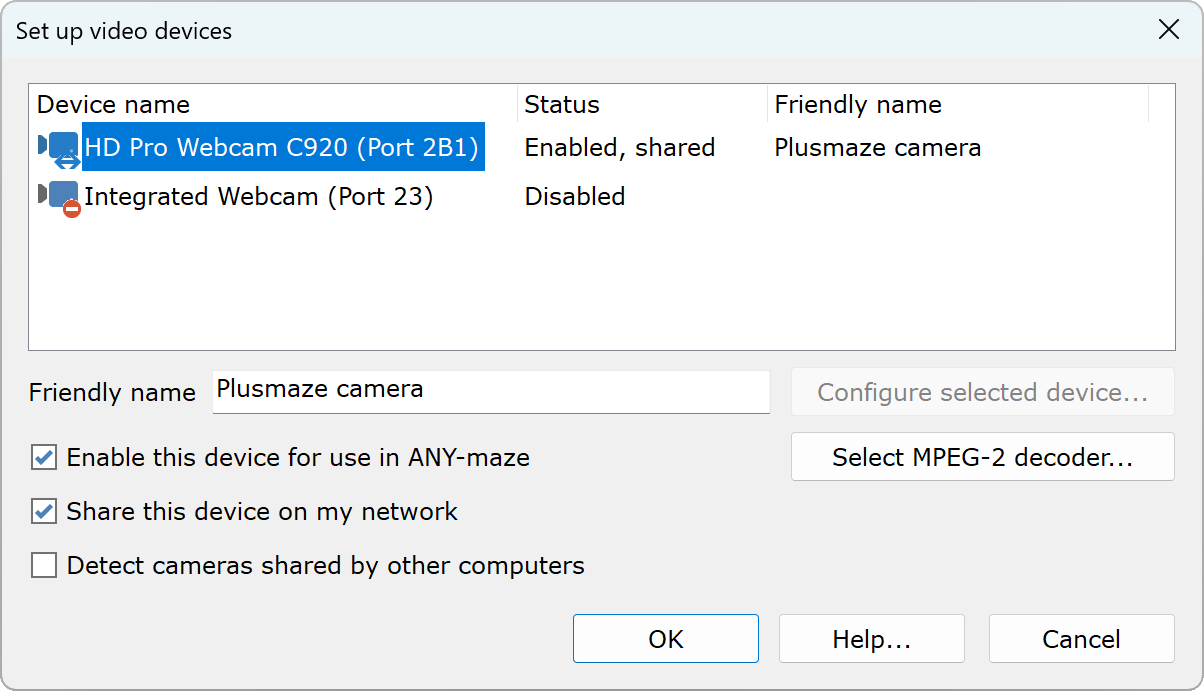
Figure 1. The Set up video devices window.
Naming video capture devices
The video capture devices installed in your computer, such as National Instruments digitizers or USB cameras, are given names by their manufacturers which are often a bit technical, or (in the case of NI digitizers) simply obscure.
To improve on this situation, it's usually a good idea to use this window to give the devices more user-friendly names, which ANY-maze will then use throughout the system.
To name a device, simply select it in the list and then type in a Friendly name. It's usually a good idea to base names on the location of the camera (for example, 'Camera Room 102') or on the name of the apparatus which the camera can see (for example, 'Water-maze camera').
Note that you're not obliged to provide user-friendly names if you don't want to, and if you only have a single camera, you might feel it's unnecessary.
Disabling video capture devices
ANY-maze automatically searches your computer for video capture devices that it can use, and then makes them all available to you. While this is normally what you'll want, there may be occasions when it would be inappropriate (or impossible) to use one or more of the devices that it finds.
For example, most notebook computers have cameras built into their lids, which you'd be unlikely to be able to use for tracking. Also, some older devices simply don't work in modern computers - such as the capture devices built into older ATI All-In-Wonder devices - so again, you'd want to disable them in ANY-maze.
To actually disable a device, simply select it in the list and then un-check the box labelled Enable this device for use in ANY-maze.
Sharing video capture devices
Normally, the video images captured by a digital camera or a digitizer card are only available to the computer to which the device is physically attached. However, by sharing a device, you can make the images available to any other computer on your network that's running ANY-maze.
To share a device, you need to do three things:
| 1. | Select it in the list and then check the box labelled Share this device on my network. |
| 2. | Make sure that the computer the device is connected to and any computers that will be accessing the device have been set to be discoverable on your network. You'll find instructions on how to do this here. |
| 3. | Make sure that the computer the device is connected to, is set to Share files and printers. You'll find instructions on how to do this here. |
To view images from a shared device you need to do two things:
| 1. | Check the option to Detect cameras shared by other computers. This option will be disabled unless you are running ANY-maze as an administrator. |
| 2. | You need to ensure that your firewall is configured to allow UDP packets to be received by ANY-maze. This will often happen automatically, although you may see a message from Windows asking you to confirm the change. You'll find more information here. |
With these requirements met, a shared device will automatically appear as an available video capture device on the other computers on your network. If this does not work you'll find a troubleshooting guide here.
Using a shared device is essentially the same as using one that's attached directly to your computer. The only difference relates to how ANY-maze resolves conflicts when two users want to share the same device:
| • | If you want to use a shared device in an experiment, then you'll use it as the Source of video images in one of your video sources. When you do this, ANY-maze will lock the device so that no one else can use it at the same time (well, almost - see below). This is important because otherwise a user on another computer could access the device and, for example, alter the brightness or contrast of the image - if they happened to do this in the middle of a test, they'd ruin your experiment. So, a device being used in an experiment is 'locked'. |
| • | If you try to access a device that's been locked by a user on another computer (see the previous point), ANY-maze will display a message telling you that the device isn't available, and informing you which computer has locked the device. |
| • | Although you will mainly use video capture devices in experiments, you can also view the images from a device on the Video page. The difference here is that ANY-maze won't lock a shared device that's displayed in the Video page, so any number of users can view the image at the same time. In fact, it will even let you view the image from a device that is locked (because on the Video page there's no way to alter the device's settings). This has the advantage that you can use the Video page to view images that are actually being used in a live experiment. |
For example, imagine you have a computer in your lab that you're using to track an animal in its home cage for 72 hours. Clearly, you're not going to stay in the lab the whole time watching the experiment on the computer's screen. Nevertheless, you might like to be able to keep an eye on things - so you could simply use ANY-maze on the computer in your office to view the video images of the animal in the lab - see the diagram below.
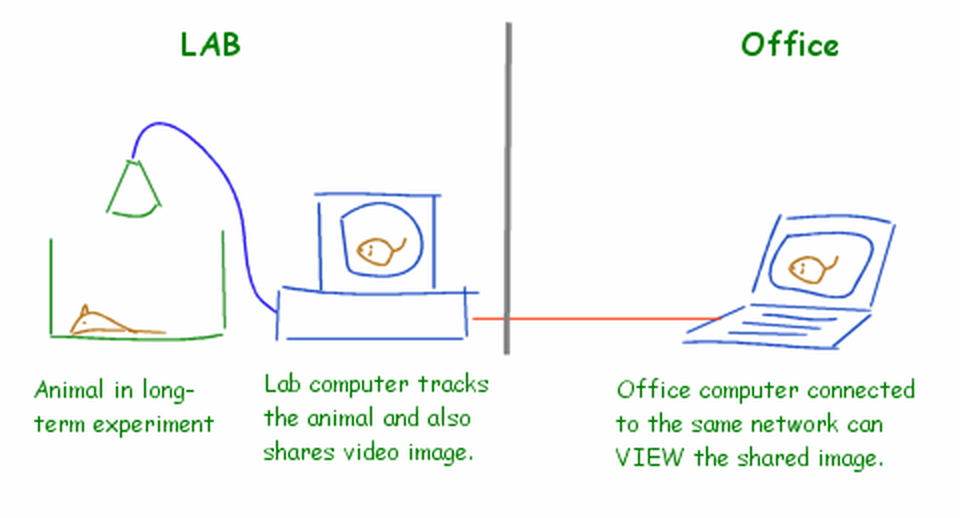
Figure 2. Using sharing to monitor an experiment at a distance.
Adding network cameras
If you have an Axis network camera connected to your network, then ANY-maze will be able to track animals in the images it shows.
However, ANY-maze can't automatically detect that network cameras are present, so you need to tell it about each camera you wish to use. This is very simple to do - just click the Add network camera... button and enter the camera's details into the Axis camera configuration window that opens.
Configuring devices
Some devices, such as RTV-24 digitizers and Axis cameras, can be configured within ANY-maze. For these devices, a button labelled Configure selected device... will be shown in this window. If you click it, a configuration window specific to the selected device will open.
Further details can be found in these topics:
| • | The RTV-24 configuration window |
| • | The Euresys digitizer configuration window |
| • | The Axis camera configuration window |
| • | MPEG-2 decoder configuration |

© Copyright 2003-2026 Stoelting Co. All rights reserved
ANY-maze help topic T0930