ANY-maze Help > The ANY-maze reference > The Tests page > Recording and tracking with videos > Recording videos of tests > The ANY-maze video recorder settings window
The ANY-maze video recorder settings window

Overview
A typical video camera supplies around 30 images per second, therefore to create a video these images simply need to be recorded to a file and then later played back, again at a speed of 30 per second.
The problem with this is size. A typical image might measure say 400 x 400 pixels and if each pixel requires 1 byte of memory a 5 minute video will require: 400 x 400 x 30 x 60 x 5 = 1,440,000,000 bytes or a about 1.3GB for just 5 minutes of video! Obviously, the solution to this is to compress the video pictures.
In fact in ANY-maze two techniques are employed, firstly the number of frames per second can be reduced, for example a video playing at 15 frames per second still appears fine, and secondly the images themselves are compressed.
There are many video compression techniques employed nowadays but, from ANY-maze's point of view, they suffer from one of two problems, either the compression requires too much computation (which might make it impossible to track and record a video at the same time in multiple apparatus) and/or the compression loses too much information from the picture thereby reducing the quality and thus making it impossible to track using the resulting video file. For these reasons ANY-maze uses its own video compression technique which can be controlled using the options on the Video recorder settings window.
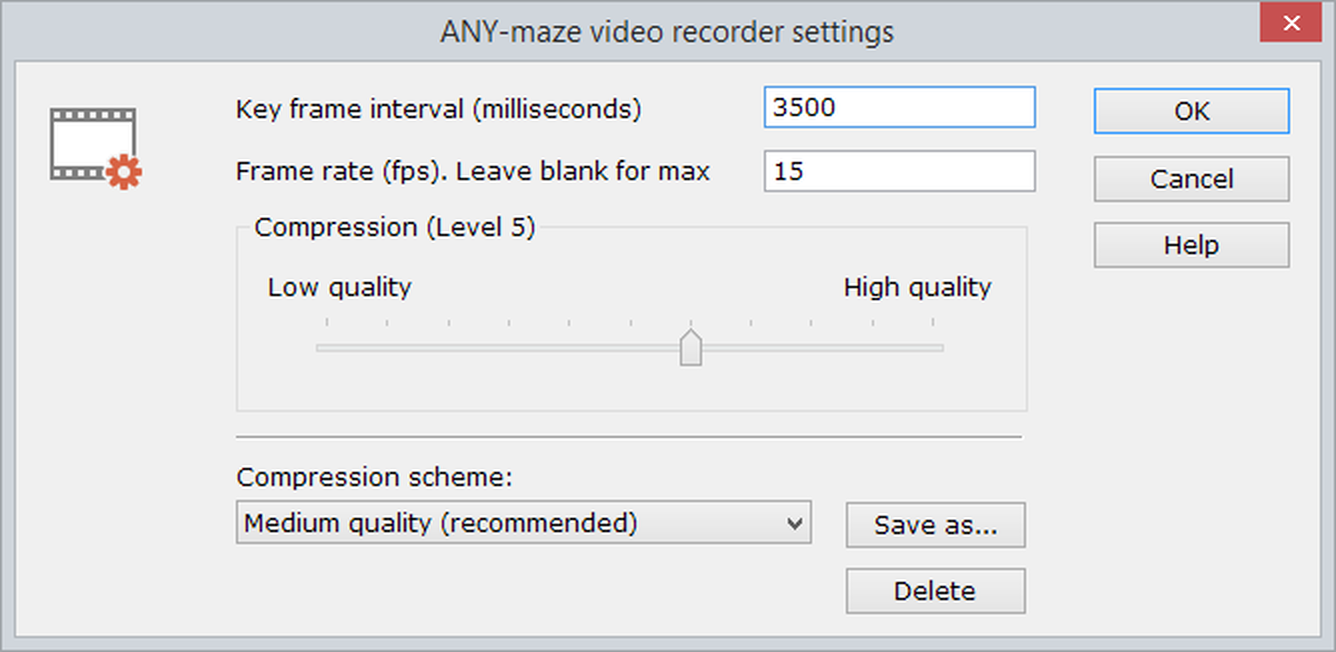
Figure 1. The ANY-maze video recorder settings window.
Details
| Key frame interval | Allows you to specify how often a key frame should be saved. To understand this setting you need to know what a key frame actually is. One way in which ANY-maze video compression works is to compare an image to the previous image and save just the differences. However, this has a disadvantage in that each image depends on its predecessor so if, for example, you wanted to jump to the image at time 60 seconds in a video the system would have to get and process all the images up to this time. This would clearly be absurd if you wanted to jump to time 10 hours! To overcome this the system saves occasional key frames which don't rely on any previous image, thus to jump to an image the system finds the immediately previous key frame and then decodes just the images from there on. As you might expect a key frame is larger than a normal frame and so it's not a good idea to save them too frequently, on the other hand if you don't save them often enough, it can make jumping to different parts of a video slower. So, the key frame interval, sets how often key frames are stored - settings of around 4000 milliseconds are usually fine but you could use larger values if you want to improve compression. |
| Frame rate | Specifies how many frames should be recorded per second. Smaller values create smaller files but values below 10 tend to create video that looks jerky during playback. If you want to record every frame from the camera (whatever its frame rate is) then simply leave this field blank. |
| Compression quality | One of the compression techniques used in ANY-maze involves throwing away some of the information in the video pictures. Generally speaking quite a lot of information can be removed from a video image without the subjective image quality changing very much. This option is used to set just how much information is discarded - the lower the quality the better the compression will be, but the more information will be lost. You will probably want to experiment with different settings depending on what you actually intend to use the recorded videos for. |
Saving your settings as a scheme
If you make adjustments to the settings in this window you can optionally choose to save your new settings as a 'compression scheme'. The scheme will then appear in the list at the bottom of the Record video window, making it easy for you to reuse it.
Saving a scheme
To save your settings as a compression scheme simply click the Save as... button. The Save video compression scheme window will then open where you can give your new scheme a name.
Editing and deleting scheme
If you want to edit a scheme you've already saved then you should first select it in the Compression scheme drop-down list and then make your adjustments. Next, click the Save as... button and re-save the scheme using the same name as it has already - the new settings will then overwrite the old ones.
To delete a scheme you should select it in the Compression scheme drop down list and then click the Delete button.
 | You can't edit or delete the standard: Best quality, Medium quality and Low quality schemes. |

© Copyright 2003-2026 Stoelting Co. All rights reserved
ANY-maze help topic T0828