ANY-maze Help > I/O devices supported by ANY-maze > Accessories designed specifically for ANY-maze > The ANY-maze TTL cable
The ANY-maze TTL cable

Introduction
The ANY-maze TTL cable is an inexpensive USB-based TTL level I/O device which provides two TTL level ports that can be individually configured as inputs or outputs. Thus the cable can be used to read TTL signals from other devices, or to control such things as shockers or pellet dispensers that have a TTL input.
| • | Connecting and testing the cable |
| • | Configuring the cable's ports |
| • | Using inputs |
| • | Using outputs |
Connecting and testing the cable
Installing the driver
 | You must be running ANY-maze as an administrator in order to install drivers. To do this, right-click on the icon you use to start ANY-maze and then select 'Run as administrator' from the menu which appears. (If you run ANY-maze by clicking on an icon in the Windows task bar at the bottom of the screen, then you should right-click the icon, then right-click the entry that reads 'ANY-maze' and then select 'Run as administrator' from the menu which appears). |
IMPORTANT: You should install the driver software BEFORE you connect the TTL cable to your computer.
The driver software is a standard component of the ANY-maze system, and can be installed from within ANY-maze itself by following these steps:
| 1. | Close any open experiment. |
| 2. | Switch to the Support page. |
| 3. | In the list on the left side of the page, select Drivers. |
| 4. | The right-hand side of the page will display the ANY-maze driver settings (see figure 1, below) and towards the top of the list you will see an entry for ANY-maze USB devices which will report the current installed-state of the driver. |
| 5. | If the driver is not installed, first select it in the list and then click the  Install driver button in the ribbon bar. If the button is disabled, it means you are not running ANY-maze as an administrator - see the note above. Install driver button in the ribbon bar. If the button is disabled, it means you are not running ANY-maze as an administrator - see the note above. |
For further details, see the ANY-maze USB device driver topic.
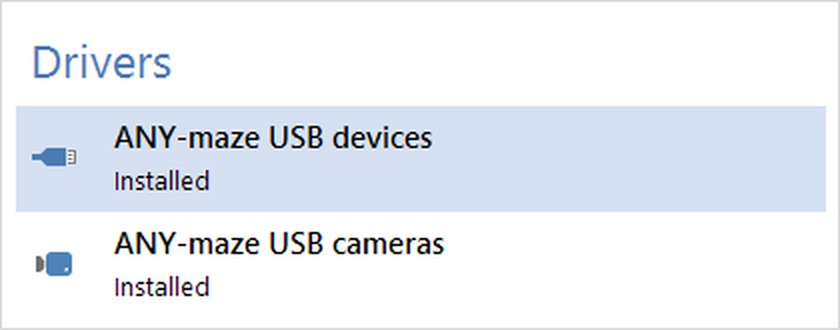
Figure 1. To install the driver, you should select the ANY-maze USB driver entry and then click 'Install' in the ribbon bar.
Connecting the cable
Once the driver is installed, you can connect the cable - it simply plugs into a USB port on your computer. It can connect to any port, including ports on USB hubs. The cable is powered directly from the USB port and draws a current of just 70mA, so it should work correctly even with an unpowered hub.
Testing the TTL cable
First acquaint yourself with the cable pin-out which is shown in the image below.
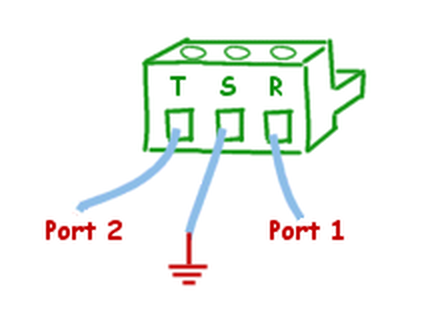
Figure 1. Pin-out of the ANY-maze TTL cable
In summary, looking into the screw terminals the lines are:
| 1. | R = Port 1 (on the left) |
| 2. | S = Ground (in the middle) |
| 3. | T = Port 2 (on the right) |
By default, the TTL cable sets port 1 to be an output and port 2 to be an input (this can be changed by re-configuring the cable). This default configuration makes it very easy to test the cable:
| • | Start ANY-maze. |
| • | Switch to the I/O page - there you should see the TTL cable listed on the left side of the page. |
| • | Click the cable in the list and it will open to show a list of ports. Select the Input switches entry. |
| • | The right-hand side of the page will then show a graphical representation of port 2 (which by default is an input). The input is active low (and is pulled high) so you can just short it to ground to make it active. Try this, and it should be shown active (green); remove the short to GND and it should be shown as inactive (red). |
| • | Next, select Output switches in the list of the cable's ports. |
| • | The right-hand side of the page will then show the cable's port 1 (which by default is an output). Clicking the port's icon should make the output active (which makes it low as the output is active low), clicking the icon again should make it inactive. |

© Copyright 2003-2026 Stoelting Co. All rights reserved
ANY-maze help topic T1187