ANY-maze Help > The ANY-maze reference > The Options page > Filing options
Filing options

Overview
The filing options allow you to specify the location of your personal ANY-maze folder and to customise the way that ANY-maze saves and loads experiment files.
| • | Accessing the filing options |
| • | Specifying file locations |
| • | Specifying other filing options |
| • | Default locations for the shared and personal ANY-maze folders |
Accessing the filing options
To access the filing options, select the Options page and then click the  Filing option in the left-hand side bar.
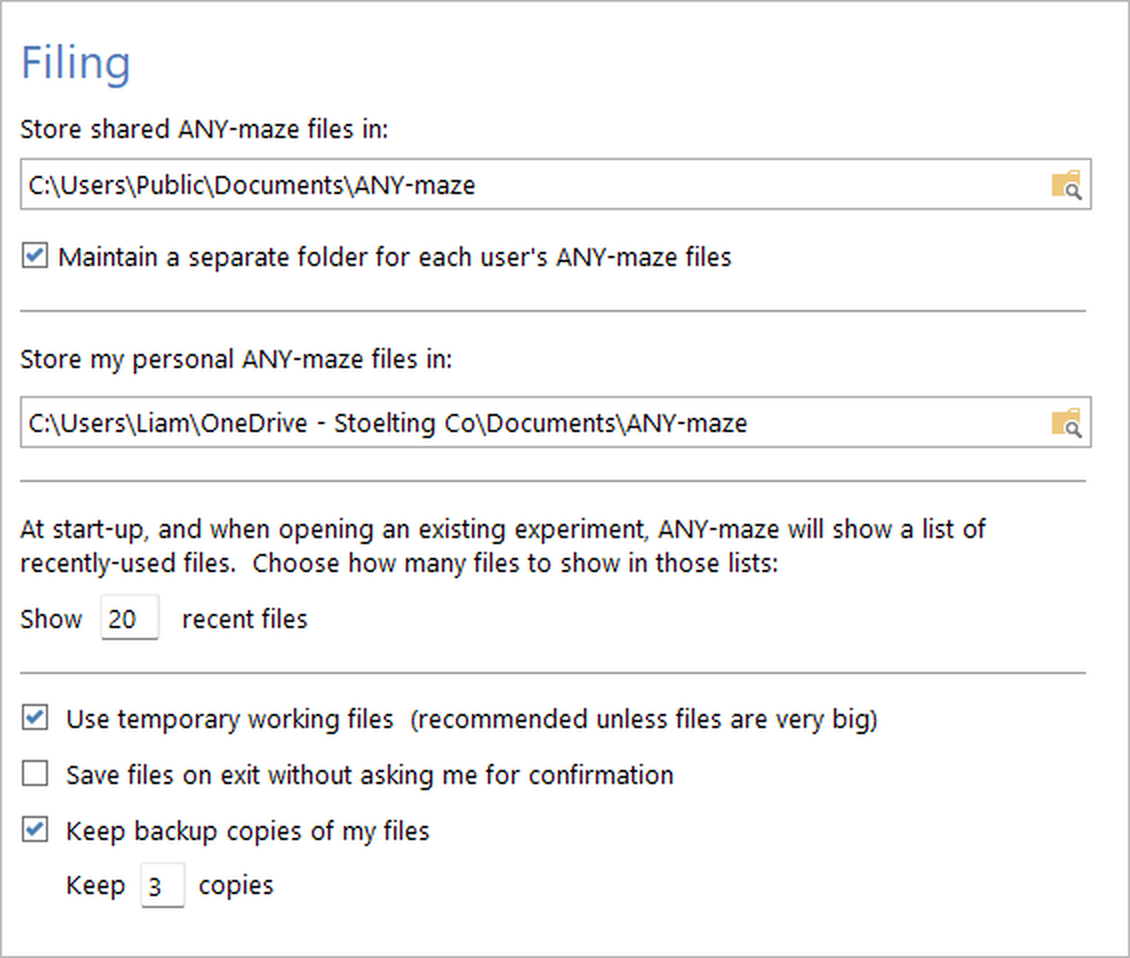
Figure 1. The Filing settings on the ANY-maze Options page.
 | The exact options available on this page will depend on whether you're an ANY-maze administrator and if you're not, on how the ANY-maze administrator has configured the system. |
Specifying file locations
ANY-maze includes two special locations for files: the shared ANY-maze folder and users' personal ANY-maze folders.
| The shared ANY-maze folder | This folder is available to all users and is intended to be used to save common files such as shared protocols, examples etc. |
Only an ANY-maze administrator can set the path of the shared ANY-maze folder. When an administrator is logged on, the Filing options will include a field where the shared folder path can be typed in and a  button which can be used to browse for the desired folder.
| Personal ANY-maze folders | An ANY-maze administrator can configure the system to maintain a separate personal folder for each user - these folders are intended to be used for personal files such as experiments, personal protocols etc. |
An ANY-maze administrator can specify that ANY-maze should maintain a personal folder for each user by checking the option to Maintain a separate folder for each user's ANY-maze files. This option only appears on the Filing page when an administrator is logged on.
Each user can specify where his or her personal ANY-maze folder is located, either by entering the path into the field titled Store my personal ANY-maze files in or by clicking the  button next to the field and browsing for the folder.
Both the shared ANY-maze folder and the personal ANY-maze folder will automatically be included as 'Places' on the File page's New experiment and Open experiment options, as places to look for experiment and protocol files. For more details, see Using 'Places' to quickly access your files.
Note that you can specify network locations for both the shared ANY-maze folder and/or personal ANY-maze folders. This can be a good idea if your lab has a file server which is regularly backed-up.
Full details of the default locations for these folders are given at the end of this topic.
Specifying other filing options
Apart from specifying file locations, there are four other filing options which are always available to all users:
| Show ... recent files | When you start the ANY-maze software, the File page will show a list of the most recently-used experiment files, for quick access, together with options to create new experiments from a list of the most recently-used protocols. The New experiment and Open experiment options on the File page also contain lists of the most recently-used protocols and experiments, respectively. |
You can choose how many files are displayed on these lists by making an entry here. You can enter any number from 4 to 30. Note that if there isn't enough room for all of the files to be displayed, then ANY-maze will only display those which it has space for, up to the number entered here.
| Use temporary working files | Normally when you open an experiment file, ANY-maze actually makes a temporary copy of the file and opens that. This means that changes you make are applied to the temporary file and not to the experiment file itself. When you 'save' the experiment, what the system actually does is transfer the contents of the temporary file (where the changes you made have been stored) to the experiment file. |
ANY-maze uses this apparently odd way of working because it stores all changes to an experiment as you make them, which makes the system more reliable. However, if all the changes were stored directly to the experiment file, there would be no method for you to 'Cancel' the changes - in other words you wouldn't be able to choose to not save your changes.
Normally you don't need to concern yourself about the fact that the system works this way, as it all seems quite intuitive. However, if the experiment file is very big and/or your computer is not very fast, then this copying of the experiment file when you open it can take an appreciable length of time. In this case you may wish to change the system so it doesn't use a temporary file, but instead alters the experiment file directly. That's what turning off this option will do.
Unless your experiment files are taking a long time to open, we strongly recommend you keep this option turned on.
| Save files on exit... | Normally when you exit from ANY-maze (or when you load a new file) the system checks whether you have made any changes to the file which is currently open, and if you have, asks whether you want to save them - naturally you will almost always say 'Yes'. |
By checking this box, you can instruct the system to automatically save your changes whenever you exit, without asking you if you want to. This makes the system 'cleaner' to use, and there's less chance that you'll fail to save your work. If at some point you DON'T want to save changes, then you have to be a little careful - just closing an experiment WILL save them. Instead you should select the option on the File page to Revert to saved experiment.
If you have chosen not to use temporary working files (see the previous option) then this option will be disabled, because all changes are saved as soon as you make them.
| Keep backup copies of my files | If you check this box then ANY-maze will automatically create a backup copy of files when you save them. In general, this is a good idea, although it obviously uses up more space on your hard disk. There's more information about this in the Saving experiments topic. |
If you have chosen not to use temporary working files (see the option above) then this option will be disabled, because the backup file which the system keeps is actually the original experiment file before the temporary working file replaces it.
Choosing this option will allow you to enter the number of backup copies to keep - the default is 3, although you can enter any number between 1 and 9.
Default locations for the shared and personal ANY-maze folders
Shared ANY-maze folder
ANY-maze will automatically select a location for the shared ANY-maze folder during installation. This will be a folder called ANY-maze in the Windows shared/public documents folder. This will generally be C:\Users\Public\Documents\ANY-maze
Personal ANY-maze folders
The default location for personal ANY-maze folders depends on whether ANY-maze is using Windows user accounts or is managing users itself. If it's using Windows users, then the default location is a folder called ANY-maze in the user's My documents folder. This will generally be C:\Users\[Name]\Documents\ANY-maze
If ANY-maze is managing users, then the location is a folder with the same name as the user, which is located inside the shared ANY-maze folder - see above.
See also:
| • | ANY-maze options |
| • | Working with ANY-maze files, reports and videos |
| • | The Startup page |
| • | Opening experiment files |
| • | Saving experiment files |

© Copyright 2003-2026 Stoelting Co. All rights reserved
ANY-maze help topic T0958