ANY-maze Help > I/O devices supported by ANY-maze > Legacy I/O devices > The ANY-maze interface (AMi) > The AMi ports > The AMi sensor ports > Configuring AMi sensors
Configuring AMi sensors

 | Unlike most other things in ANY-maze, sensor configuration is not specific to an experiment or protocol; rather, it is specific to a computer. |
Introduction
The AMi sensors have unique IDs built into them during manufacturing. However, these are rather technical and hard to remember, so you can use the Sensor configuration window to give them more meaningful names.
This window is also used to specify which temperature sensor should be read when specific light sensors' TEMP buttons are pressed, as well as allowing you to choose which light and temperature sensors, if any, should have their values shown in the main ANY-maze status bar.
| • | Giving sensors meaningful names |
| • | Linking temperature sensors to light sensor 'TEMP' buttons |
| • | Choosing sensors to display in the status bar |
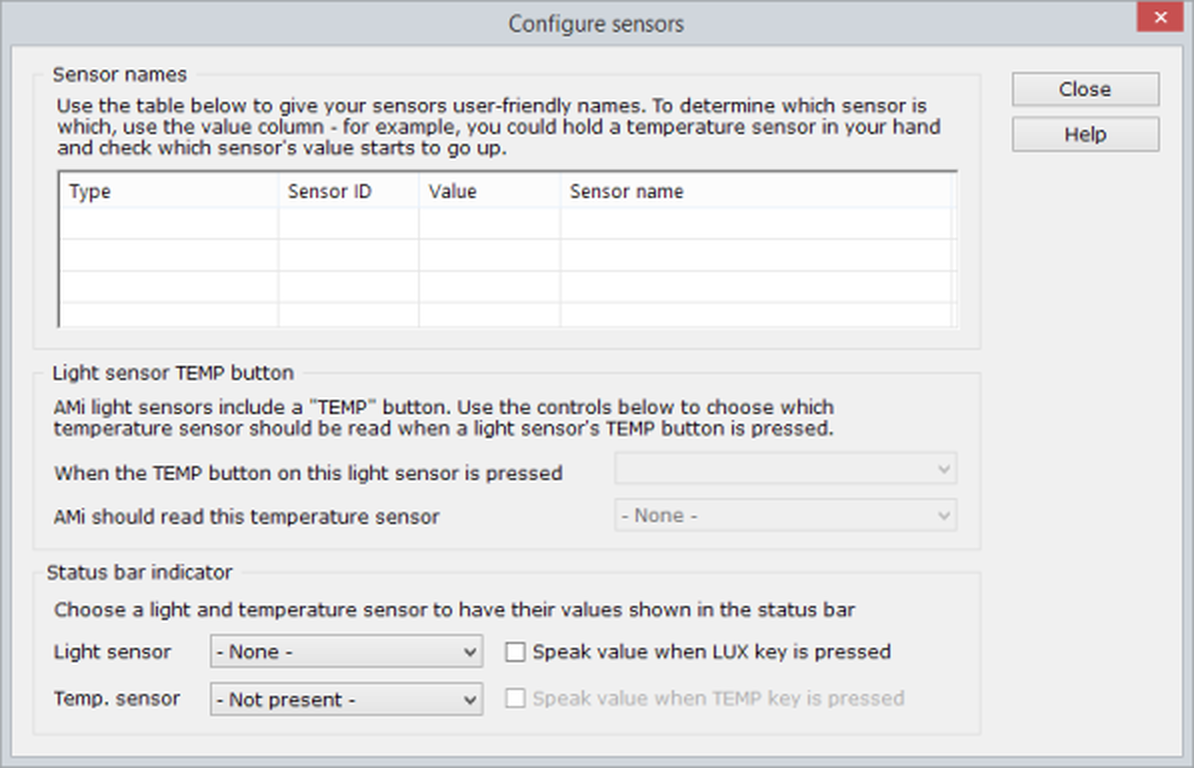
Figure 1. The AMi sensor configuration window.
Giving sensors meaningful names
To name a sensor, you simply need to enter a name into the appropriate row of the sensors table. Of course, to do this you need to know which sensor is which - as by default, they'll just be shown with their IDs. There are two ways you can do this, either unplug all the sensors except one, or make a sensor change its value - for example, by blocking a light sensor or by holding a temperature sensor in your hand so the temperature goes up.
Having worked out which sensor is which, you should give them names related either to where they are or to what they'll be used for. For example, if you have four temperature sensors installed inside some sound attenuating chambers, then you could call the sensors 'Chamber 1', 'Chamber 2', etc. On the other hand, if you have a light sensor you intend to use as a general light meter to check light levels in diverse apparatus, then you could just call it 'Light meter'.
You can enter anything you like as a sensor's name, up to a maximum of 32 characters.
You can change a name at any time without any side effects.
Linking temperature sensors to light sensor 'TEMP' buttons
The AMi light sensors have two buttons on them labelled LUX and TEMP. As you'd expect, when you press the LUX button ANY-maze will register the light level of the sensor whose button you pressed - but what about the TEMP button; which sensor's value should be registered?
To address this, you simply need to link a specific temperature sensor with each of your light sensors. This is done using the two drop-down lists in the Light sensor TEMP button section of the sensor configuration window. You should first choose a light sensor and then choose the temperature sensor that should be read when that light sensor's TEMP button is pressed. You can specify 'None' if you don't want to use the TEMP button.
In case you're wondering why you'd want to do this at all, consider this example: Imagine you want to register the light level and water temperature in your water-maze before every test. To do this, you could connect a temperature sensor to a light sensor and then before each test, you could hold the light sensor over the maze, drop the temperature sensor into the water and then just press the LUX and TEMP buttons. Assuming you'd set your protocol accordingly, ANY-maze would register the light level and temperature and these values would appear in your experiment's results where you could analyse them just like any other test result.
Choosing sensors to display in the status bar
In some cases, you may just want to check a light level or temperature without actually recording the value - for example, you might want to dim the lights in your room until the light in your maze is 100 lux.
To address this, ANY-maze allows you to choose a light sensor and a temperature sensor whose values should be displayed in the status bar. These values will be displayed all the time, but this doesn't stop you using the sensors for other things; for example, you can still use them in specific protocols as well.
As well as simply displaying the sensor's values, you can also have ANY-maze speak their values when you press their LUX and TEMP buttons. This is useful if you want to measure the light level over your apparatus but when holding the sensor there, you can't see your computer's screen - in this case, if you press the LUX button on the sensor ANY-maze will speak the light level; for example it will say '100 lux'. To speak the value, ANY-maze will use the computer's default voice, which you can set by selecting 'Speech' in the Windows Control panel. We've found the 'Microsoft Mary' voice is the best of the default voices, but you can install more voices if you wish.
See also:
| • | The AMi sensor ports |
| • | The ANY-maze watchdog |

© Copyright 2003-2026 Stoelting Co. All rights reserved
ANY-maze help topic T1175