ANY-maze Help > I/O devices supported by ANY-maze > The ANY-maze Operant interfaces > Creating an Operant protocol > Add Operant cages Wizard : Cameras
Add Operant cages Wizard : Cameras

Introduction
If you've set your Operant protocol up to use video tracking (by selecting a 'Full' protocol sub mode, or opting to use video observation in your protocol) then the 'Add Operant cages' wizard will show a page allowing you to choose which camera is linked to which apparatus.
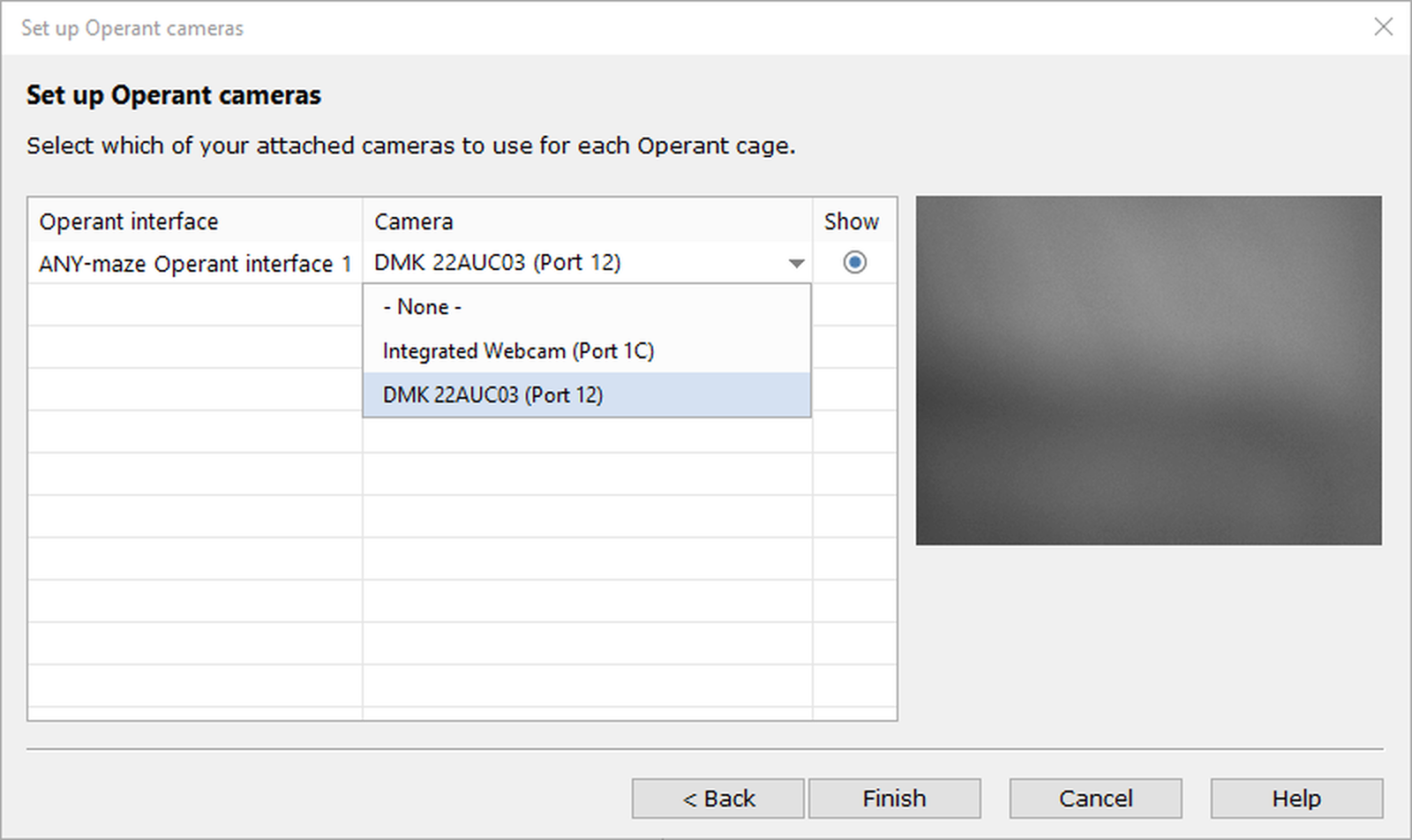
Figure 1. The Set up Operant cameras window, which allows you to select which camera is linked to which ANY-maze Operant interface.
Details
Each ANY-maze Operant interface that you're adding to your protocol will be listed here, and you can select from a drop-list which camera should be used as the video source for each cage. As you select a camera from the drop-list, its video stream will be shown on the right-hand side of this window. You can switch between which camera's stream is shown using the 'Show' button in the last column.
If you've got multiple Operant cages which all look very similar from above, a simple way of determining which video is which is to write each cage number on a piece of paper and drop it into the relevant cage. That way, when you select the camera on this page, you can easily see which camera is which.
See also
| • | An introduction to video sources |
| • | Selecting the area of a video picture which shows a piece of apparatus |

© Copyright 2003-2026 Stoelting Co. All rights reserved
ANY-maze help topic T1119