ANY-maze Help > I/O devices supported by ANY-maze > Accessories designed specifically for ANY-maze > The ANY-maze multifunction remote > Using the multifunction remote in ANY-maze > Using the multifunction remote ultrasound sensor
Using the multifunction remote ultrasound sensor

Introduction
The ultrasound sensor in the multifunction remote measures the ambient ultrasound levels in the frequency range from 20KHz to 80KHz and power range 26dB to 70dB.
Note that the intended use for the ultrasound sensor is to measure ambient ultrasound (rather than to detect ultrasound vocalisations during tests) allowing you to ensure that all animals are being tested in similar conditions.
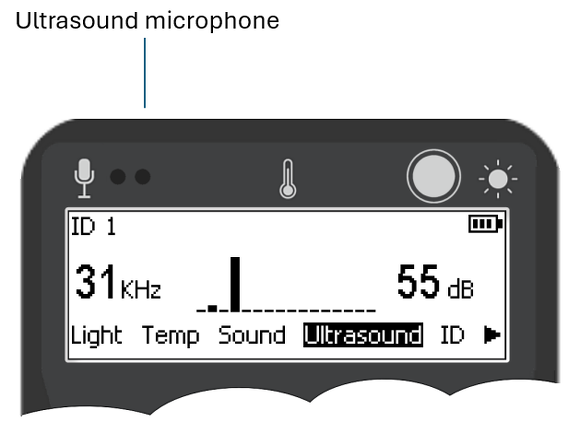
Figure 1. Location of the ultrasound sensor.
Reading ultrasound levels with the remote
 | Remember, if you want to prevent the multifunction remote from going to sleep, press and hold the Next button. |
To measure the ultrasound level, select the 'Ultrasound' option on the remote. The display will show a histogram of ultrasound levels at different frequencies (20KHz on the left, up to 80KHz on the right), with the peak frequency and peak power shown on the left and right of the histogram respectively (see figure 1, above).
Freezing the ultrasound level reading
Pressing the Enter button will freeze the current ultrasound level on the screen, and a 'Frozen' symbol will appear. The ultrasound level will unfreeze after the freeze period ends. This feature is particularly useful when you need to take a reading in a location where you can't view the screen
Testing the ultrasound level sensor in ANY-maze
While the untrasound level is 'frozen' (see previous section) pressing the Enter button on the remote will transmit the peak ultrasound level to ANY-maze. To test this:
| 1. | Switch to the I/O page in ANY-maze. |
| 2. | Select the relevant multifunction remote in the list on the left, the entry will open to show the remote's sensors. |
| 3. | Choose 'Ultrasound sensors' from this list. |
| 4. | Press the Enter button on the remote. The ultrasound level will freeze. While it is 'frozen' press the Enter button again. The peak ultrasound level will be transmitted to ANY-maze and displayed on the I/O page (see Figure 2 below). |
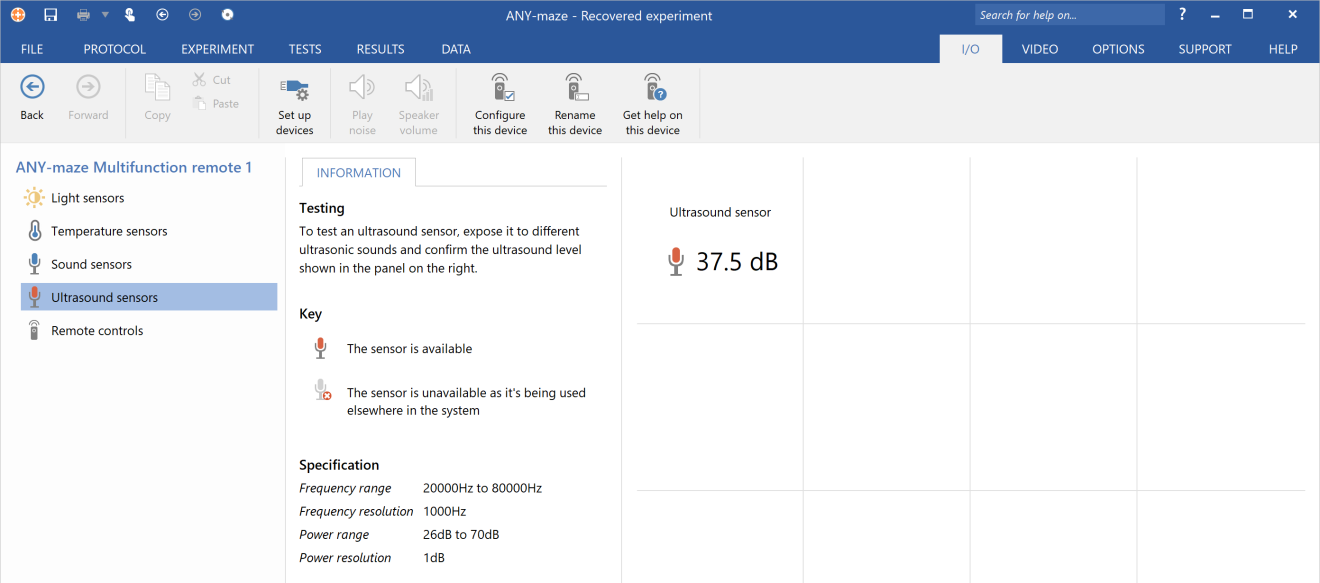
Figure 2. Testing the ultrasound sensor on the I/O page.
Recording ultrasound levels in an ANY-maze experiment
Setting up the protocol to record ultrasound levels
You will usually be aiming to remove all sources of ultrasound from the environment in which you are testing your animals. While you might choose to check the ultrasound levels just once at the start of your testing day, it's a good practice to check before each individual test. Systems like air conditioning can produce ultrasound, and checking before every test ensures you'll catch any changes.
If you choose to make a measurement before each test, then follow these steps to record it ANY-maze:
| 1. | Load your experiment into ANY-maze |
| 2. | Switch to the Protocol page and select the first item in the protocol list on the left |
| 3. | In the Protocol settings, ensure you are using a Protocol mode that includes I/O, such as the Video tracking with input/output mode. |
| 4. | Add a new I/O device to your protocol by clicking the Add item button in the ribbon bar and selecting New I/O device from the menu that appears. A new I/O device will be added to the protocol list and selected automatically. |
| 5. | Give the I/O device a sensible name, such as 'Remote control', and use the drop list to select the multifunction remote you are using. |
| 6. | Add a new sensor by clicking Add item and selecting New input item > New sensor from the menu. The new sensor will be added to the protocol list and automatically selected. |
| 7. | In the protocol list click the sensor's Port to use item. |
| 8. | In the Port to use settings select the multifunction remote's ultrasound sensor. Note, you can choose the same sensor for more than one apparatus. |
| 9. | Return to the sensor item in the protocol list. |
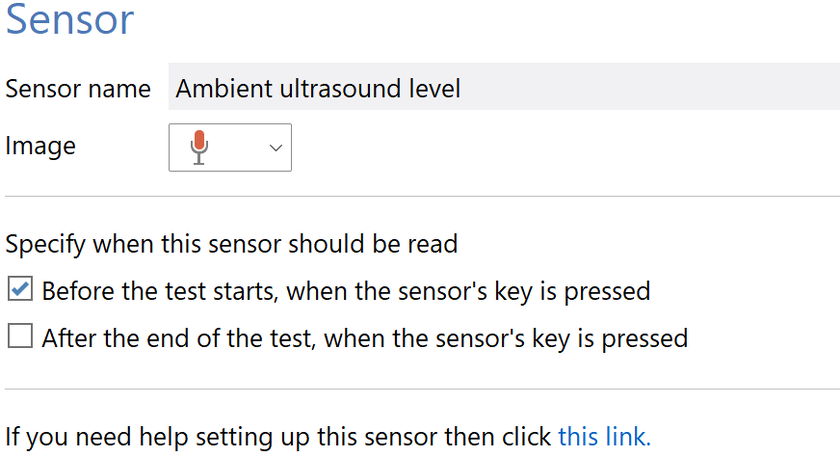
Figure 3. The Sensor settings in the protocol
| 10. | Give the sensor a sensible name, such as 'Ambient ultrasound level'. |
| 11. | In the Sensor's settings, select the option to read the sensor Before the test starts, when the sensor's key is pressed. |
| 12. | You may also want to alter the sensor's image to make it more easily identifiable. |
Reading the ultrasound level before a test
Once the sensor is set up, you’ll see that on the Tests page, tests are no longer shown as Ready..., but rather as Waiting for pre-test Ambient ultrasound level reading (where 'Ambient ultrasound level' reflects the name given to the sensor in step 10). To take the reading:
| 1. | Ensure the 'Ultrasound' menu option is selected on the remote. |
| 2. | Press the Enter button. |
| 3. | The ultrasound level will be transmitted to ANY-maze, stored with the test, and the test status will change to "Ready...". The reading will also be displayed in the I/O Status panel on the Tests page (see figure 4 below). |
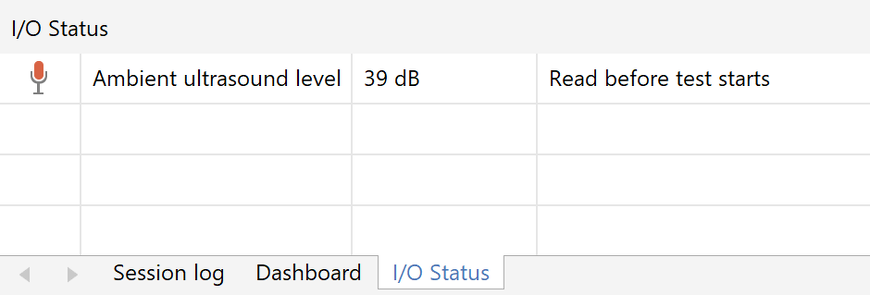
Figure 4. Viewing the ultrasound level in a test.
| 4. | If ANY-maze successfully stores the reading, the remote will provide haptic feedback indicating success. If the reading is not stored then, depending on the remote's configuration, it will either give haptic feedback indicating failure, or no feedback at all (which can be interpreted as failure). |
| 5. | If you want to replace the reading you can simply press the Enter button again. Provided the test status is either Ready... or |
| • | Waiting to start..., the new reading will overwrite the old one. Again, haptic feedback will indicate success or failure. |
Viewing and analysing the ultrasound level readings
The ultrasound level reading is stored with the test in the data file. To view this value, include the Apparatus measures > Ambient ultrasound level measures > Ambient ultrasound level: initial value in a report (see figures 5, below).
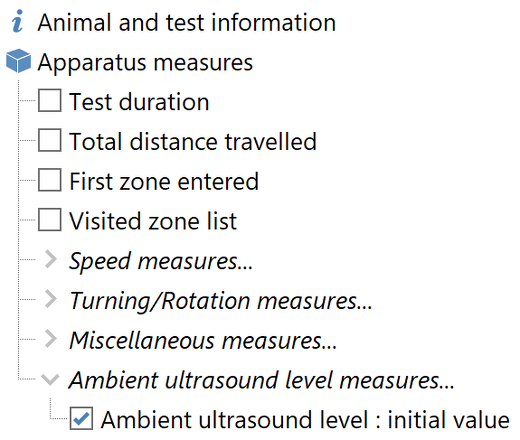
Figure 5. Selecting the ambient ultrasound level to be included in a report.
If you wish, you can analyse the ultrasound level, for example, to ensure that there was no significant difference in the ambient ultrasound level between different groups of animals, as in figure 6 below.
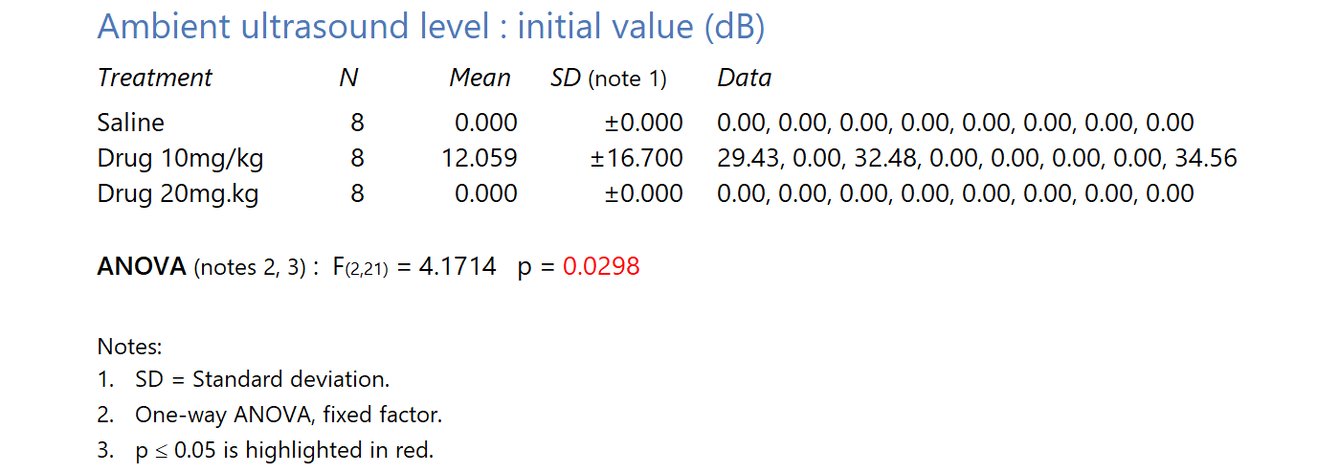
Figure 6. Analysing the ambient ultrasound level in an experiment.

© Copyright 2003-2026 Stoelting Co. All rights reserved
ANY-maze help topic T1442