ANY-maze Help > I/O devices supported by ANY-maze > Test equipment designed specifically for ANY-maze > The ANY-maze Activity wheel > Performing experiments with the Activity wheel > Setting up an Activity wheel protocol
Setting up an Activity wheel protocol

Introduction
In this section. we are going to look at the steps involved in setting up a simple protocol for the ANY-maze Activity wheel. This can then be used as a basis for more specific protocols, depending on the requirements of your experiments.
As you may already know, protocols are fundamental to how ANY-maze works because it is the protocol which defines how an experiment will be performed. Even if you have never used ANY-maze before, you will probably get along fine just following though the steps in this section, but if you want to know more about protocols then a good place to start is this introductory tutorial on protocols.
| • | Creating an experiment |
| • | Setting the protocol mode and adding an Activity wheel |
| • | Reviewing the Activity wheel input protocol elements |
| • | Setting the test duration |
| • | Setting up fields to record additional information about your animals or tests |
| • | Saving the protocol |
Creating an experiment
Before you can do anything in ANY-maze, you need to open an experiment. In this respect, ANY-maze is similar to Microsoft Word, where you can't do anything until you open a document. So the first thing you need to do is to start ANY-maze and select New empty experiment from the list of protocols on the right side of the opening page.
On the other hand, if ANY-maze is already running, you should simply switch to the File page, select New experiment from the list on the left and then select New empty experiment from the list of protocols on the right.
Setting the protocol mode and adding an Activity wheel
Now that you have an experiment open, you need to set the protocol mode and then add an Activity wheel to the protocol.
The protocol mode defines which features of ANY-maze will be available; for example, in Activity wheel mode you don't need to video-track the animals, so the features related to tracking will all be turned off.
| 1. | Switch to the Protocol page by clicking the Protocol tab in the ribbon bar. |
| 2. | Click the first item in the list on the left of the page - this will probably be called 'Unnamed protocol'. |
| 3. | If you have an ANY-maze Activity wheel specific ANY-maze licence (which will usually be the case unless you already owned ANY-maze when you bought the Activity wheel), then the protocol mode will already be Activity wheel mode. If it isn't, then open the protocol mode list and select this mode, as shown in figure 1. |
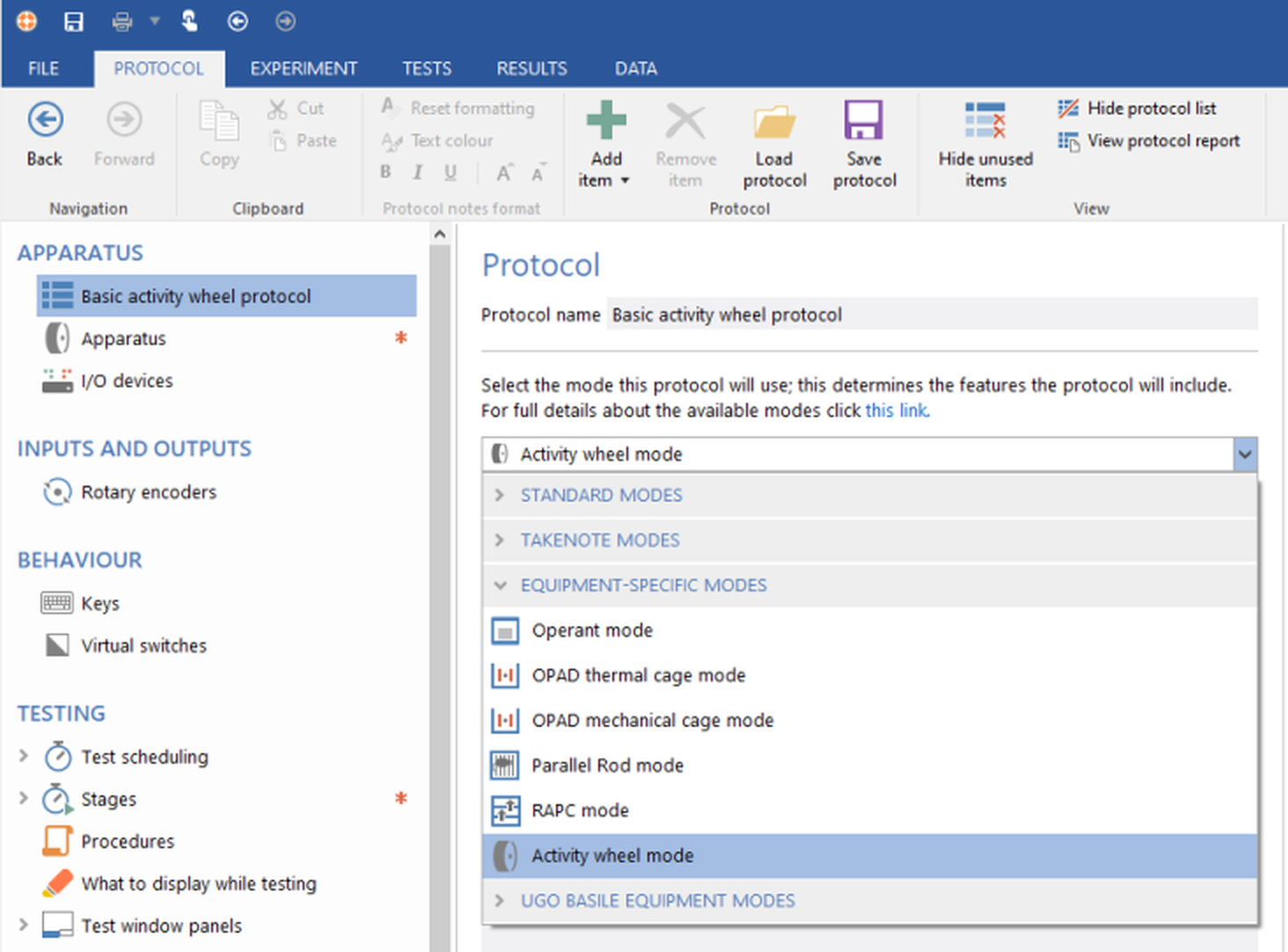
Figure 1. You should use the Protocol mode list to select Activity wheel mode.
| 4. | Next, we need to add our Activity wheel to the protocol. This will tell ANY-maze which wheel (or wheels) we actually want to use. You can include up to 48 wheels in an experiment, but to keep things simple we'll just include one. So, you now need to click the  Add item button and then select New Activity wheel in the menu that appears - see figure 2. |
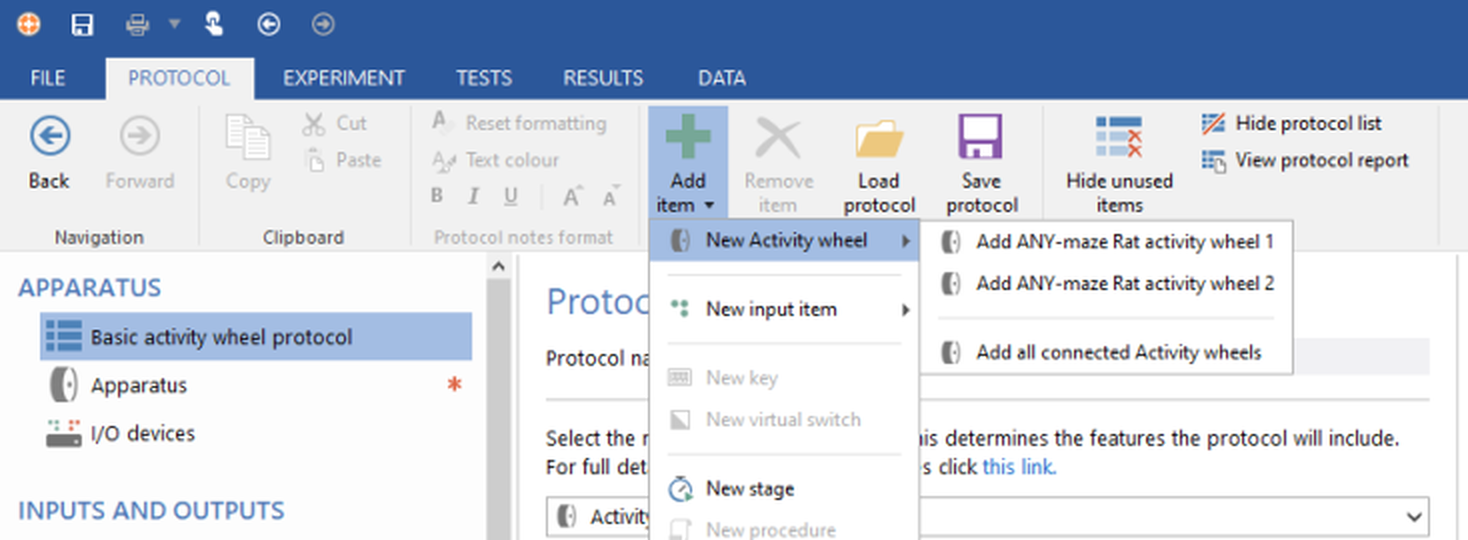
Figure 2. The New Activity wheel menu option opens a sub menu, from which you can choose the wheel(s) to add to the protocol.
| 5. | As can be seen in figure 2, the New Activity wheel option opens a sub menu which lists the Activity wheels connected to your computer, together with an option to Add all connected Activity wheels. For this protocol we just want to include one wheel, so select the option to Add Activity wheel 1. |
| 6. | When you add an Activity wheel, it appears in the protocol list, as in figure 3. |

Figure 3. Activity wheels are added to the protocol list.
| 7. | Selecting the wheel's entry in the list causes its settings to be displayed in the settings pane to the right of the list; see figure 4. |
By the way, this is how the entire protocol works - you add things using the  Add item button, they get included in the protocol list and you can then select them and alter the settings in the settings pane.
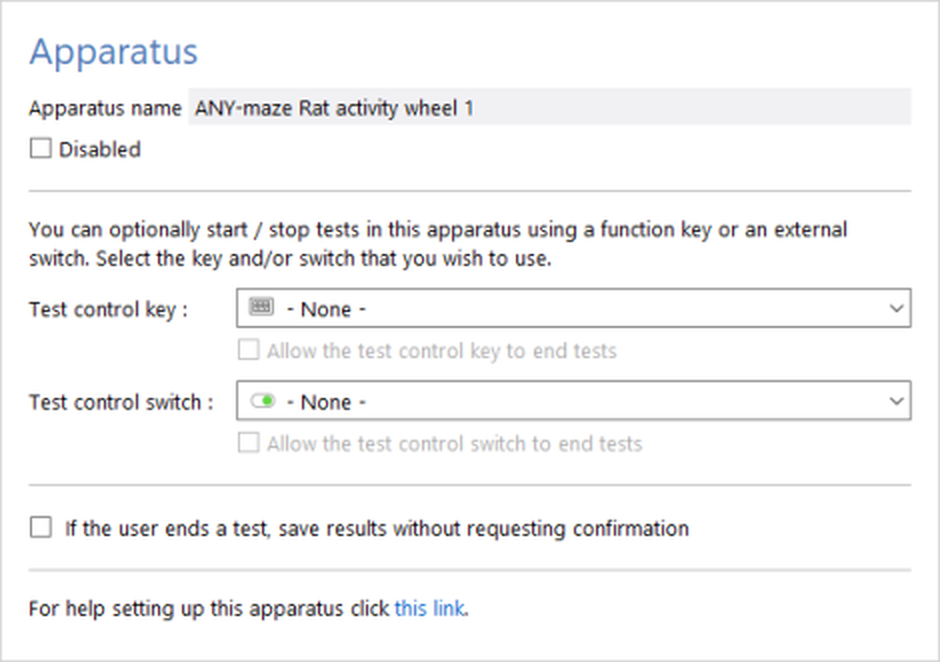
Figure 4. The Activity wheel settings pane.
The settings for an Activity wheels are automatically set to default values, and you probably won't need to change them.
Reviewing the Activity wheels input protocol elements
Because ANY-maze already knows you are setting up a protocol for an Activity wheel (since that's the mode we put it into), then it will automatically have added a Rotary encoder input element to the protocol list when we added the wheel (see figure 5).
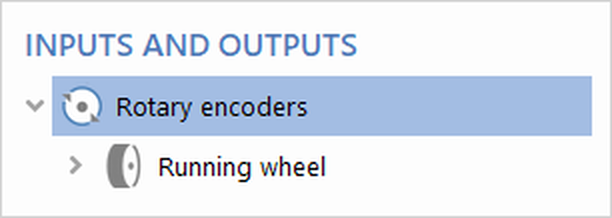
Figure 5. The Activity wheel input is automatically included in the protocol list.
You will usually not need to make any changes to this Input element.
Setting up stages and specifying the test duration
Another element that is automatically included in an Activity wheel protocol is a Stage. This is because ANY-maze requires that all protocols always include at least one stage, and the Activity wheel is no exception.
A stage is simply a test (or a group of tests) that you perform on your animals. In many cases, an experiment will simply have one stage consisting of one test (for each animal) and that is the default setting for Activity wheels. Of course, you can change this if you wish. For example, you might have two stages in your experiment; in the first stage you test the animals without any treatment, while in the second stage you treat them and then test them again. In this case, you would simply need to add a second stage to the protocol.
To see the stage, select Stages > First stage in the protocol list; the Settings pane will then show the stage's settings, as in figure 6.
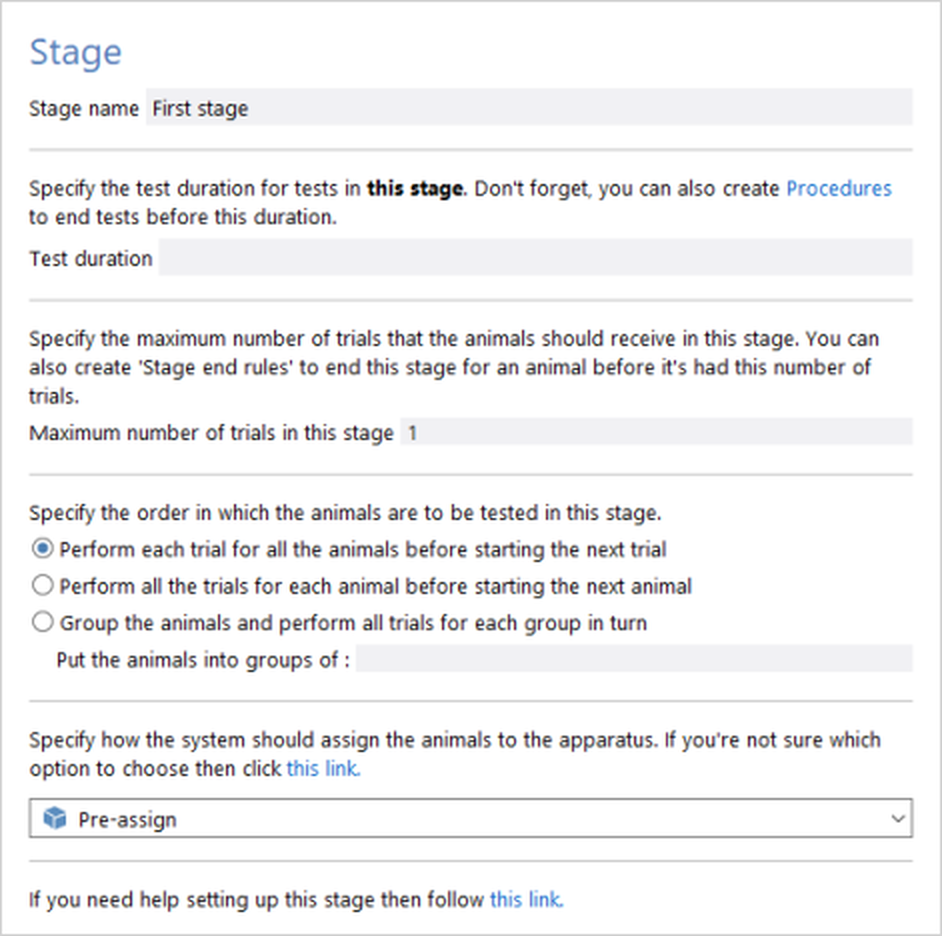
Figure 6. The default settings for the first stage in an Activity wheel protocol
Full details about stages can be found here, but suffice to say that it is in the stage's settings that you specify the duration of your tests. As can be seen in figure 6, ANY-maze does not include a default duration, so you will need to set this value before you can actually perform any tests - for example, if your tests will last 20 minutes you would enter this by typing '6 min' into the Test duration field.
 | Throughout ANY-maze, times can be specified using units of 'ms' for milliseconds, 's' for seconds, 'min' or 'm' for minutes, 'h' for hours and 'd' for days. You can mix these units if you wish, for example '3h 30min', and you can use decimal points, for example '3.5h'. |
Setting up fields to record additional information about your animals or tests
 | This step is optional |
If you wish, you can set up 'fields' in your protocol to record additional information about your animals or tests. For example, you may be keen to differentiate between how male and female animals behave, in which case you will presumably want to record their Sex somewhere. Of course, you could just note this on a piece of paper, but instead you could set up a 'Sex' field and record the data within ANY-maze. Not only would this mean that all the data relating to the experiment would all be in one place, but you could also then use ANY-maze's analysis features to analyse the animals' sex - perhaps to check that there is no significant difference between male and female animals.
You can create any number of fields, and they can be used as either independent or dependent variables in analysis. Full details about fields and how to set them up can be found here.
Save the protocol
You may have noticed that other than adding the Activity wheel (or wheels) to the protocol, the only other thing we had to add to the protocol was the duration of the tests. Nevertheless, you will typically add some fields, or alter the default settings a little, and this being the case you will usually want to save the protocol so you can use it again in other experiments. To do this, you need to click the  Save protocol button in the ribbon bar.
What next?
In this topic, we created a simple Activity wheel protocol. Now that we have this set up, we are ready to move on to the next topic of this tutorial - Running tests in an Activity wheel
See also:
 | The topics listed below are general topics relating to ANY-maze, and may refer to features not available or not required with Activity wheel. |
| • | An introductory tutorial on protocols |
| • | The elements of a protocol |
| • | Adding elements to a protocol |
| • | Editing the elements of a protocol |
| • | Deleting elements from a protocol |
| • | Saving and loading protocols |
| • | Viewing the protocol report |

© Copyright 2003-2026 Stoelting Co. All rights reserved
ANY-maze help topic T1384