ANY-maze Help > I/O devices supported by ANY-maze > Test equipment designed specifically for ANY-maze > The ANY-maze Activity wheel > Performing experiments with the Activity wheel > Running tests in an Activity wheel
Running tests in an Activity wheel

Introduction
Having set up a protocol for your Activity wheel, you are now ready to use it in an experiment. In this topic we'll create a very simple experiment, run a test and take a quick look at some of the results. Clearly a 'real' experiment would be more sophisticated, but you should find it easy to build on the basic experiment described here.
| • | Creating the experiment and loading the Activity wheel protocol |
| • | Adding some treatments and animals |
| • | Specifying the animals' treatments |
| • | Performing a test |
| • | Viewing the test results |
Creating the experiment and loading the Activity wheel protocol
If you have just completed the steps in Setting up an Activity wheel protocol, then you won't need to do anything here, as you will already have an experiment open which will contain the Activity wheel protocol. Otherwise, you will need to do the following:
| 1. | Switch to the File page. |
| 2. | If there's currently a file open, then select New experiment in the list on the left side of the page (otherwise, just move on to the next step). |
| 3. | The right side of the page will show a list of 'documents', one titled New empty experiment and others with the names of the protocols you have recently used. |
| 4. | Click the 'document' for the Activity wheel protocol you saved earlier (if you didn't save a protocol earlier, then go back and set up a protocol for your Activity wheel and save the protocol at the end). |
Adding some treatments and animals
With the Activity wheel protocol loaded, you can add the treatment groups and animals for your experiment. We're going to add just two groups with 2 animals each, but of course you could set up a more sophisticated experiment.
| 1. | Switch to the Experiment page. |
| 2. | On the right-hand side of the page, enter a treatment of 'Drug' with an 'N' of 2, and a treatment of 'Saline', also with an 'N' of 2 - as in figure 1, below. |
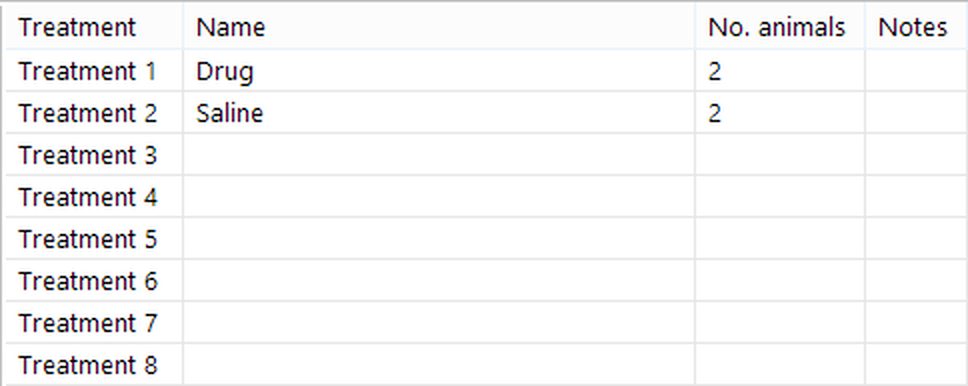
Figure 1. The 'Treatments' section of the Experiment page is used to add treatment groups to an experiment.
Specify the animals' treatments
Although in the previous step you will have specified the different treatment groups that your experiment will include, and the number of animals within each group, this doesn't actually tell ANY-maze which animal should be given which treatment - for example, Animal 1 should have which treatment - the first one? And animal 2, the first treatment too?
So, the next thing you need to do is specify which treatment each animal should receive. In fact, as well entering the animal's treatments, you can at the same time specify other information about them, such as their weight or sex - this depends on whether you included any Fields when you set up your protocol.
To enter the data about the animals' treatments, you should:
| 1. | Remain on the Experiment page |
| 2. | Click the  View animals button in the ribbon bar View animals button in the ribbon bar |
| 3. | The page will change to show details of the animals - see figure 2 |
| 4. | Enter the animals' treatments (and any additional data) into the spreadsheet cells |
| 5. | If you want to view the treatments again, just click the  View treatments button View treatments button |
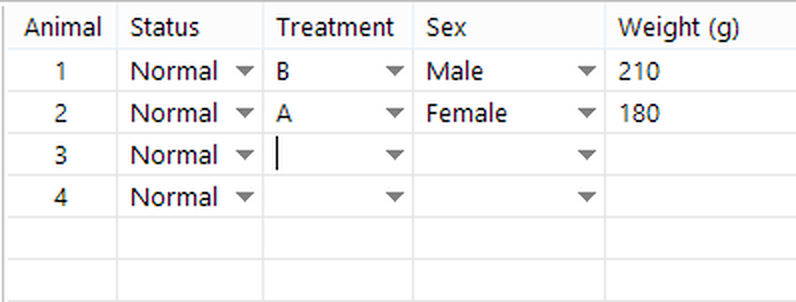
Figure 2. The 'Animals' spreadsheet. In this example, the protocol includes fields for the animals' sex and weight, so the spreadsheet includes columns for this data.
When entering the animals' treatments, you need to specify the treatment code. This is because by default, ANY-maze performs experiments blind, so you don't know which treatment is which. Of course someone has to know this, and you can find out what the treatment codes are by clicking the  Reveal treatment coding button in the ribbon bar.
Performing a test
 | The details given in this section assume you will use an animal to run this test, but you can use your hand if you prefer; to do this, just periodically turn the wheel to simulate an animal. |
You're now ready to perform a test.
| 1. | Switch to the Tests page by clicking on the Tests tab above the ribbon bar. |
| 2. | The left side of the Tests page will show the Test schedule report. This report will show you a list of the tests that you are going to perform in your experiment - see figure 3. |
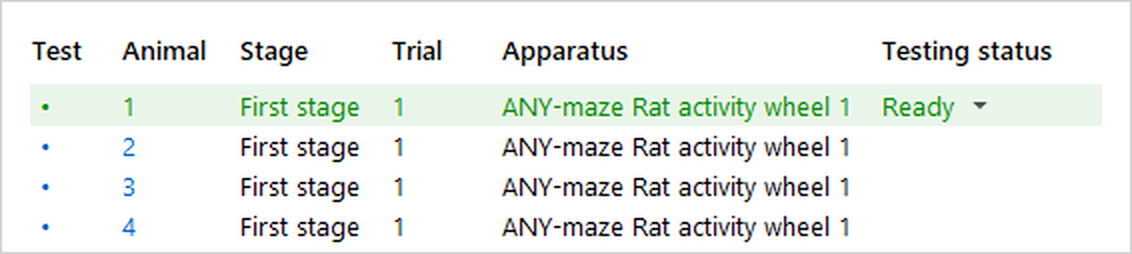
Figure 3. The Test schedule report lists all the tests in an experiment. Here the next test to perform will be a test on Animal 1, and the system is ready to start the test.
| 3. | On the right-hand side of the page, you will see a table with an entry for the running wheel, showing its status as Stopped. If you turn the wheel you will see its status changes to show the wheel's rotational speed in rpm. Above this is the status of the test which will read something like 'Animal 1 - Ready...' |
| 4. | When you're ready put the animal into the cage and click the  button shown just above the test status on the screen. button shown just above the test status on the screen. |
| 5. | The test clock will start to run, and ANY-maze will show the wheel's speed and count the clockwise and anticlockwise rotations, as in figure 4, below. |
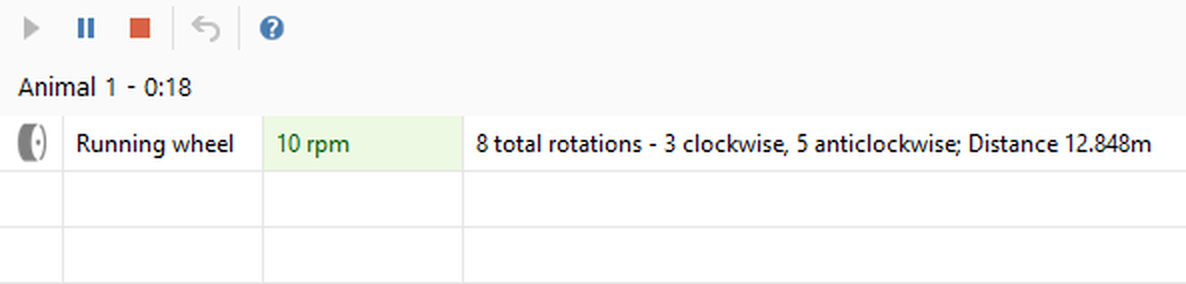
Figure 4. During a test, ANY-maze will show turns of the wheel.
There's nothing for you to do while a test is running - which makes it very easy to run multiple tests simultaneously, as you could move on to another wheel and start a test there.
| 7. | When the test duration expires, the test will end automatically and ANY-maze will get ready for the next test - and you'll see this in the Test schedule report. |
You can stop your experiment at any point (except when a test is actually running) and close the experiment file; when you reopen the experiment, testing will just pick up from where you left off.
Viewing the test results
After performing a test, you can view its results using the Test schedule report shown on the left side of the Tests page.
| 1. | Click on the 'Test number' of the test whose result you want to view - as in figure 5. |
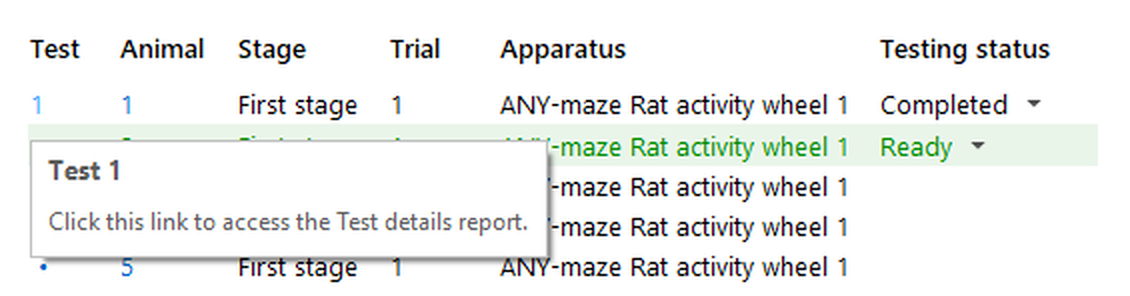
Figure 5. The test numbers on the Test schedule report are links; clicking one will take you to the Test details report.
| 3. | The Test details report will open. This report includes various sections, but what interests us are the Results - see figure 6. |
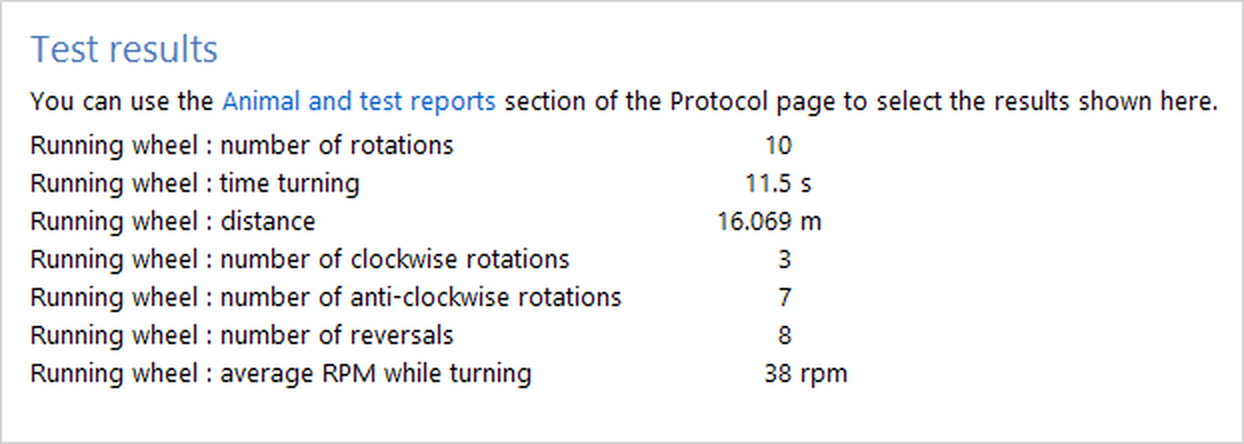
Figure 6. The Test details report includes results of the test.
As can be seen in figure 6, various results are shown, including such things as the total number of rotations of the wheel and the number of reversals of the wheel's direction.
In fact many other results are also available, and you can tailor this list by clicking the link shown just above the result values. Any changes you make become part of the protocol, so they'll apply to all the tests in the experiment and, if you save the protocol, to all experiments that use the protocol.
What next?
In this topic, we learnt how to perform tests in the Activity wheel and we also looked at the results of an individual test. However, ANY-maze can do much more than just show you the results of each test individually, and this is what we'll explore in the final section of this tutorial - Analysing the results of an Activity wheel experiments
See also:
 | The topics listed below are general topics relating to ANY-maze, and may refer to features not available or required with Activity wheel. |
| • | Using the test schedule report |
| • | Running tests |
| • | Resolving common problems |
| • | Recording data about animals and tests |
| • | Test details report |

© Copyright 2003-2026 Stoelting Co. All rights reserved
ANY-maze help topic T1385