ANY-maze Help > The ANY-maze reference > The Tests page > The Experiment management reports > The Test details report
The Test details report

Introduction
The Test details report, together with its sub reports, bring together all the information that ANY-maze holds about an individual test.
To access this report you should click the relevant test's number on the Test schedule report.
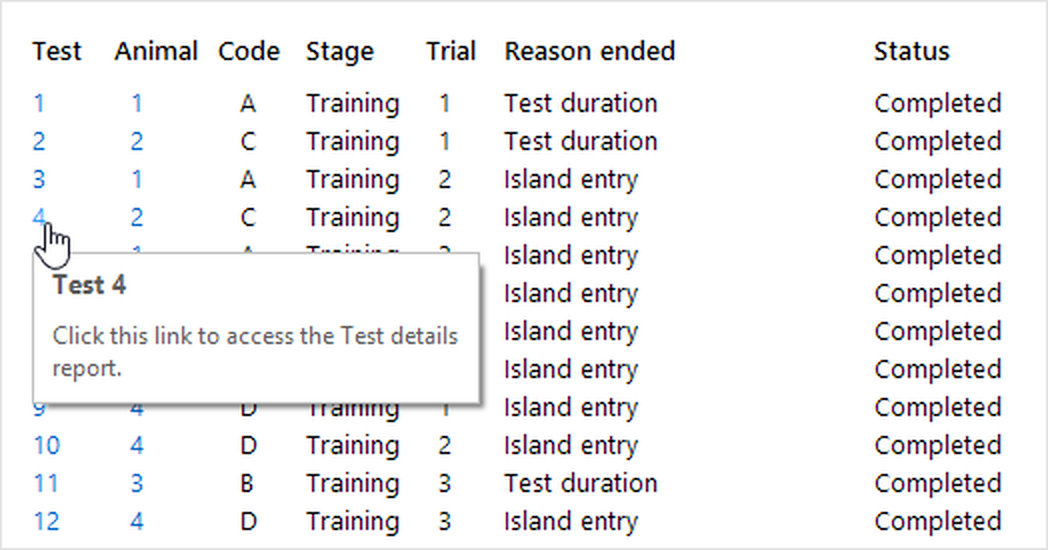
Figure 1. To access a Test details report you simply have to click the test's number in the Test schedule report - the numbers are links.
Note: Before a test is performed it doesn't actually have a test number instead the test is represented by a marker on the Test schedule report - however, clicking this marker will still access the Test details report, just like clicking its number would.
| • | Changing the animal that was tested in the test |
| • | Changing the animal that will be tested in a manually scheduled test |
| • | Skipping an unperformed test |
| • | Deleting an unperformed test |
| • | Cancelling a performed test |
| • | Re-performing a performed test |
| • | Reviewing a performed test so as to add additional scoring to it |
| • | Recording details about the animal and/or test |
| • | Specifying the position of movable zones |
| • | Recording notes about a test |
| • | Viewing errors and warnings recorded during the test |
| • | Viewing a test's results |
| • | Accessing related reports |
Changing the animal that was tested in the test
At the top of the Test details report ANY-maze shows the number of the animal that will be / was tested in the test. If the test has been performed then you can alter this number, which can be very useful if you accidentally tested the wrong animal.
If you do change the animal number then ANY-maze will automatically reschedule the tests for affected animals. For example, if you're performing an experiment in which each animal receives 4 training trials and after training animal 1 in its first trial you accidentally train it again instead of training animal 2 then, when you alter the animal number for the test to '1', ANY-maze will recognise that this was the second trial for animal 1 and will therefore reduce the number of trials for this animal (otherwise it would have 5 trials) and increase the number for animal 2 (otherwise it would only have 3 trials).
Changing the animal that will be tested in a manually scheduled test
When manually scheduling tests, the test details report of an unperformed test will include a field showing the animal number of the animal the test is to be performed on. You can edit this, to change the animal to test.
Skipping an unperformed test
When you are viewing the Test details report of a test that hasn't been performed yet, the ribbon bar will include a  Skip test button. Clicking this button will cause the test to be skipped by the ANY-maze scheduler. When a test has been skipped an 'un-skip' button is shown instead, clicking it will cause the test to be placed back into the test schedule, which will often mean it becomes the next test to perform.
You find more information about skipping tests in Skipping a test.
Deleting an unperformed test
If you are using manual scheduling, then, when you view the Test details report for an unperformed test, the ribbon bar will include a  Delete test button; clicking this button will cause the test to be deleted.
The action of deleting the test necessarily means that the Test details report can no longer be displayed (because the test whose details it's showing has been deleted), therefore, after deleting a test, the Test schedule report will automatically be displayed.
Note that you can't delete unperformed tests when you are using automatic test scheduling because if you did, the test scheduler would immediately create a new test to replace it. This is because the scheduler will always ensure that each animal has as many trials as are defined in the stage elements of the protocol. However, in this case you can skip the unperformed test instead.
Cancelling a performed test
When viewing a test that has been performed, the ribbon bar includes a  Cancel test button. Clicking this button will cause the test to be cancelled. This means that ANY-maze will ignore the test completely, although it won't actually throw it away - thus you can un-cancel the test if you later change your mind (to do this click the Un-cancel test button in the ribbon bar).
It's important to understand that cancelling a test will cause the scheduler to introduce a new test to replace it. This is because the cancelled test will be completely ignored so, if an animal is supposed to have, say, 2 trials in a stage and you cancel one of them, the scheduler will think that a new trial is required for the animal. If what you actually want to do is stop testing an animal then you should consider retiring or deleting it instead, or perhaps, ending the current stage for the animal.
There's more about cancelling tests in the Cancelling a performed test topic.
Re-performing a performed test
Re-performing a test does what the name implies, it causes a performed test to be re-performed, but without altering the test's position within the animal's trials. For example, if you record a video of a test then you might decide at some point in the future that you want to re-track the test using the video.
In this case cancelling the 'original' test will not be a good idea because, as mentioned above, the scheduler will replace the cancelled test with a new one. This new test will be added to the end of the animal's tests in the stage and this will probably mean that the test's trial number will change. For example, imagine you have performed four trials on animal 1 and you now want to re-perform trial 1. If you cancel this test then the replacement test will be put in at the end of the trials and will therefore be trial 4, not 1. So, in these circumstances, cancelling a test is a bad idea - what you should do is re-perform the test.
To re-perform a test click the  Mark test to be re-performed button in the ribbon bar. Re-performing a test simply causes ANY-maze to rerun the test, but the test's position within the animal's trials remains the same.
For full details about re-performing tests refer to the Reperforming a test topic.
Reviewing a performed test so as to add additional scoring to it
In some tests you may want to score a wide range of different behaviours using keys. While ANY-maze is able to do this (you can define up to 26 'key' behaviours), you will probably find it very hard to score more than a few behaviours simultaneously.
To overcome this, ANY-maze allows you to review a video of a test and add additional scoring to the test results. For example, imagine you want to track animals in your apparatus and, at the same time, score 8 different behaviours. To do this, you could run the tests 'live' and have ANY-maze track the animals and simultaneously record a video of the test. While ANY-maze is doing this you could score 2 of the behaviours you're interested in, using keys. Then, when the test is finished, you could review the video and score a further 3 behaviours and then review it again and score the last 3 behaviours - so you'd end up having scored them all. There's no rule about how many times you can review the test in this way, so you could review 8 times and score one behaviour each time, if you wanted to.
This ability to add scoring to a performed test doesn't alter the way you look at the results - as it will appear as if all the behaviours were scored at the same time - it just makes it easier for you to actually perform the scoring.
Full details about how to add additional scoring to a test can be found in the Adding additional scoring to a performed test topic.
Recording details about the animal and/or test
If the protocol includes any fields then they will be listed on this report. Fields which are being recorded for the animal will be shown with the prefix 'Animal - ' while those being recorded for tests will be shown with the prefix 'Test - '. Note that 'numeric' fields will show their units (if defined in the protocol) in parenthesis after the field name.
The data you can enter for a field will depend on how the field's defined in the protocol, but essentially you can enter up to 80 characters of text for any text fields, a valid whole number for a numeric field and any valid choice (as defined in the protocol) for a choice field - choice fields will auto-complete
You don't have to make any entries for any of the fields if you don't want to.
Specifying the position of movable zones
If the protocol includes any movable zones whose position can change within individual animals, (i.e. the zone won't necessarily be in the same position for all of an animal's trials) then the zone (or zones) will be shown in the report and you'll be able to enter or edit their positions.
To enter a position you simply need to pick it from a drop list. If you want to you can set a zone's position to Undefined, which will just mean that the zone will have no position in the test and therefore won't influence the test results.
You can alter a position at any time (including after a test has been performed) but changes you make while a test is actually running won't affect any procedures (for the current test) which rely on the zone.
Recording notes about a test
You can record anything you like about a test in the notes section. If you cancel or re-perform a test (see above) then it's usually a good idea to make some notes explaining why. Beyond this you can record any observations you like. There's no limit to the notes you can make, but if you include the notes in the Data page spreadsheet only the first 80 characters will actually be shown.
When the test notes field is active (i.e. the cursor is in the field), the Test notes format section of the ribbon bar will be enabled. This contains a number of options, which apply to any text that is currently selected in the notes field. (If no text is currently selected, then the formatting you select will apply to new text when you start typing).
 Reset formatting Reset formatting | Resets the formatting of the selected text to the default formatting (i.e. removes any colour, bold, italic etc.) |
 Text colour Text colour | Opens a dialogue box allowing you to select a colour for the selected text. |
 Bold Bold | Makes the selected text bold. |
 Italic Italic | Makes the selected text italic. |
 Underline Underline | Makes the selected text underlined. |
 Increase text size Increase text size | Increases the size of the selected text by one point size. |
 Decrease text size Decrease text size | Decreases the size of the selected text by one point size. |
Viewing errors and warnings recorded during the test
As you may know, any errors or warnings that occur during a test are reported in the Errors & Warnings panel. However, when ANY-maze prepares the next test, this panel is cleared, but the errors and warnings for the test can still be viewed as they are shown here, as part of the Test details report.
Note that only tests in which errors or warning occurred will have an 'Errors and warnings' section in the Test details report. In other words, if there is no 'Errors and warnings' section, it means no errors or warnings occurred.
Viewing a test's results
The results of performed tests are included in this report. The list of measures shown is defined as part of the protocol and you can quickly change them by clicking the link shown just below the section's title.
Note that this report is not intended to be the main location for accessing an experiment's results (this is better done on the Results page or Data page) - rather the results are shown here to provide an easy way to view all the data for an individual test in one place.
Accessing related reports
Selecting the  Related reports button in the ribbon bar opens a menu of related reports for the current test:
| The Animal details report | This will open the report for the animal the test was performed on. |
| The Test track plots | There will be one entry in the menu for each Track plot included in the protocol. Selecting an entry will display a report showing the relevant track plot for the test. |
| The Test heat maps | There will be one entry in the menu for each Heat map included in the protocol. Selecting an entry will display a report showing the relevant heat map for the test. |
| The Test data report | This report shows a spreadsheet detailing things that occurred during the test in chronological order. You can choose exactly what data should be included as part of the protocol. For example, you can include a columns for animal's x and y coordinates, thus giving you a list of all the animal's position throughout the test. |
| The Test video | This will only be included if a video of the test was actually recorded by the system. If present this option will open the Test video report where you can watch the video. |
| The Test charts report | This will only be included if the protocol includes one or more charts. Selecting this option will display all the defined charts for the test. |
| The Test technical details report | This report shows various technical aspects of the test such as the frame processing statistics. |
See also:
| • | Printing reports |
| • | Saving reports |
| • | Copying reports |
| • | Sending reports by e-mail |

© Copyright 2003-2026 Stoelting Co. All rights reserved
ANY-maze help topic T0771