|
ANY-maze Help > The ANY-maze reference > The Tests page > The Experiment management reports > The Test schedule report
The Test schedule report

Introduction
The Test schedule report is perhaps the single most important report in ANY-maze. It not only helps you to see where you've got to in an experiment, but it also provides access to the individual Animal and Test details reports.
The Test schedule report is the home page of the experiment management pane (shown on the left-side of the Tests page) and therefore when you first switch to the Tests page it will be the report that's shown. You can use links in the Test schedule report to access other reports, but at any time you can get back to it quickly by simply clicking the  Test schedule button in the ribbon bar Test schedule button in the ribbon bar
Using the Test schedule report to manage an experiment
The Test schedule report shows a list of the tests which will be performed in an experiment in the order in which they'll be performed. Essentially, ANY-maze will just work through this list prompting you to perform each test in turn.
The order of tests is defined in the protocol but essentially ANY-maze will works through each Stage, in an experiment in the order in which they appear in the protocol, and within each stage it'll work through the animals in numerical order. If the animals can be tested more than once in the stage (i.e. have multiple trials) then the protocol will define the trial order.
For full details about test order refer to Specifying the order in which animals will be tested.
Other useful topics related to managing experiments:
Choosing what's shown in the Test schedule report
The information that's shown in the Test schedule report is actually defined in the Protocol. This is very helpful as it allows you to just include information that's relevant to your experiment. For example, if the experiment doesn't include multiple trials then including Trial number in the report would be unnecessary, but if it does then knowing the trial's number would be extremely useful.
To quickly change the data shown, select the  Select columns button in the ribbon bar. Select columns button in the ribbon bar.
A word of advice - don't select too many columns as you'll have to scroll from side to side to see them which can become quite frustrating.
As well as choosing what columns are shown you can also use the three check boxes shown in the ribbon bar to choose what tests are included:
| Show all stages | If checked, the tests in all the stages of the experiment are listed, otherwise only the tests in the current stage are shown. This box is disabled when an experiment is complete as in this situation all stages are always shown. |
| Show completed tests | If checked, tests which have been performed are listed, otherwise they're not. This box is disabled when an experiment is complete as, in this situation, all tests are completed and they're all shown. |
| Show cancelled tests | Only enabled if Show completed tests is checked. If checked, any cancelled tests (or tests performed on deleted animals) are listed, otherwise they're not. |
Accessing details about individual animals and tests
The Test schedule report acts as the access point for the individual Animal details and Test details reports. To access one of these reports simply click the appropriate animal or test number on the Test schedule report. Alternatively you can open the Testing status menu and select the appropriate option - see figure 10.
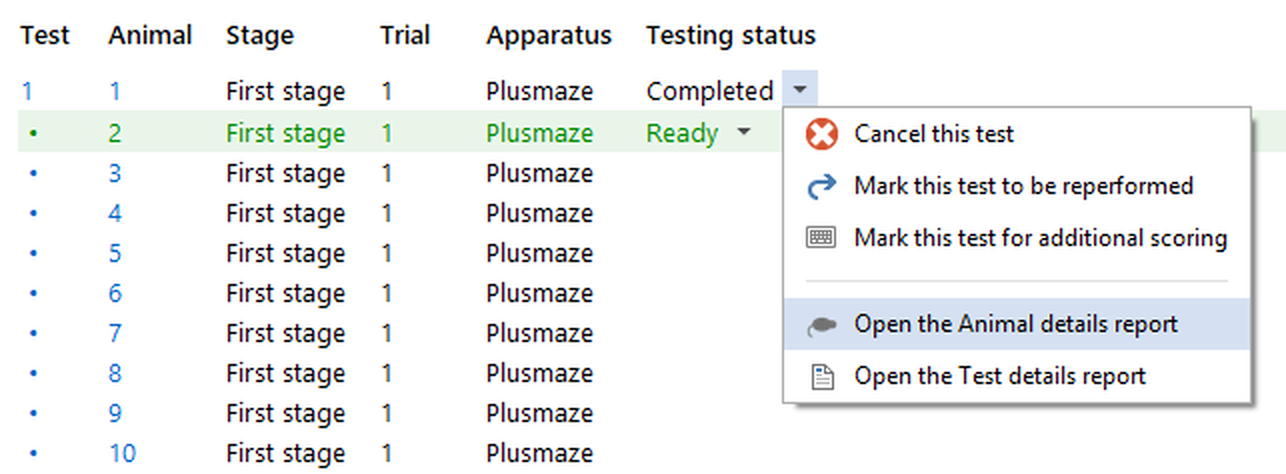
Figure 10. To access an Animal details report you can simply open the relevant Testing status menu and select the appropriate option.
After following a link you can get back to the Test schedule report either by clicking the  Test schedule button or by working back through the reports you've viewed using the Test schedule button or by working back through the reports you've viewed using the  Previous report button; both these buttons are in the ribbon bar. Previous report button; both these buttons are in the ribbon bar.
See also:

© Copyright 2003-2026 Stoelting Co. All rights reserved
ANY-maze help topic T0767
|