ANY-maze Help > Using ANY-maze > Running an experiment > Resolving common problems
Resolving common problems

| • | The apparatus in the video picture doesn't line up with the apparatus map. |
| • | The video picture is too dark or too light. |
| • | I started a test without intending to. |
| • | The apparatus status is 'Waiting to start' but I'm not ready to start yet. |
| • | I started a test without intending to, and it ran until the end. Now the test is completed, how can I undo it? |
| • | I tested the wrong animal - what should I do? |
| • | The test schedule report says I should now test animal X but I want to skip this animal for now |
| • | I want to completely remove an animal from the experiment. |
| • | I want to stop testing an animal even though it hasn't had all of its trials yet. |
| • | I can't see all of the video picture on my screen. |
The apparatus in the video picture doesn't line up with the apparatus map.
This problem is very common - particularly if you've moved the apparatus to clean the room or to run other experiments - see figure 1.
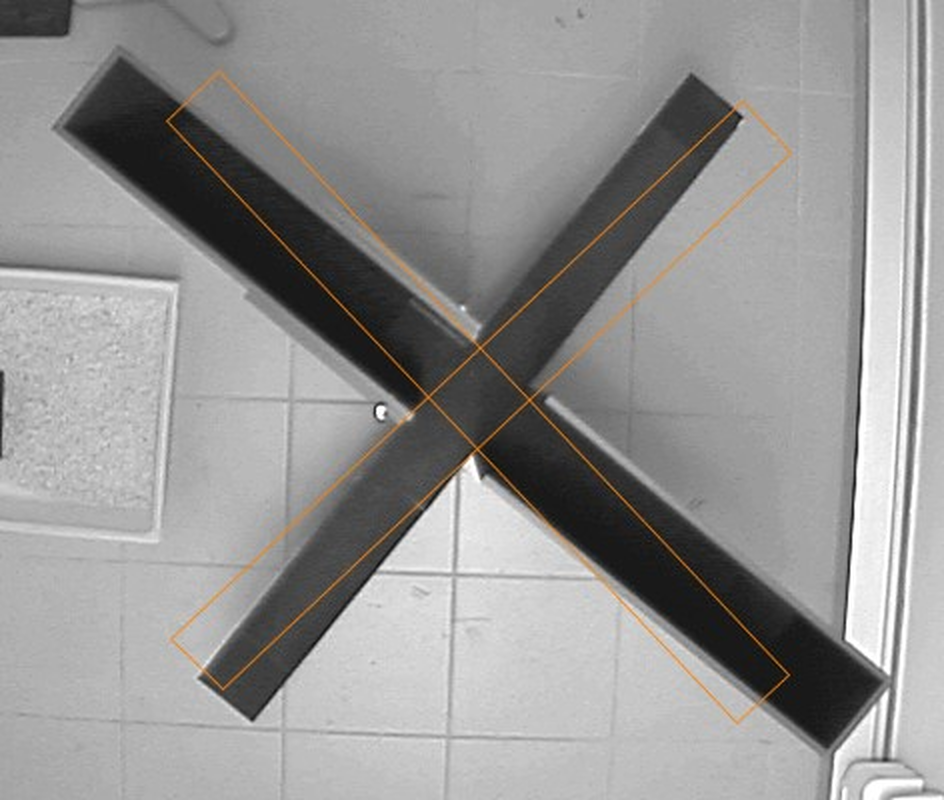
Figure 1. The plusmaze in the video picture doesn't line up correctly with the apparatus map. The map needs to be moved a little to the left and rotated slightly.
Fortunately, resolving this issue is extremely simple - you don't need to drag the apparatus around the floor; instead you can drag the apparatus map around the screen.
To do this simply click the  button shown just above the video picture on the Tests page - this will display a message advising you that you're about to enter Map adjustment mode. Click OK.
In map adjustment mode, you can move the map (i.e. drag it), rotate the map or even resize it. All these operations are performed using the computer's mouse. Basically, ANY-maze divides the video picture into nine sections (see figure 2) and the operation which the mouse will perform depends on the section it's in - to make this clearer, the mouse pointer changes to indicate the operation.
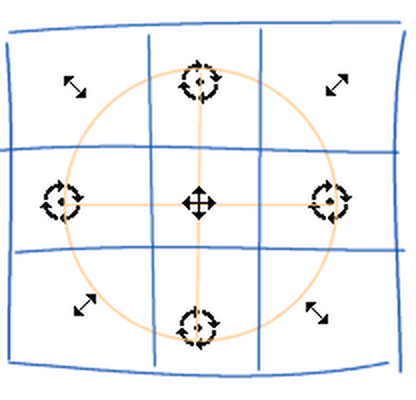
Figure 2. The type of adjustment performed depends on where in the video picture you position the mouse pointer.
Mouse pointer styles and the adjustments they perform:
 | Holding the left mouse button down and moving the mouse drags the map. |
 | Holding the left mouse button down and moving the mouse rotates the map around its centre point. |
 | Holding the left mouse button down and moving the mouse resizes the map. This can be useful if the camera has been moved closer or further from the apparatus, if you've adjusted the lens focus or if you've adjusted the zoom on a vari-focal lens. |
The easiest way to get an idea of how this works is to try it. You can always undo the adjustments you've made by right-clicking and selecting Reset adjustments from the menu which appears.
To exit map adjustment mode, simply click the  button again.
The video picture is too dark or too light.
In ANY-maze, there's no absolute need for light levels to remain the same between (or even within) tests - and in general, unless the light levels are very bright or very dark, tracking will work fine anyhow.
Nevertheless, if the image appears too dark or too light, it's harder for you to view the picture and a more balanced image will generally help the tracking too.
You can adjust the image brightness and contrast at any time except while a test is actually running. To do this, right-click on the image and select Properties from the menu which appears. Brightness and contrast options can be found on the Image control page of the window which opens.
I started a test without intending to.
Simply click the  button. A message will be displayed asking whether you want to save the test results - select No.
The apparatus status is Waiting to start but I'm not ready to start testing yet.
This occurs if you click the start button, or press the apparatus control key, when the auto-start feature is switched on. Simply click the  button to return the Ready status.
I started a test without intending to, and it ran until the end. Now that the test is completed, how can I undo it?
To undo the last test performed in a piece of apparatus click the  button. A message will be displayed asking you to confirm the operation and if you select Yes, then test will be set back to unperformed - note that test results will be irretrievably deleted.
After undoing one test, you can click the Undo button again to undo the test before it and so on back through the history of tests you've performed.
I tested the wrong animal - what should I do?
The ANY-maze test schedule defines the order in which the animals will be tested, so, for example, it might tell you to test animal 1 then animal 2 then animal 1 again. But what happens if you accidentally tested animal 2 in place of animal 1?
What you DON'T need to do in this situation is undo the test - instead, you can simply tell the system that the test was performed on animal 2 rather than animal 1.
To do this, click the appropriate test's number in the Test schedule report. This will cause the Test details report to open. The second line of this report reads This test was performed on animal: x (where x is an animal number). Simply change the animal number shown to the number of the animal you actually tested. ANY-maze will automatically adjust the schedule to compensate, i.e. to ensure that all the animals still receive the correct number of tests.
The test schedule report says I should now test animal X but I want to skip this animal for now.
In general, you should follow the test order given in the Test schedule report (the order being defined as part of the stage element of the protocol). However, there may be occasions when you want to skip over a test and perform it later.
This is very simple to do: Find the appropriate test in the Test schedule report and click the little down arrow shown next to the test's status. This will open a menu and one of the options will be to Skip this test. Selecting this option will cause ANY-maze to skip over this test and move on to the next test in the schedule.
Later, when you're ready to perform the test, simply click the same down arrow and you'll find the menu includes an option to Unskip this test. Click it, and the test will be scheduled as the next test to run.
By the way, skipping a test implies that you do intend to perform the test, just not now. If what you really want to do is to stop testing an animal altogether then you should refer to: I want to stop testing an animal even though it hasn't had all of its trials yet.
I want to completely remove an animal from the experiment.
There are many reasons why you might want to remove an animal from an experiment - it gets ill, for example.
To remove the animal, you should click its number in the Animal column of the Test schedule report - this will open the Animal details report. Here you should change the animal's status to Deleted.
In fact, by doing this you won't actually delete the animal - rather, you'll tell ANY-maze to ignore its performed tests when analysing results and not to perform any further tests on it.
Of course, this is pretty much the same as having the animal deleted, except that as the animal still exists, you can still access its Animal details report. This in turn means that you can change the animal's status back to Normal, which will effectively un-delete it. Thus, this is an entirely reversible action. Also, as you can still see the animal's details report, you may want to make some notes in it explaining why the animal was deleted.
I want to stop testing an animal even though it hasn't had all of its trials yet.
In some circumstances, you might want to stop testing an animal but keep the results of any performed tests. This might be the case if the animal failed to meet some type of training goal - by keeping the results of the performed tests, you can still see what its performance in the training was even though you no longer intend to use it in the experiment.
This is a bit like 'deleting the animal from now on', and in ANY-maze terminology this is called retiring an animal.
To retire an animal, you should click its number in the Animal column of the Test schedule report - this will open the Animal details report. Here you should change the animal's status to Retired.
Note that you can come back to the Animal details report at any time and un-retire the animal simply by changing its status back to Normal.
I can't see all of the video picture on my screen.
Because the Tests page is divided between the Experiment Management and Apparatus panes, there's sometimes too little space on the screen to see all of the apparatus video picture. This can be a particular problem if you're tracking in multiple apparatus simultaneously, as you'll have multiple video pictures shown in the apparatus pane.
This isn't a problem to ANY-maze itself, as it will track in the entire picture whether it fits on the screen or not. However, you may want to be able to see more of what's happening.
The simplest solution to this problem is to click the  Scale to fit button in the ribbon bar. This will cause the video picture to resize to exactly fit the space available.
You can also use the mouse to drag the division between the two panes so as to make the apparatus pane larger. (Note: If you double click the division, then the panes will automatically be sized so that the full width of the report shown in the Experiment management pane is visible.)
See also:
| • | Troubleshooting video pictures |
| • | Troubleshooting equipment problems |

© Copyright 2003-2026 Stoelting Co. All rights reserved
ANY-maze help topic T0042