|
ANY-maze Help > The ANY-maze reference > The Options page > Printing options
Printing options

Overview
Using the printing options you can set the headers and footers which ANY-maze will include on each printed page, and specify various options such as reverse order printing, which can make printing more efficient.
Accessing the printing options
To access the printing options, select the Options page and then click the  Printing option in the left-hand side bar. Printing option in the left-hand side bar.
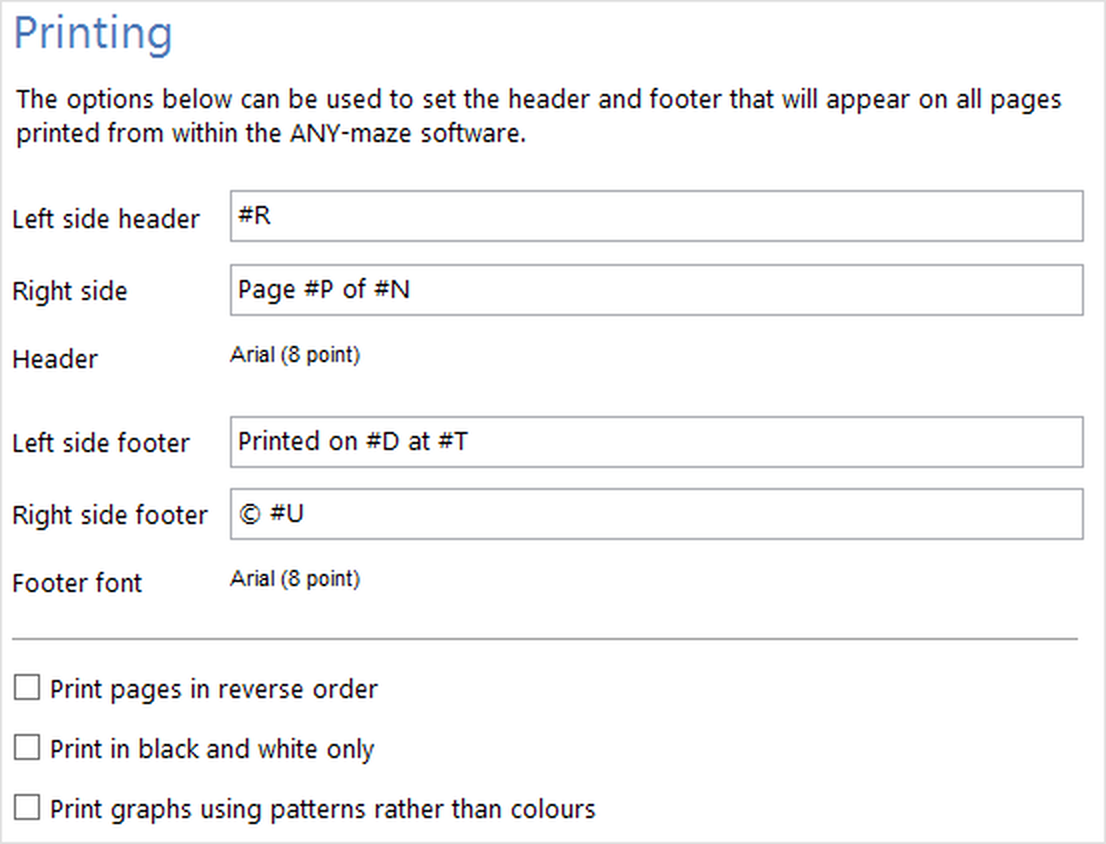
Figure 1. The Printing settings on the ANY-maze Options page.
Setting page headers and footers
When ANY-maze prints a document, it can include a header and/or a footer at the top and bottom of every page. You can use the fields on this window to enter the header and footer text you want to use. As well as entering text, you can also enter one or more of the following codes:
| | #R | The name of the document being printed. |
| | #N | The number of pages in the document. |
| | #D | The date the document was printed. |
| | #T | The time the document was printed. |
| | #U | The name of the user who printed the document. |
| | #O | The name of your organisation. This is the name of the organisation that was entered when the software was installed. |
| | #F | The file name of the current experiment file. |
| | #E | The title of the current experiment - this is whatever is entered in the Experiment title field on the Experiment details page. |
| | #A | The date the experiment was created. |
For example, if you enter 'Page #P of #N' as the right side header, then every printed page will include something like 'Page 2 of 4' printed in its top right corner. If you don't want ANY-maze to include a header or a footer on printed documents then you can simply leave the fields blank.
You can also choose the font used to print the header and footer by clicking the  Edit header font or Edit header font or  Edit footer font buttons in the ribbon bar. Once you've selected a different font, the name of the font will be displayed in that font, so you can see how it will appear on the document. Edit footer font buttons in the ribbon bar. Once you've selected a different font, the name of the font will be displayed in that font, so you can see how it will appear on the document.
Other printing options
| Print in reverse order | Some modern printers, such as the HP DeskJet series, deposit pages in their out tray face up. This has the effect that when you print more than one page, they end up in reverse order and you have to manually reorganise them. If you check this box then the system will print the pages in reverse order, so that when the printer deposits them in the out tray they will actually end up sorted correctly. This option is only useful if your printer suffers from this type of problem. |
| Print in black and white only | Most of the documents in ANY-maze include coloured elements which many modern printers are capable of printing. However, colour inks are generally expensive and you may want to print documents in black and white rather than colour to save money. While you can probably instruct your printer to print in black and white, you may need to tell it to do so every time you print. A simpler solution is to check this box and ANY-maze will always print in black and white irrespective of the printer's settings. |
| Print graphs using patterns... | If you're using a printer that will only print in black and white, or you've checked the Print in black and white only box, then printing coloured graphs in ANY-maze will be rather unsatisfactory as the columns or lines will be printed in various shades of grey. To resolve this problem, you can use this option to choose to print graphs using patterns rather than colours. Note that this ONLY affects printed graphs - they'll still appear coloured on the screen. |
See also:

© Copyright 2003-2026 Stoelting Co. All rights reserved
ANY-maze help topic T0959
|