|
ANY-maze Help > The ANY-maze reference > The Protocol page > The elements of a protocol > Reports > Heat maps > Setting up a heat map > Specifying the markers to show on a heat map
Specifying the markers to show on a heat map

In brief
Heat maps can include markers to indicate where something happened, such as where the animal was immobile, or where it reared. The markers can show the same information as the heat map, but this isn't usually very useful, generally if you include markers it will be to show additional information. You can include as many markers as you want.
Details
There are a wide range of markers available:
| | • | Where the animal started the test | |
| | • | Where the animal ended the test | |
| | • | Where the animal was when the test was paused | |
| | • | Where the animal was when the test was unpaused | |
| | • | The last position of the animal before it became hidden | |
| | • | The first position of the animal after it became unhidden | |
| | • | Where the animal was freezing | |
| | • | Where the animal was immobile | |
| | • | Where the animal was when it became active | |
| | • | Where the animal was when it became inactive | |
| | • | Where the animal was when a behaviour being scored using a key started | |
| | • | Where the animal was when a behaviour being scored using a key ended | |
| | • | Where the animal was when an input or an output became active | |
| | • | Where the animal was when an input or an output became inactive | |
| | • | Where the animal was when a virtual switch became active | |
| | • | Where the animal was when a virtual switch became inactive | |
In addition to the above, each position that ANY-maze recorded for the animal can also be shown as a marker.
Of course, not all of these will be available in all tests, for example, if your protocol is not set to detect freezing behaviour then you won't see an option for a freezing marker.
When you select a marker to be included, ANY-maze will suggest a colour for the maker but you can click the colour swatch to change it to any colour you like - see figure 1.
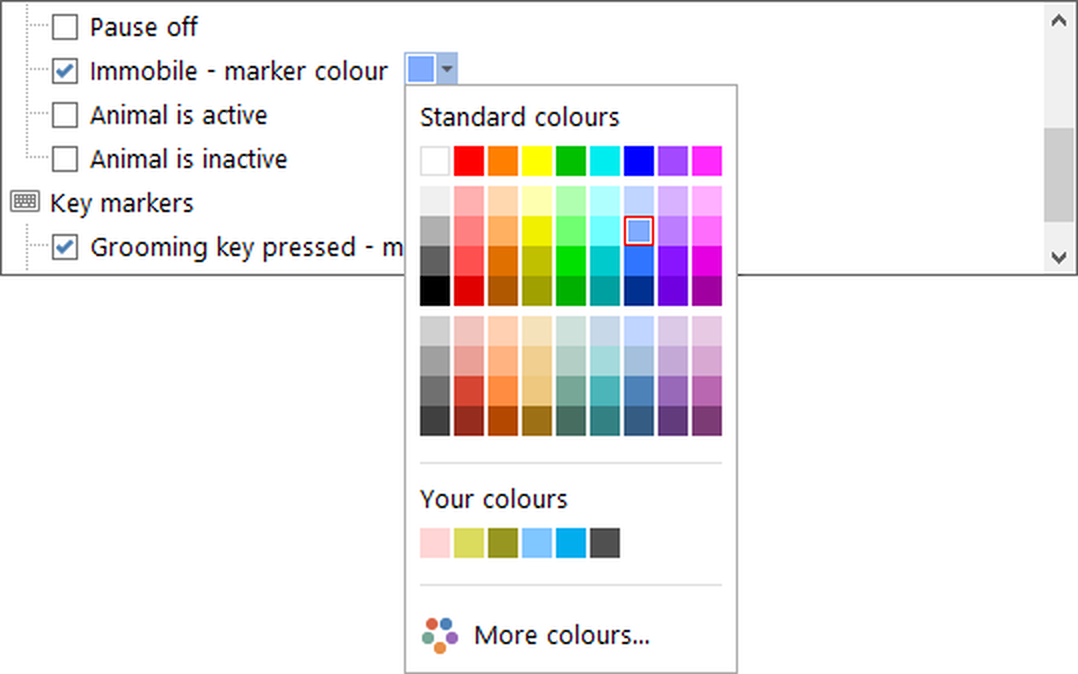
Figure 1. To include a marker you simply select it in the markers list; clicking its colour swatch will open a pop-up which you can use to change its colour.
Markers that denote when something began are shown with a + sign in them, while markers that denote when something ended are shown with a - sign in them.

© Copyright 2003-2026 Stoelting Co. All rights reserved
ANY-maze help topic T0696
|