ANY-maze Help > The ANY-maze reference > The Protocol page > The elements of a protocol > Behaviour > Zones > Setting up a zone > Setting up zone positions
Setting up zone positions

Introduction
When you specify that a zone is movable, you need to add one Zone position element to the protocol for each of the positions that the zone can adopt. This is done by ensuring that the relevant zone is selected in the protocol list, then clicking the  Add item button and selecting New Zone Position from the menu which appears.
 | The New Zone Position menu option will be disabled if a zone is not selected in the protocol list, or the zone which is selected is not a movable zone. |
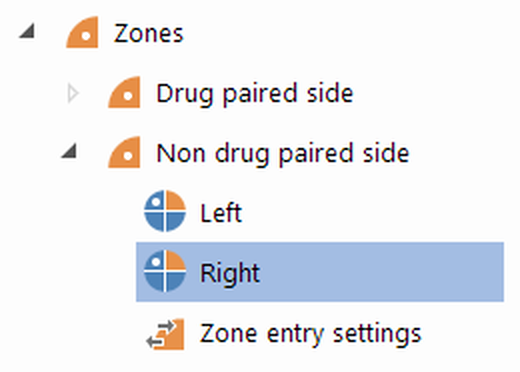
Figure 1. Part of the protocol list showing the positions of the 'Non-drug-paired side' zone in a Place Preference Box protocol.
Selecting the areas of the apparatus map which constitute a position
Selecting the areas which constitute a position is very simple - you just click the relevant areas in the apparatus map. To deselect an area, just click it a second time. Of course, if you have more than one piece of apparatus in your protocol then you will need to specify the position's areas in each piece of apparatus separately - the Protocol page's Image pane will be showing all the apparatus maps, so this is a straightforward process.
There are no restrictions on selecting areas, thus:
| • | One area can appear in more than one position either of the same zone, or of different zones. |
| • | The areas which constitute a position don't have to be contiguous (i.e. they don't have to be touching each other). |
Specifying when the zone is in this position
In general, you will specify the positions of movable zones either as part of the protocol's Stage elements or when you set up or run an experiment. However, there is one type of movable zone whose positions you can specify when you create it, and this is described here.
One of the choices you have when you specify that a zone is movable is Position depends on the position of the XXX zone (where XXX is the name of some other movable zone). If you selected this option when setting up this zone, then you will need to specify, for each position of this zone, how it depends on the position of the XXX zone.
For example, if you are using a Place preference box then you might create two zones, one called 'Drug-paired side' and the other called 'Non-drug-paired side'. As your box only has two sides, if the 'Drug-paired side' is on the left then the 'Non-drug-paired side' must be on the right and vice versa.
So, in this example, you could specify that the position of the 'Non-drug-paired side' is dependent on the position of the 'Drug-paired side'. Therefore, when entering the two positions of the 'Non-drug-paired side' (left and right) you would have to specify when the zone is in each of these positions - for example, when entering the left position you would specify that 'This zone is in this position when the Drug-paired side zone is in the position Right'.
The advantage of doing this is that you will then only have to tell ANY-maze what the position of the 'Drug-paired side' zone is for each animal - it can then deduce the position of the 'Non-drug-paired side' for itself.
Specifying transforms to align track plots and heat maps
 | You'll find a full description of what transforms are and why they're useful here. |
If, when you set up a zone, you specify that you want to Align apparatus in track plots and heat maps based on this zone's position, then each position of the zone will include fields where you can specify the transforms to apply.
The specific options available are:
| • | Flip horizontal |
| • | Flip vertical |
| • | Rotate by a specific angle |
When the rotation option is selected, you can enter any angle from 0 to 360 degrees. The rotation will be performed in a clockwise direction.
Usually you will want to rotate the apparatus, but the flip options are useful in situations such as two place preference boxes which are mirror images of each other.
 | In some cases, differences in the distance of the camera from the apparatus will make some apparatus look larger or smaller. There is no transformation available to address this because ANY-maze will automatically compensate for the difference when it creates track plots and heat maps - however, this is most effective if the differences are small, so you should try to make the apparatus images broadly the same sizes - differences of ±10% are OK. |

© Copyright 2003-2026 Stoelting Co. All rights reserved
ANY-maze help topic T0326