ANY-maze Help > The ANY-maze reference > The Protocol page > The elements of a protocol > Testing > Procedures > Debugging procedures
Debugging procedures

Introduction
The flexibility allowed by procedures can result in some complex logic, and they can become a bit like mini computer programs.
Because of this potential complexity, you should take steps to make sure that a procedure is working correctly before using it in a real experiment. We strongly recommend that you always test your procedures before relying on them!
When the procedure isn't running quite as you expect, what can you do to work out what is going wrong? ANY-maze provides you with some tools to help out with this:
| • | Error reporting |
| • | Generating a debug output log |
| • | Outputting text to the display during the test |
Error reporting
If any errors or warnings occur when a test is run, a yellow information bar will appear at the top of the ANY-maze screen, informing you of this fact. You'll also find the _imgwndtestdebugbutton_ (test debug output) button is highlighted; if you click on this button, then the Test debug output window will open so you can view the error(s) and/or warning(s) that occurred.
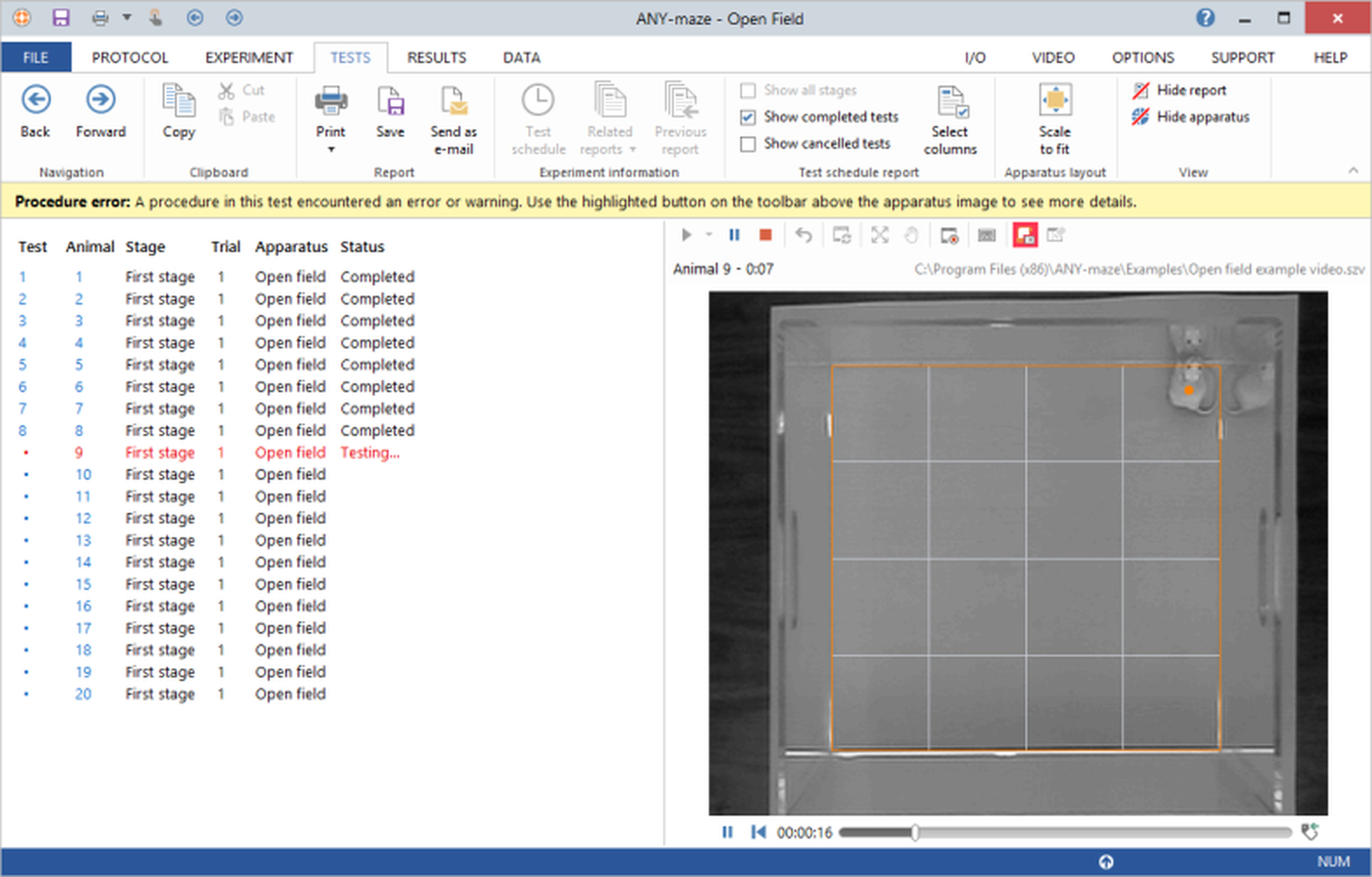
Figure 1. The information bar that appears if a procedure encounters any errors or warnings during the test.
You'll also get a message box displayed at the end of the test. Any errors and warnings will be listed, alongside the name of the procedure and the test clock at the time the error occurred, in the Test details report for the test.
Generating a debug output log
On the Tests page, just above the video picture of the apparatus, is a series of buttons (including the  (Start test) button) – if your protocol includes at least one procedure, then you see a _imgwndtestdebugbutton_ 'procedure debug' button (see figure 1) which, when clicked, will cause the debug output window to open. Procedures can write to this window using the Write text to Session log action, which can very useful as it allows you to see what’s happening inside your procedure as it runs.
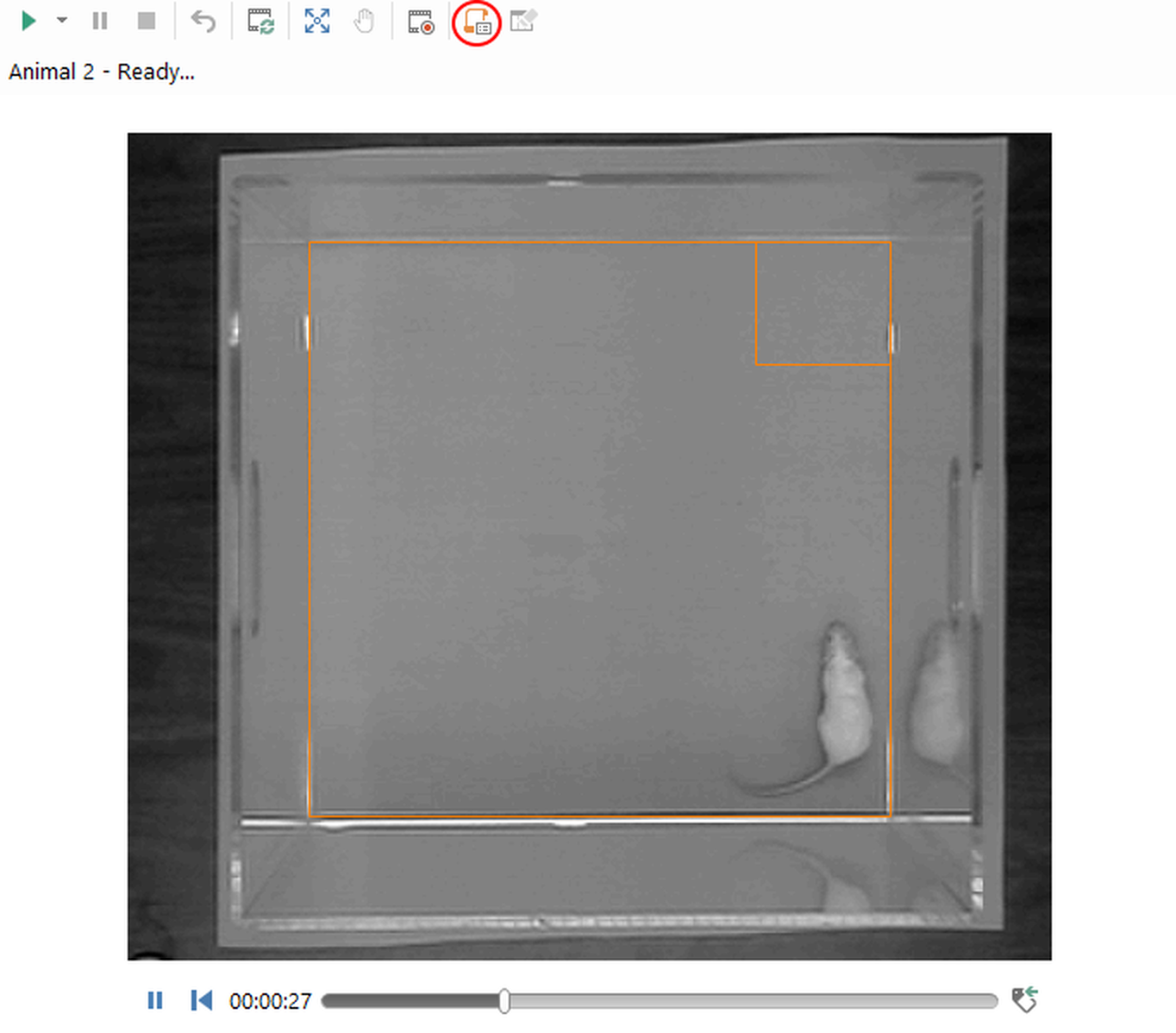
Figure 2. The video picture of the apparatus on the Tests page, showing the test debug button.
For example, the following procedure outputs text to show how far through the procedure it has got. If you run a test and press the lever and you DON’T see 'Lever pressed' shown in the debug output, then you'll know that the reason the animal isn't getting a pellet is because the Wait until Lever activated is not working for some reason (and not because the pellet dispenser isn't working).
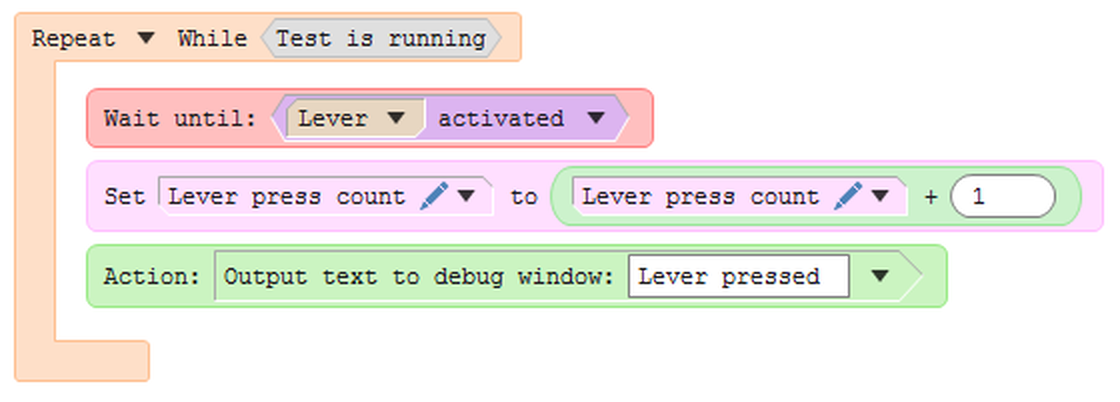
Figure 3. A procedure that uses the Write text to Session log action to keep track of when the animal presses the lever.
Running this test will show text in the debug output window:
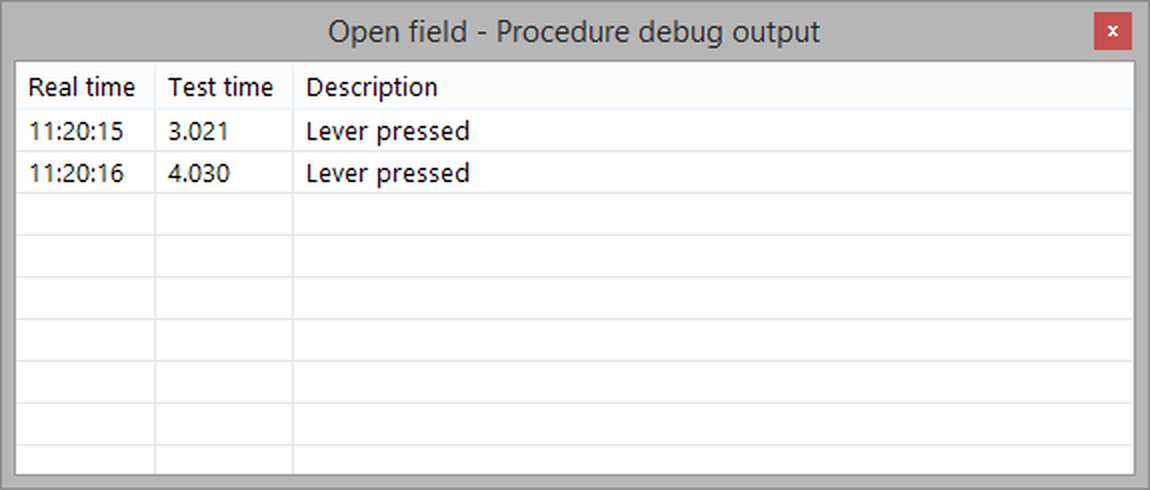
Figure 4. The debug output window, showing some output from the procedure from figure 2.
This window will scroll automatically as new text is added to the end of the list. The debug output does not get cleared when a test ends – when you want to clear it. you have to do so manually, by clicking the _imgwndclrtestdebugbutton_ clear test debug button (which is shown next to the _imgwndtestdebugbutton_ button).
Outputting text to the display during the test
A procedure can use the Output text on display action to display any text that it wants on the screen.
To stop displaying the text, use the Remove text from display action. This will remove the text displayed by this procedure; the Clear all text from display action can be used to clear the text from all procedures at once.
 | Any text displayed on the screen in this way will also be included in any video that is recorded during the test - See Recording videos of tests. |
While this can be a useful way to see what is going on during the test, using the debug output window is usually better, because you see a history of what has happened during the test, and the output sticks around until the window is explicitly cleared.
See also:
| • | Actions available to procedures |

© Copyright 2003-2026 Stoelting Co. All rights reserved
ANY-maze help topic T0468