ANY-maze Help > The ANY-maze reference > The Protocol page > The elements of a protocol > Reports > Track plots > An introduction to track plots
An introduction to track plots

Introduction
Track plots show the track that an animal took through the apparatus during a test and can also show where specific events, such a freezing or rearing occurred. You can define any number of different track plots, and you can view them individually or for groups of tests - for example for all the tests performed an a specific treatment group.
Track plots are, of course, subjective, but they do provide a great way to highlight differences in behaviour, as in figure 1 below.
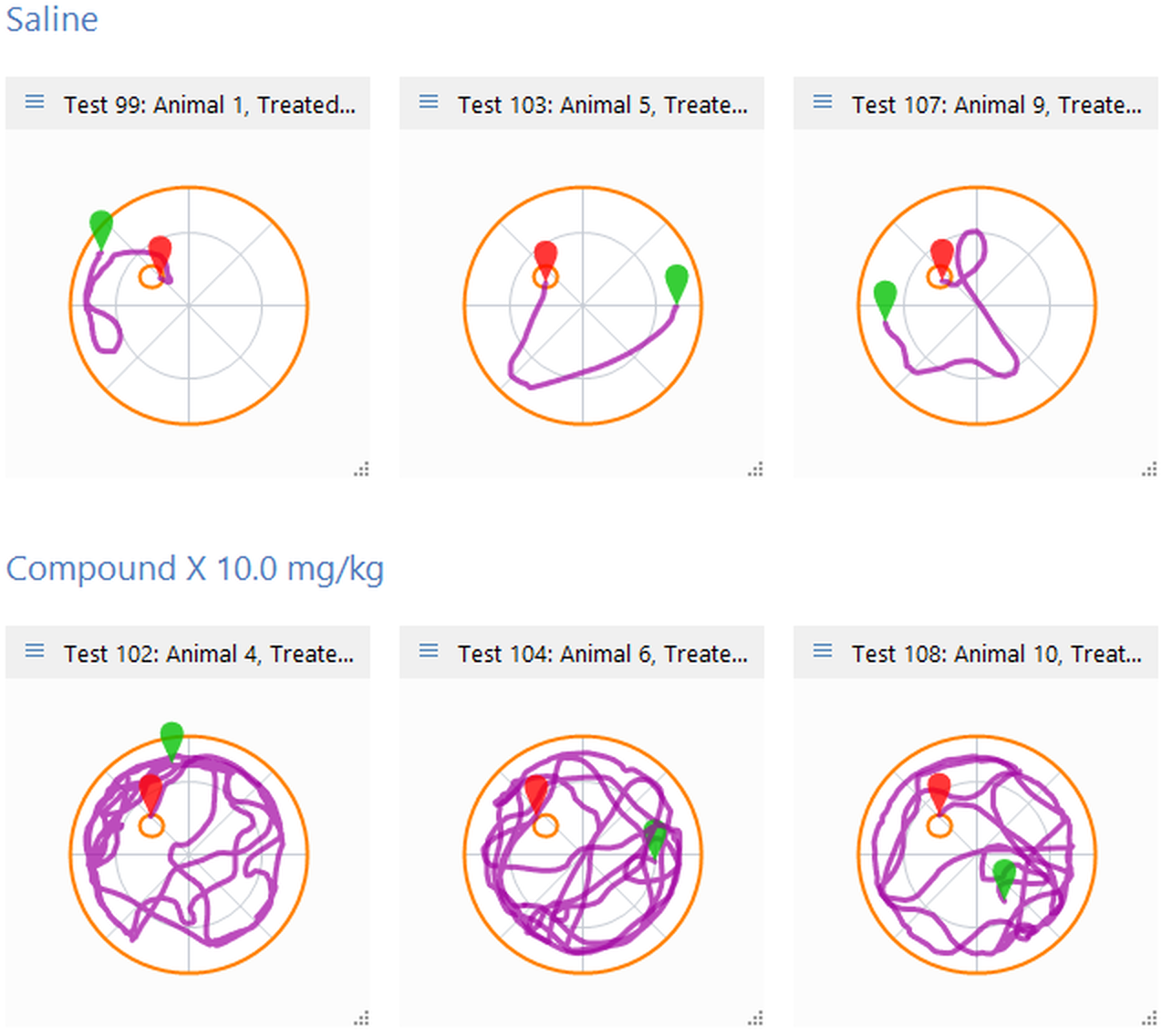
Figure 1. These track plots graphically demonstrate the differences between the two treatment groups in this water-maze experiment.
What can track plots show?
Track plots can show the track of the animal's centre point or of its head. They can also include markers which indicate where specific events occurred, for example, where the animal was immobile, or where it reared. It is also possible to set the background of a track plot to show a heat map, so for example, a track plot might use a background heat map to show where the animal spent the most time immobile, with the track of the animal's centre drawn over the top - see figure 2.
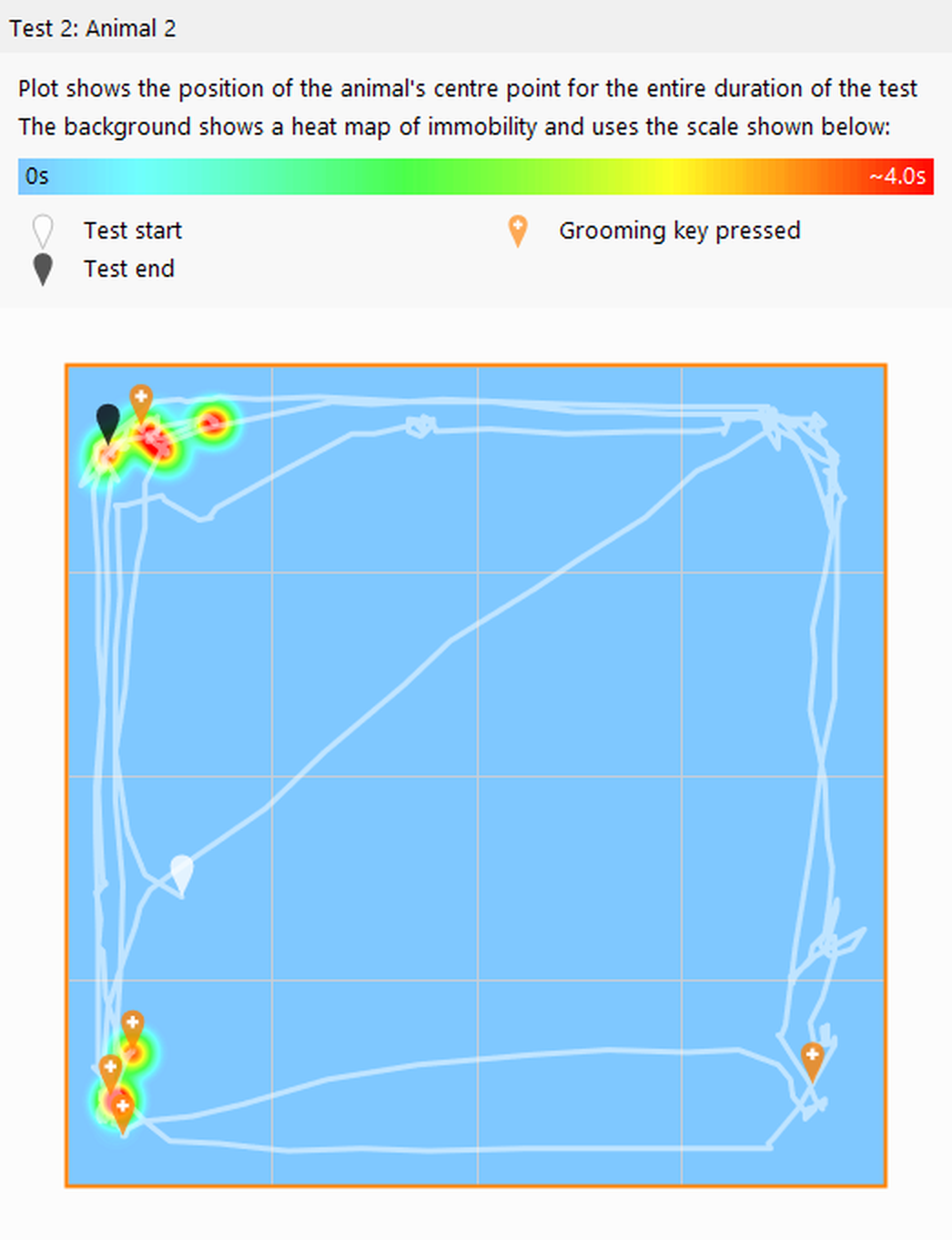
Figure 2. In this plot it's clear that the animal moved about quite a lot during the test but was only immobile, and only groomed, in the corners of the apparatus.
ANY-maze can colour code a track plot's track so that its colour represents something - for example, how fast the animal is moving, perhaps blue for moving slowly, red for moving fast and orange for anything else - as in figure 3.
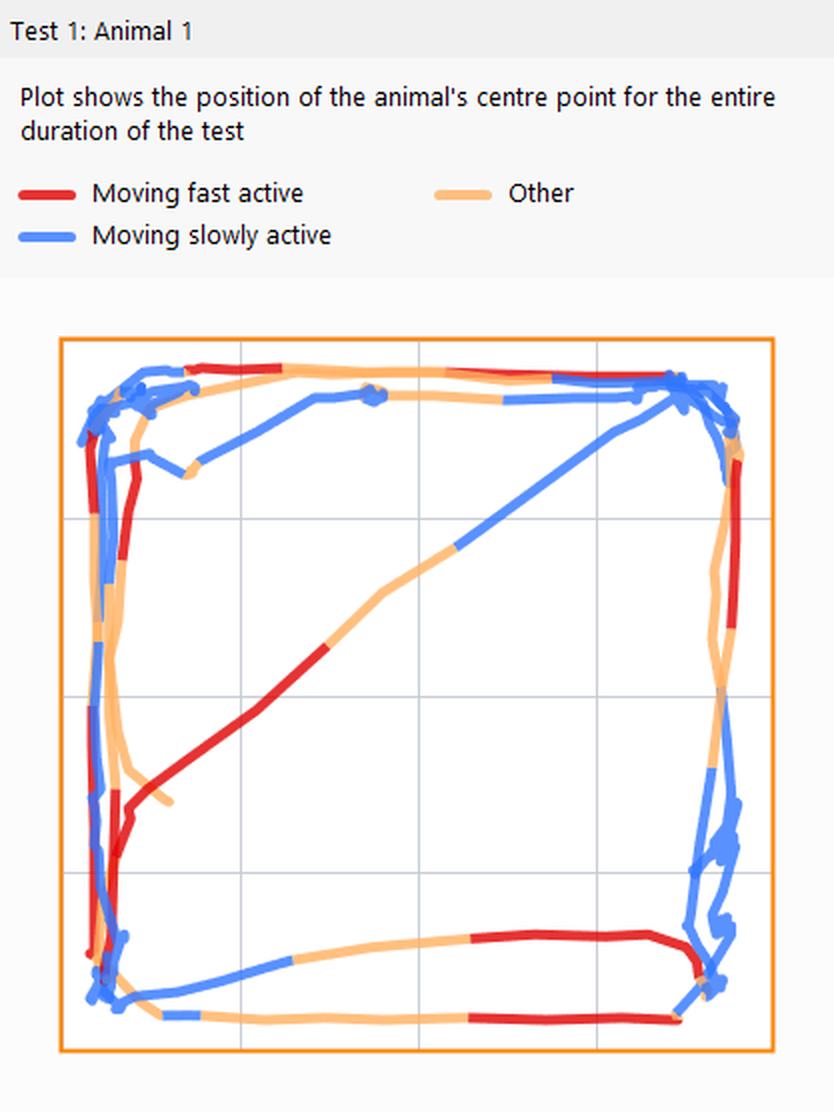
Figure 3. A track plot in which the track has been colour coded to show how fast the animal is moving.
Track plots can cover an time segments or time periods of a test - for example, you could choose to show the track for just the first 1 minute of the test, as in figure 4.
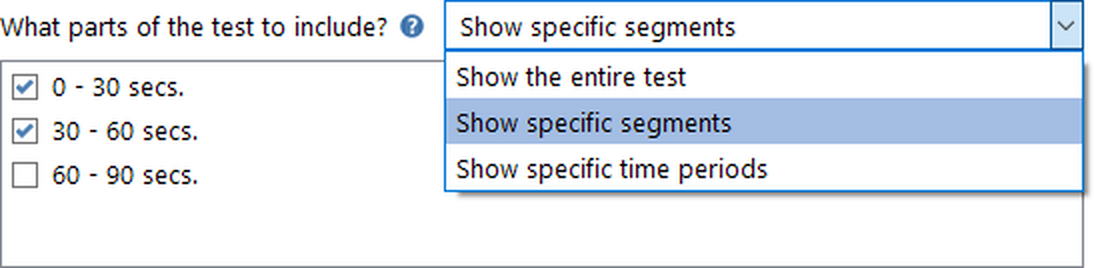
Figure 4. These settings will cause the track plot to only show the track for the first minute of the test.
Track plots are easy to configure
Track plots are set up as part of the protocol but, when you're editing the protocol, you can't see what the plot will actually look like, so it can be quite hard to choose the most appropriate format. However, once a track plot is actually created, you can use the Change settings option on its menu (see figure 5) to open a pop-up window where you can adjust pretty much everything, with the changes being immediately reflected in the plot itself, see figure 6.
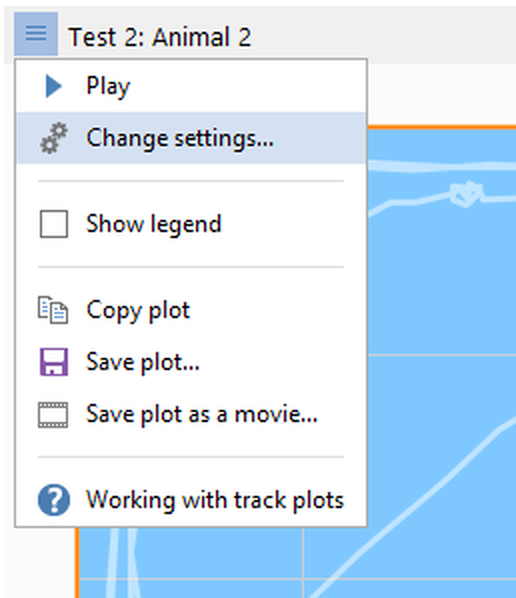
Figure 5. The Change settings option on the track plot menu opens a pop-up window where the track plot settings can be updated dynamically.

Figure 6. The track plot settings pop-up window. Changes made here are immediately reflected in the track plot itself, making it very easy to format the plot.
Track plots can also be resized dynamically simply by dragging the bottom right corner of the plot. Resizing applies to all the plots on the page, which is especially useful on the Results page as it keeps the plots nicely laid out in a grid.
Any changes made to a track plot, whether to its settings or its size, cause the original definition (in the protocol) to be updated, meaning the changes are not transitory, but persist even if you close the experiment and then reopen it.
As can be seen in figure 5, the track plot settings menu includes an option to show the track plot legend - this provides a complete 'key' as to what is shown in the plot, as can be seen in the (admittedly somewhat extreme) example in figure 7.
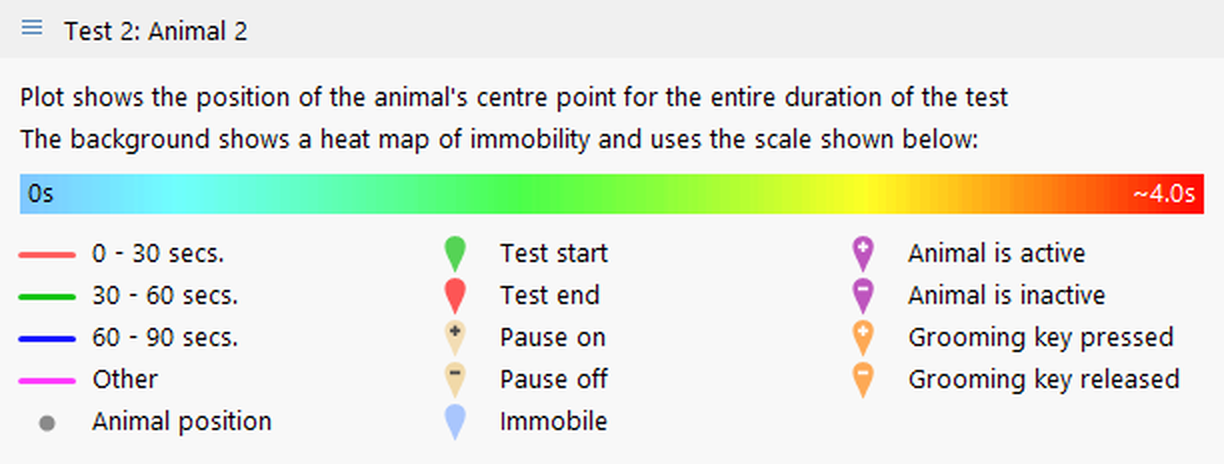
Figure 7. The legend provides a complete 'key' as to what is shown in the plot.
Outputting track plots
Track plots are of course displayed on the screen, but you may well want to copy them into a presentation or a paper. Plots can be copied to the clipboard and pasted directly into programs such as Microsoft PowerPoint or Word. They can also be saved in a variety of commonly used graphics formats such as PNG, JPG and TIFF. The options to save or copy a plot are also accessed from the track plot's menu, as can be seen in figure 5.
Playing track plots
Another option on the track plot menu allows you to 'play' a track plot as in figure 8, below. Playback can also easily be recorded to an MP4 or WMV video for inclusion in a presentation, which is how the video in figure 8 was created.
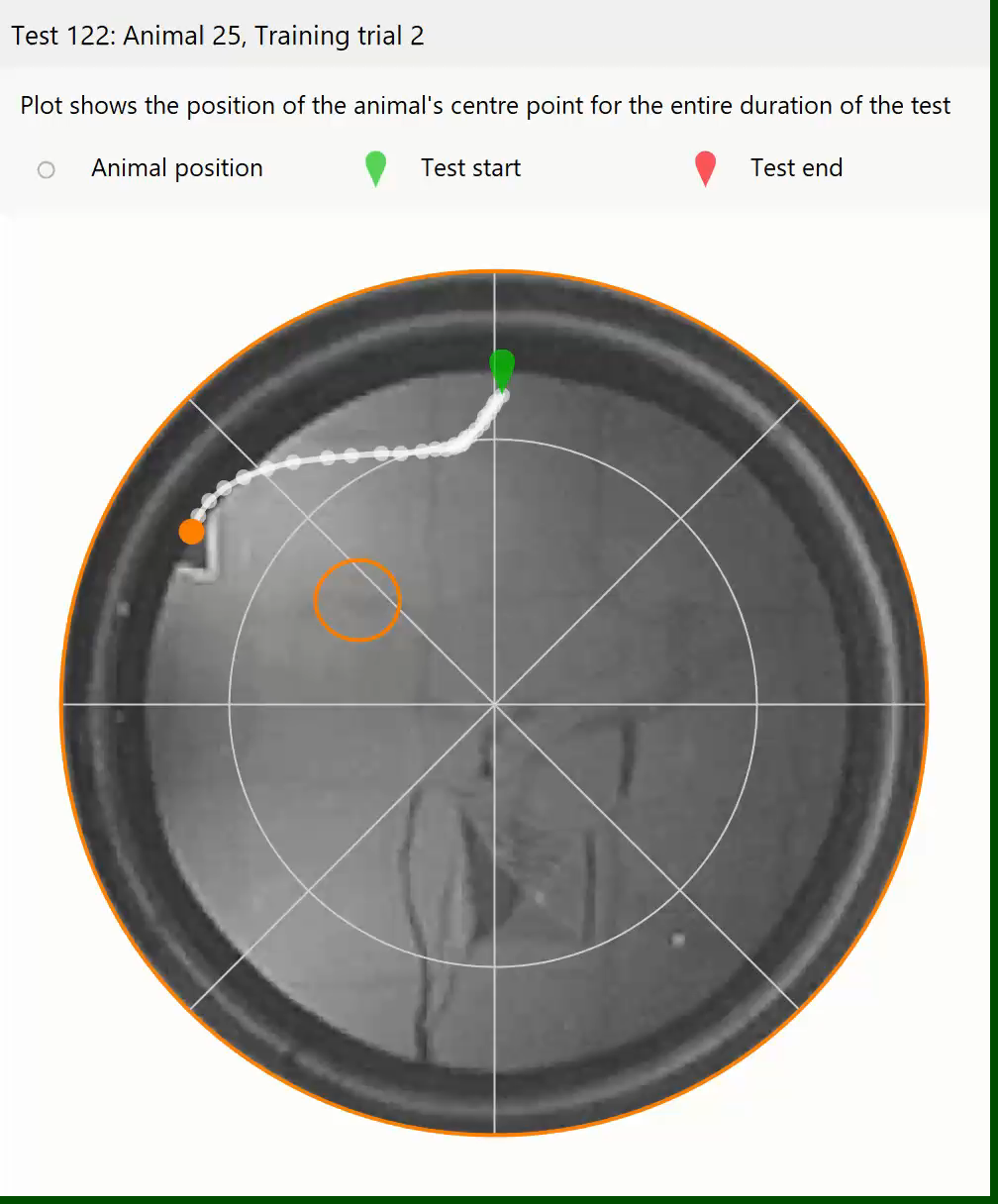
Figure 8. Example of playing a track plot. This plot has been set to use a still image of the apparatus as its background and to show each position of the animal with a white marker.
See also:
| • | Setting up a Track plot |

© Copyright 2003-2026 Stoelting Co. All rights reserved
ANY-maze help topic T0677