ANY-maze Help > The ANY-maze reference > The Options page > Changing the appearance of ANY-maze
Changing the appearance of ANY-maze

Overview
You can change the theme and font used by ANY-maze, as well as the colour of some visual elements such as graphs and tracking markers. Apart from having a cosmetic benefit this can be very useful - if, for example, the colour used to highlight the animal when tracking doesn't show up too well on your apparatus, then you can change it.
| • | Accessing the settings to change the appearance of ANY-maze |
| • | Changing the current theme or font size |
| • | Changing colours of visual elements |
Accessing the settings to change the appearance of ANY-maze
To access the Appearance settings, select the Options page and then click the  Appearance option in the left-hand side bar.
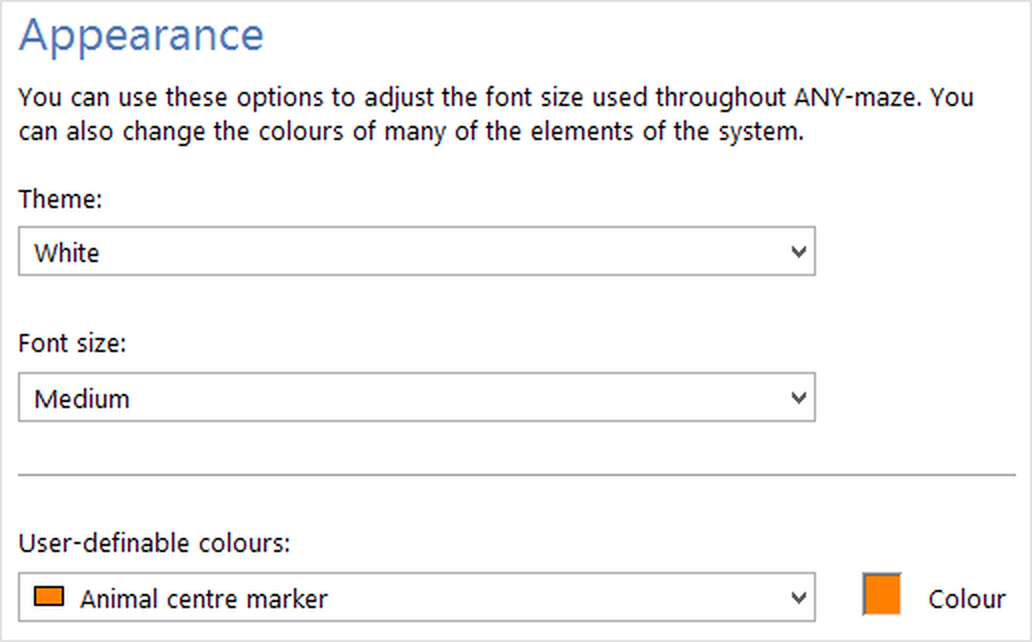
Figure 1. The Appearance settings on the ANY-maze Options page.
Changing the current theme or font size
The visual appearance of ANY-maze is controlled by a theme. This is a single setting which controls the font and colours of all the windows and pages in the ANY-maze software.
 | There are currently three themes available in ANY-maze, White, Blue and Dark grey; more may be added in future. |
Although the font used is determined by the selected theme, the size of the font can be altered using the Font size drop-down list. The default size is medium (which is about a 10-point font on the default theme) but it can be changed to small or large (which are about 8-point and 12-point respectively).
Note that the font you choose will be scaled according to the current DPI settings in Windows; that is, if your Windows resolution settings are set to scale to 200% DPI, then the font (along with the size of other user-interface elements in ANY-maze) will double in size to take account of this.
Changing colours
Although the colours of the user-interface elements of ANY-maze (windows, fonts etc.) are determined by the current theme, there are a number of elements that are specific to the experiments that you'll perform whose colour you can change independently. This includes:
| • | The tracking markers that can be shown on the apparatus image (head, centre and tail) |
| • | The shading colours for the animal, or the zones it enters |
| • | The default colour for state channels on charts |
| • | The colours of lines, columns or points on graphs on the Results page |
To change the colour of a specific element of ANY-maze:
| 1. | Select the element in the User-definable colours drop-down list - its current colour will then be shown in the colour box to the right of the list. |
| 2. | Click the colour box - the standard Colour picker window will open. You'll probably have seen this window before, as it's used in many Windows programs. |
| 3. | Select the colour you want to use, either by clicking one of the predefined colours shown on the left of the colour picker window or by clicking the colour swatch to choose the colour's Hue and saturation and then moving the slider in the colour gradient to select its luminescence. |
| 4. | Click OK - the Colour picker window will close and the element will be listed with the colour you chose. |
 | Some of the elements are listed as 'Hue only'. This means that the only the 'type' of colour (blue, red, yellow etc.) can be changed, and not the brightness. This is because ANY-maze controls the brightness of these elements itself - a good example of this is the colour used to highlight the active zone when tracking. |
If you wish to revert to the system's original settings, you can simply click the  Restore defaults button in the ribbon bar.
See also:
| • | ANY-maze options |
| • | Tracking the animal's head & tail |
| • | What to display while testing |
| • | Specifying zone highlighting |
| • | An introduction to charts |
| • | Setting up chart state channels |

© Copyright 2003-2026 Stoelting Co. All rights reserved
ANY-maze help topic T0940