ANY-maze Help > The ANY-maze reference > The Protocol page > The elements of a protocol > Testing > Procedures > Hints and tips for writing procedures
Hints and tips for writing procedures

Introduction
Procedures can be very flexible, but this also means that they can be quite complex. This page outlines some things to remember, and gives some tips on how to get the best out of your procedures.
Hints and tips
| • | Procedures run statements one after the other, then stop. |
| • | A procedure's lifetime is not the same as that of a test. |
| • | Procedures can be made to 'loop' or 'repeat'. |
| • | Procedures usually require a 'Wait until' statement to run properly. |
| • | You can delete a statement from the procedure by dragging it out of the procedure. |
| • | You can delete a parameter from a statement by dragging it out of the statement it is contained in. |
| • | You can select multiple statements at a time, to move, copy, or delete them. |
| • | Split different logical areas into different procedures. |
| • | Some shortcuts to make writing procedures faster. |
| • | Copying and moving items within a procedure. |
Procedures run statements one after the other, then stop.
When a procedure runs, it will execute one statement after another, until it reaches a point where it can't execute a statement. This might be because the procedure ends (i.e. there are no more statements), or it might be because the procedure has been asked to Wait until something happens - and that thing hasn't happened yet.
If the procedure's current statement is a Wait until statement, everything that subsequently happens in the test (e.g. animal movement, I/O input, etc.) will be processed against that statement to see if it is relevant. If it's the thing that the procedure is waiting for, then the procedure will be able to continue running its subsequent statements. If not, then the procedure continues to wait for the next thing to occur.
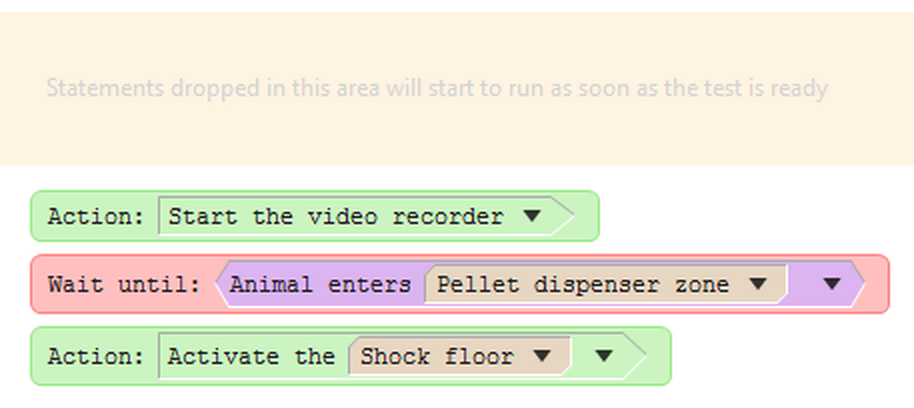
Figure 1. In the procedure above, as soon as the test starts, the procedure statements will start running. The first statement will be run (turning the video recorder on), then the second statement will wait until the animal enters the 'Pellet dispenser' zone. All subsequent events that occur within the test (animal movement, I/O inputs, etc.) will be checked against this wait statement, but ignored until the one occurs that it is waiting for (entry to the relevant zone). Only at that point will the procedure continue running, and will turn on the 'Shock floor' shocker. The procedure will then end.
In the example above, after the shocker is turned on, the procedure will stop running (but the test will continue).
A procedure's lifetime is not the same as that of a test.
Once a procedure has finished running all its statements, it will stop. This doesn't mean that the test will stop, though - the test will carry on running until its test duration has elapsed, or until it is ended manually, or by another procedure using the End the test event.
If a test ends while a procedure is still running, then the procedure itself will end. The exception to this is if the procedure is actually waiting for the Test ends event - in which case, it will receive the event and continue running statements until it reaches the next Wait until statement. This allows the procedure to do any tidying up that it may need to do.
Note that there are some subtleties with procedures that wait for the Test ends event, particularly regarding test continuation - for full details, see the Procedures and the end of a test topic.
Procedures can be made to 'loop' or 'repeat'.
If you don't want a procedure to finish, but you want it to repeat the same sequence of actions, there are two ways you can do this:
You can use a Repeat statement, and enclose the statements that you want to repeat within the loop:
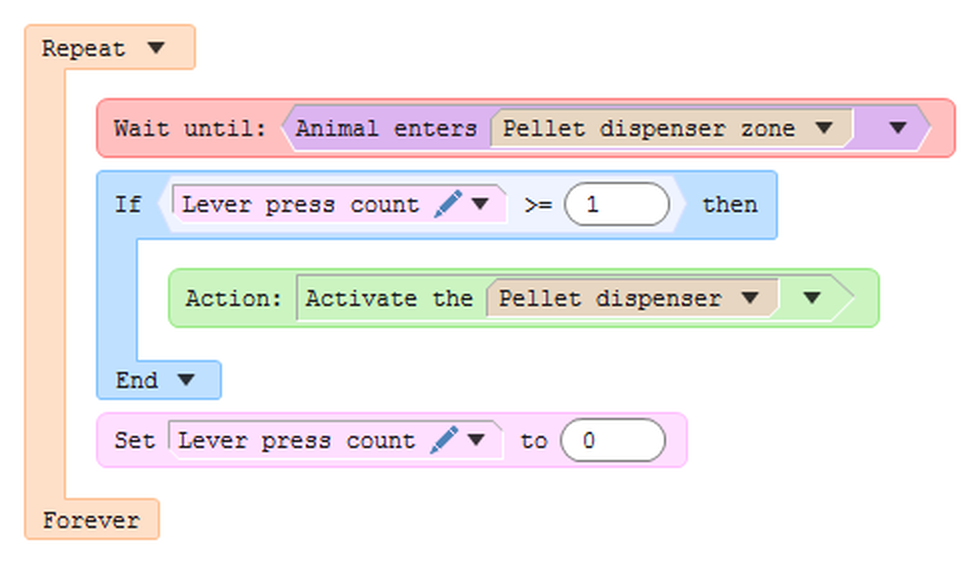
Figure 2. This procedure will continue to loop, forever (or until the end of the test).
Or you can use a Label, and then a Go to statement to send control back to a specific point in the procedure:
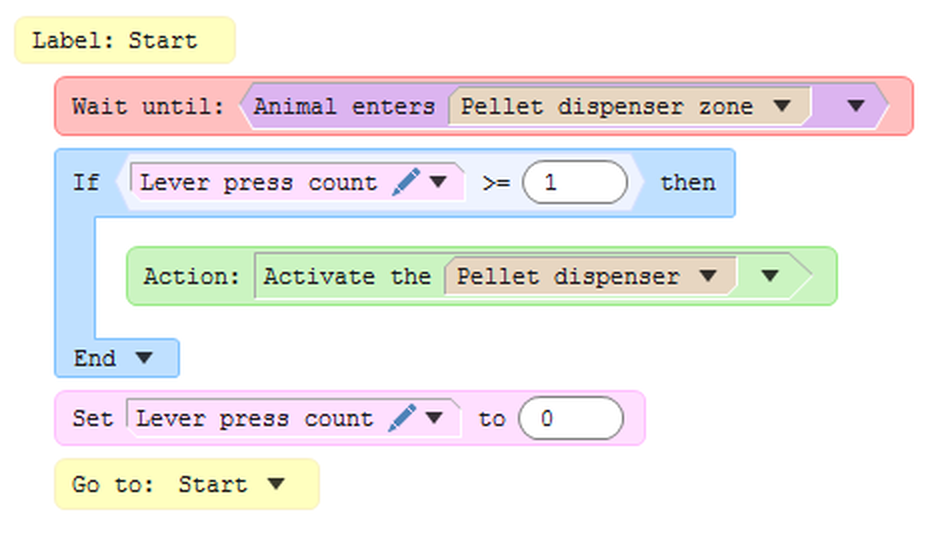
Figure 3. This procedure will behave in exactly the same way as the one in figure 2, above, but uses a label and a Go to statement, instead of a Repeat statement.
Note that Label statements and Go to statements can be used to jump forwards as well as backwards in the procedure.
Procedures usually require a Wait until statement to run properly.
Since a procedure will just run the statements in the order that it is written until it has to stop, then if a procedure contains a loop of any kind, there is a danger that the procedure will get 'stuck' in a continuous loop. This will prevent other procedures from getting a chance to run themselves. (In fact, ANY-maze tries to detect such a situation, and does let other procedures have a chance to run, but this is very inefficient and you should avoid this happening).
The best way to prevent any problems is to ensure that the procedure has at least one Wait until statement. It is only when the procedure reaches such a statement that it 'takes a breather' and allows other procedures to run when they need to, or other processing to occur.
For more details of this, see the Wait until statement topic.
Note that there are circumstances where it is OK to have a procedure without a Wait until statement - for example, if you are just running a procedure to set up some I/O at the beginning of a test.
 | If you write a procedure without a Wait until statement, you'll get a warning when you check the procedure for errors or exit the procedure editor. |
You can delete a statement from the procedure by dragging it out of the procedure.
The easiest way to delete a statement from a procedure is to drag it off the right-hand pane of the procedure editor, and drop it anywhere else (for example, you can drop it on the left-hand pane of the editor).
You can also right click on the statement itself, and you'll get a menu giving you the chance to delete it.
Lastly, you can press the delete key on the keyboard to delete any currently-selected statements (i.e. those highlighted in blue).
You can delete a parameter from a statement by dragging it out of the statement it is contained in.
The easiest way to delete a parameter from a statement is to drag it off the statement, and drop it anywhere in a blank space within the right-hand pane, or anywhere off the pane.
You can also right click on the parameter itself, and you'll get a menu giving you the chance to delete it.
You can select multiple statements at a time, to move, copy, or delete them.
If you want to move, copy or delete multiple statements at a time, you need to select all the statements first.
To do this, you need to move the cursor over the grey 'margin' at the left-hand side of the procedure editor pane - when you do this, the cursor arrow will flip horizontally to point to the right instead of to the left. You can then select multiple statements in one of the following ways:
| • | Holding down the mouse button and dragging the cursor up or down within the grey margin will select all contiguous statements to the right of the cursor; |
| • | You can use the 'Ctrl' key while you click on individual statements, to select and un-select the statement to the right of the cursor; |
| • | To select a contiguous range of statements, click the mouse button against the first statement, then move the mouse and hold down the 'Shift' key while you select the last statement. |
 | The key presses described in these last two points are the same as those that you would use to select multiple files within the Windows file explorer. |
Split different logical areas into different procedures.
Multiple procedures can be run at the same time, which makes it easier to perform complex logic as part of the test. It's advisable to split any complex logic into multiple procedures, as this makes it much easier to understand.
For example, let's say you have a pellet dispenser, but you only want to activate this if the animal has previously pressed a lever. If the animal goes near the pellet dispenser without first activating the lever, you want to give them a shock.
The logic for such an experiment can quickly get complicated, such that trying to write this all in a single procedure could get messy - so you'd be better off writing it as two much simpler procedures, where the logic for each one is self-contained, i.e.
| • | Procedure 1: If the animal presses the lever, note that he's done so in a variable (the variable must be 'shared' between procedures) |
| • | Procedure 2: If the animal goes near the pellet dispenser, check whether he's pressed the lever (by looking at the value of the variable) - if so, then dispense the pellet, otherwise activate the shocker. |
 | This logic is the subject of the third walk-through example using I/O. |
Some shortcuts to make writing procedures faster.
There are a number of shortcuts that you can use to make it quicker and easier to write a procedure:
| • | Dragging an Action from the Actions tab into an empty space in a procedure will automatically create an Action statement, and will insert the action into the statement. |
| • | Dragging an Event from the Events tab into an empty space in a procedure will automatically create a Wait until statement, and will insert the event into the statement. |
| • | Dragging a Variable from the Variables tab into an empty space in a procedure will automatically create a Set value statement, and will insert the variable as the first parameter of this statement. |
| • | Dragging a Comparison operator from the Statements tab into an empty space in a procedure will automatically create an If statement, and will insert the operator as the condition for this statement. |
Copying and moving items within a procedure.
Rather than dragging everything from the left-hand side of the procedure editor to the right, you can copy or move existing items within the procedure itself, and then edit them.
Dragging an item with the mouse will move it, and holding down the 'Ctrl' key while you drag will copy rather than move it.
Once you've copied an item, you can change its contents using a drop-down arrow on the item - for example, you can change which zone an event refers to, which event is being waited for by a Wait until statement, or the action of an Action statement.

Figure 4. You can change which zone the event refers to by dropping the arrow to the right of 'Centre'. You can change which event is being waited for by dropping the arrow to the right of the event itself.

© Copyright 2003-2026 Stoelting Co. All rights reserved
ANY-maze help topic T0465