ANY-maze Help > I/O devices supported by ANY-maze > The ANY-maze Operant interfaces > Configuring an ANY-maze Operant interface > Configuring the ports of an ANY-maze Operant interface > Add/Edit Component Wizard : Edit port names
Add/Edit Component Wizard : Edit port names

Introduction
The 'Edit port names' page of the ANY-maze Operant interface 'Add/Edit component' wizard will optionally allow you to give your own names to the connections between your component and the ANY-maze Operant interface.
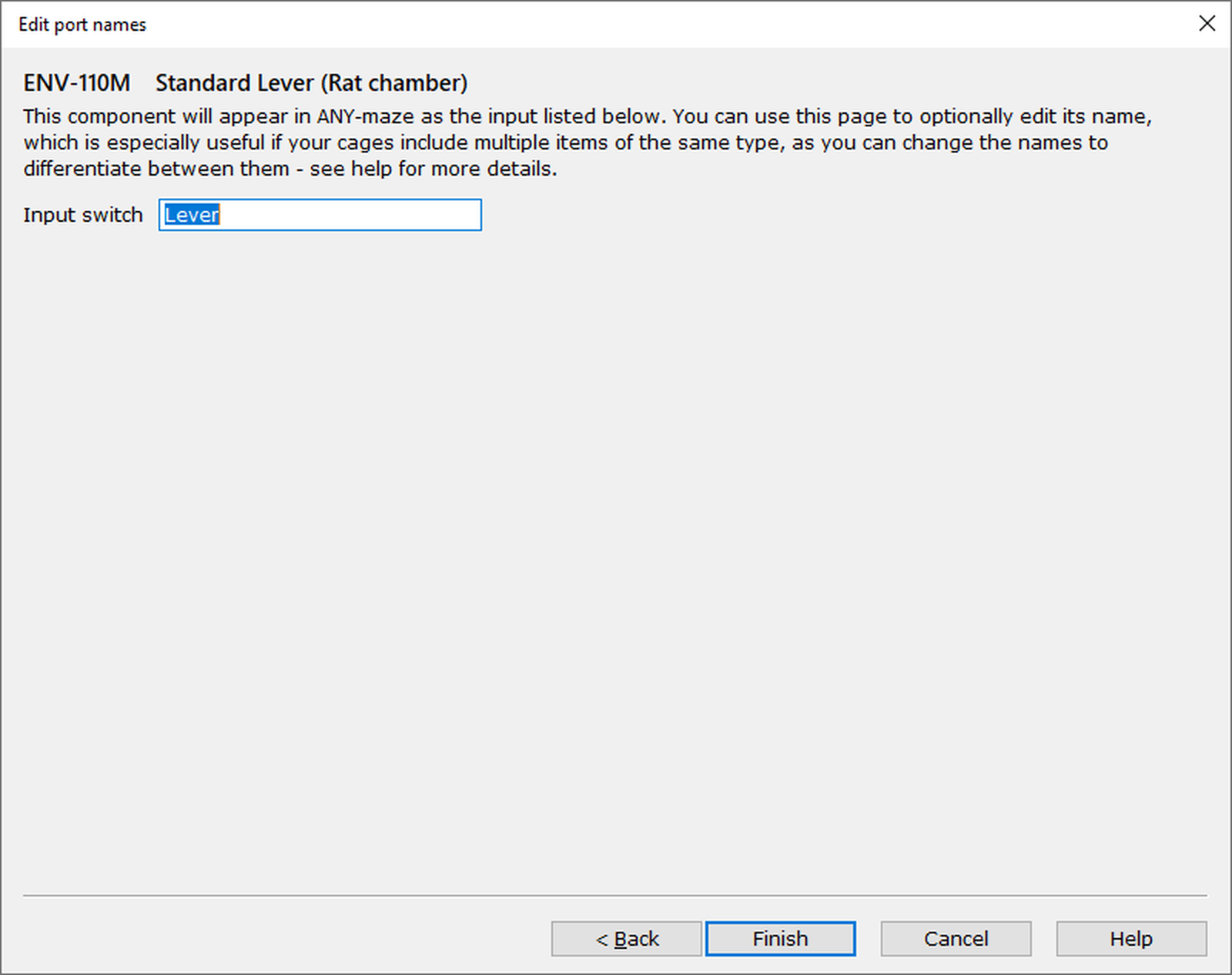
Figure 1. The 'Edit port names' page of the ANY-maze Operant interface 'Add/Edit component' wizard.
Details
All the connections of the components that you'll connect to your ANY-maze Operant interface have been given a sensible name, based on what the port does (for example, 'Stimulus light' or 'Lever'). This page allows you to give them your own names.
Why might you want to do this? Well, imagine that you have an operant chamber with two levers, one on the left of the chamber and the other on the right. You have two of the same lever component - let's say it's an ENV-110M, 'Standard Lever (Rat chamber)' - and you'll insert one on each side of the chamber.
When you set up your components, you'll set up each lever in a very similar way (obviously choosing a different input port on the ANY-maze Operant interface for each one). Each lever has a single connection, and the default name for this connection is - not surprisingly - 'Lever'.
But once your ANY-maze Operant interface has been set up, and you start to set up a protocol for use in your experiments, you'll want to add these levers to your protocol as on/off inputs - this is very simple using the Operant protocol mode, as ANY-maze will automatically set up the protocol's I/O to match the ANY-maze Operant interface configuration). But you'll now have two components called 'Lever' - they will be shown as something like 'Operant cage 1 - Lever on input 5' and 'Operant cage 1 - Lever on input 6'. It probably won't be obvious which lever is which - so to make this simpler, ANY-maze allows you to rename them as part of the component setup.
In this case, you might choose a name of 'Left lever' or 'Right lever' - so that when you later see these listed, you'd see 'Operant cage 1 - Left lever on input 5' and 'Operant cage 1 - Right lever on input 6'. This makes it much clearer which lever you're looking at.
You can give each connection any name that you like, up to 25 characters.
What next?
If the component you've added is a syringe pump, you may need to specify its speed or flow rate - in which case the Next button will take you to the final page of the wizard. If not, then there will be a Finish button which will return you to the ANY-maze Operant interface configuration window, where the component you've just added will now be in the list of components.

© Copyright 2003-2026 Stoelting Co. All rights reserved
ANY-maze help topic T1109