ANY-maze Help > I/O devices supported by ANY-maze > The ANY-maze Operant interfaces > Configuring an ANY-maze Operant interface > Configuring the ports of an ANY-maze Operant interface
Configuring the ports of an ANY-maze Operant interface

Introduction
The ANY-maze Operant interfaces have multiple input and output connectors which can be configured to connect to a wide range of different components from the various supported manufacturers.
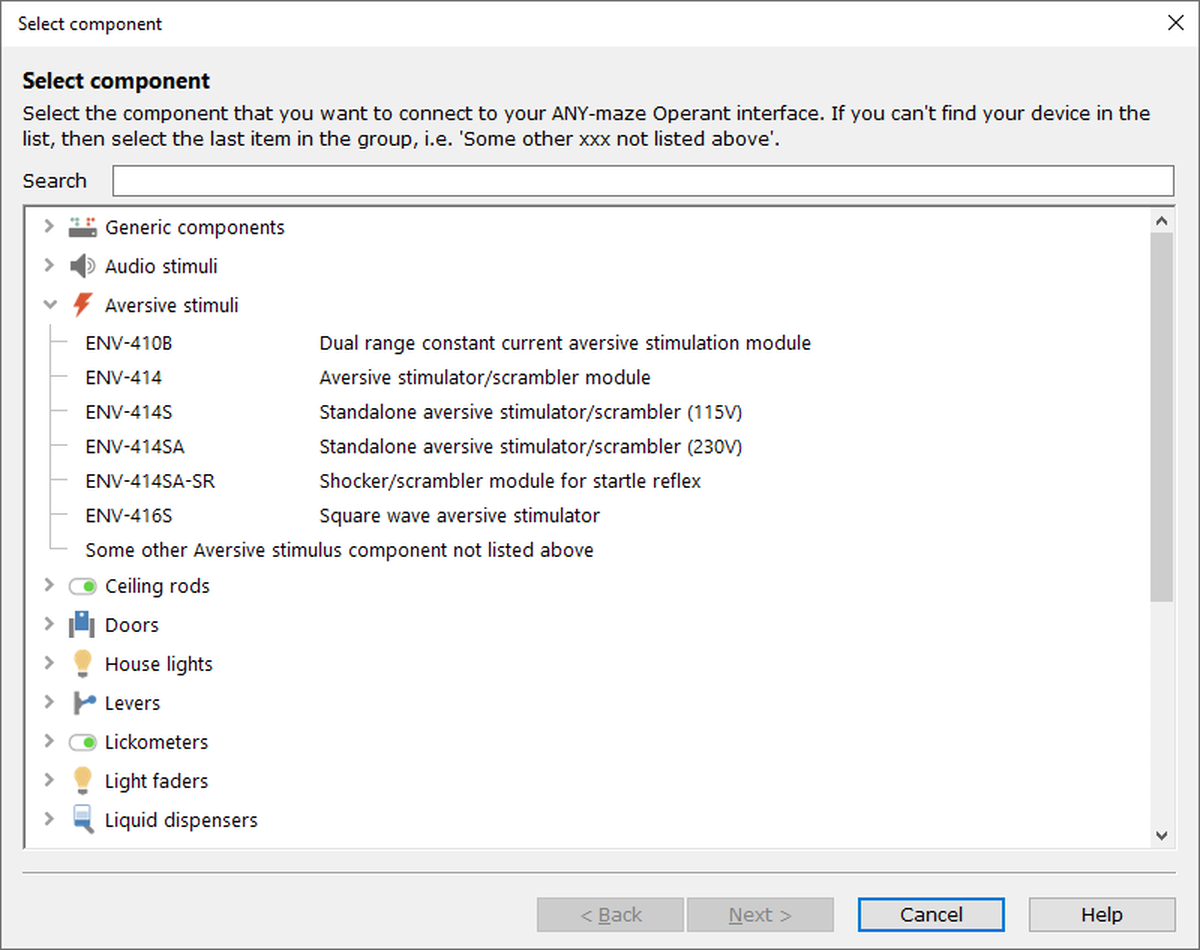
Figure 1. Configuring a port essentially means selecting the component that is connected to it.
Accessing the port configuration
You can configure the ports of an ANY-maze Operant interface from one of two places:
| • | The ANY-maze Operant interface configuration window, which is accessed using the  Configure this device button on the I/O page. Configure this device button on the I/O page. |
| • | Using the Configure button on the ANY-maze Operant interface's protocol settings page. |
Configuring the ports of the ANY-maze Operant interface involves choosing which components are connected, and which of the interface's outputs and inputs they are connected to. This is done using a software wizard to guide you through the process, so you can just follow the instructions that the wizard provides when you click the Add button.
In summary, the steps to add a new component are:
| • | Choose the component that you want to attach. |
| • | Select the inputs and/or outputs that this component will connect to. |
| • | Optionally edit the name of the component - this is useful if, for example, you have multiple components of the same type attached and you need to differentiate between them. |
| • | If the component you've selected is a syringe pump with an adjustable speed or flow-rate, you'll be asked to specify what the speed/flow-rate is set to. |
Once you've got at least one component set up, the Edit button will allow you to alter the component's settings, and the Remove button will remove the component from the list.
Copying an interface's configuration
 | If you're editing the ANY-maze Operant interface's configuration from within a protocol, ANY-maze will automatically set this as the configuration for all the ANY-maze Operant interfaces in the protocol. On the other hand, if you're editing from the I/O page, then you can use the  Configure all devices button in the ribbon bar to configure multiple attached interfaces at the same time. Configure all devices button in the ribbon bar to configure multiple attached interfaces at the same time. |
If you've already got the correct configuration set up for another ANY-maze Operant interface (for example, if you're adding a new interface to allow you to test in more apparatus at once) then you can simply copy the configuration FROM the other ANY-maze Operant interface to this one, to save you setting up the details all over again.
If you've got the configuration already set up correctly for one ANY-maze Operant interface, you can easily copy the configuration TO other interfaces.
Once you've added all your components to the ANY-maze Operant interface's configuration, you can optionally print out the configuration to make it easier to actually attach the components to the interface in your operant cage.
Supported components
| • | Med Associates components supported by the ANY-maze Operant interface M |
| • | Coulbourn Instruments components supported by the ANY-maze Operant interface C |
| • | Lafayette Instrument components supported by the ANY-maze Operant interface L |
For full details of how each component works, please see the relevant manual which can be downloaded from one of the following web sites:
| • | Med Associates web site. |
| • | Lafayette Instrument Company web site. |
| • | As Coulbourn Instruments has closed, manuals are no longer available for download, but you can contact ANY-maze Support who may have a copy of the manual you require. |

© Copyright 2003-2026 Stoelting Co. All rights reserved
ANY-maze help topic T1104