ANY-maze Help > I/O devices supported by ANY-maze > The ANY-maze interface device family > The ANY-maze Optogenetics interface > Configuring an ANY-maze Optogenetics interface
Configuring an ANY-maze Optogenetics interface

Introduction
The ANY-maze Optogenetics interface configuration window is primarily used to configure the individual ports of the device; however it also shows information about your device and allows you to change its ID and update its firmware.
| • | Accessing the ANY-maze Optogenetics interface configuration window |
| • | Configuring the ports of the ANY-maze Optogenetics interface |
| • | Suppressing the LEDs on the ANY-maze Optogenetics interface front panel |
| • | Changing the device ID |
| • | Updating the device firmware |
Accessing the ANY-maze Optogenetics interface configuration window
To access the ANY-maze Optogenetics interface configuration window, select your ANY-maze Optogenetics interface in the list on the left side of the I/O page and then click the  Configure this device button in the ribbon bar.
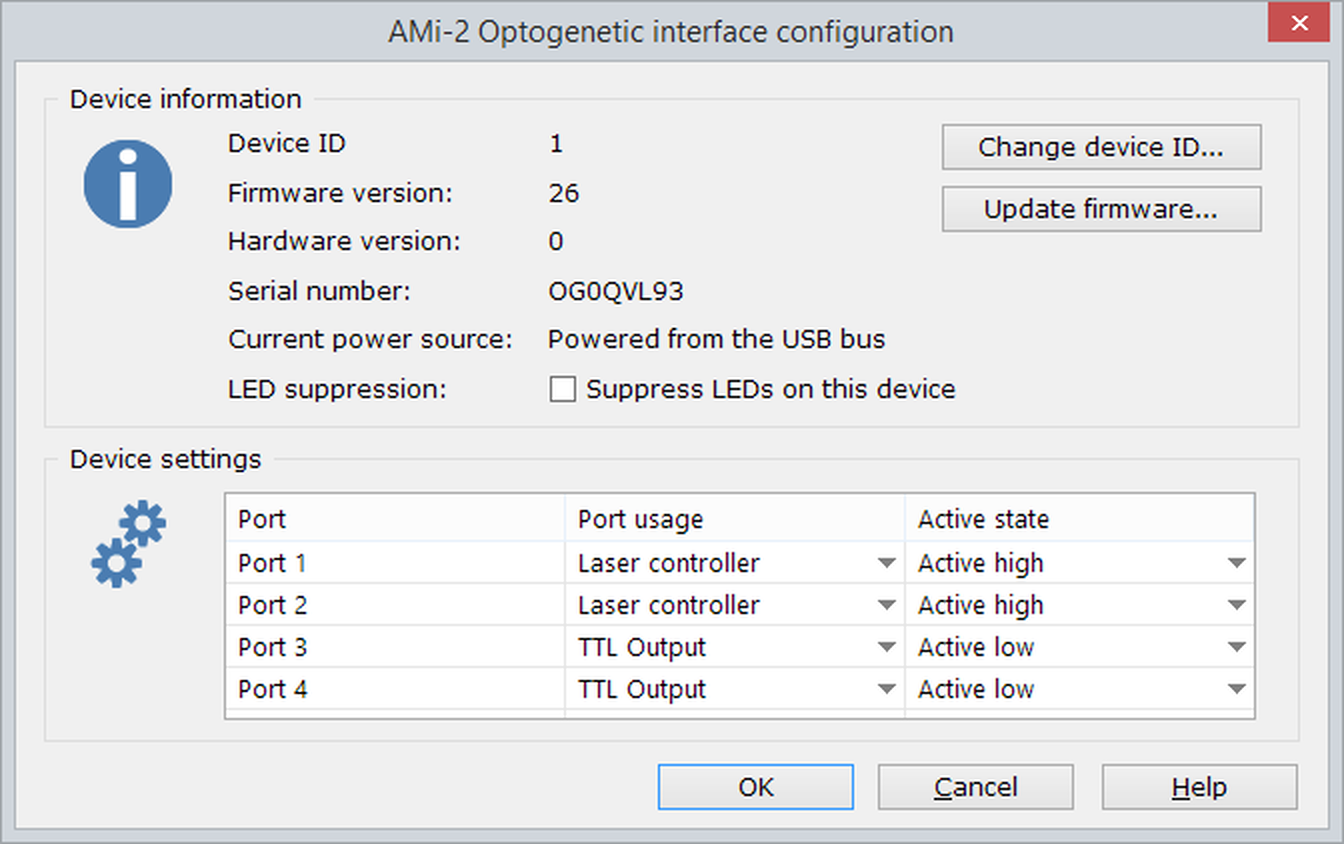
Figure 1. The ANY-maze Optogenetics interface configuration window.
Configuring the ports of the ANY-maze Optogenetics interface
The ANY-maze Optogenetics interface has four ports (connectors), each of which can be used to independently control a laser. In fact, each port can be configured to be either a laser controller (the default) or a TTL output, and can also have its active state specified.
To change a port between being a laser controller and a TTL output, you simply need to change the 'Port usage' by selecting the appropriate option from the drop list - see figure 2, below.
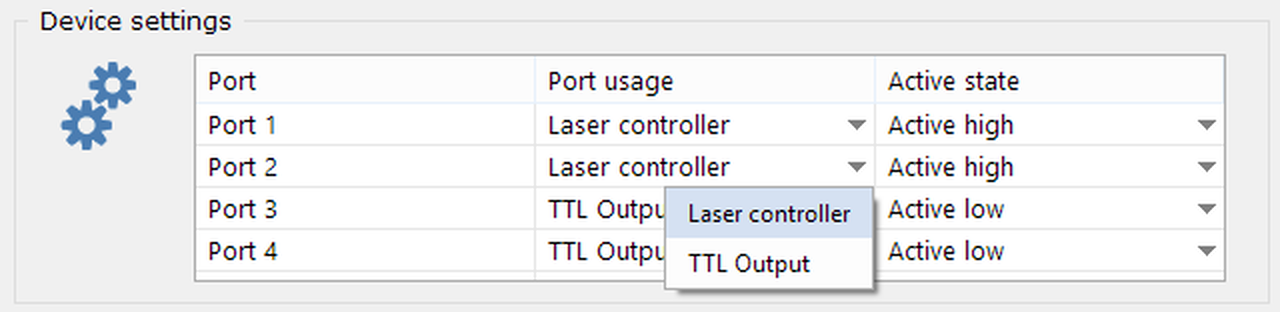
Figure 2. Each port of the Optogenetic interface can be configured to either control a laser or to work as a TTL output.
When a port is configured to be a laser controller, it will be available in the Laser controller element of the protocol and you'll be able to specify the frequency, duty cycle, etc. that you want it to output.
When a port is configured to be a TTL output, it will be available in the Output switches element of the protocol and you'll be able to switch the output on and off during a test. This can be very useful if you wish to synchronise ANY-maze with something else - for example an electrophysiology system - as you can configure one of the ports to be a TTL output, connect it to an input on the other system and then set the output active when a test starts - thus providing a 'sync pulse'.
Changing a port's active state
Whether a port is configured as a laser controller or as a TTL output, you can also set its active state to be either Active high (the default) or Active low.
When configured as a TTL output, setting the port to Active high will cause it to output 5V when active and 0V when inactive; setting it to Active low will do the opposite, so it will output 0V when active and 5V when inactive.
When a port is configured as a laser controller, the active state works in much the same way, except that you can optionally specify what the high voltage should be; for example, rather than 5V (the default) you could change it to 3V. This is useful for lasers which alter their intensity based on the input voltage (only some lasers can do this). This intensity voltage can be specified when you set up the laser controller in the protocol and can also be altered dynamically during a test by a procedure.
Suppressing the LEDs on the ANY-maze Optogenetics interface front panel
The ANY-maze Optogenetics interface has five LEDs on its front panel. One of these shows the status of the device; red when connected to the PC and green when communicating with ANY-maze. The others show the status of each port; green when the port is active and off when it isn't.
If the interface will be visible to the animal during a test, then you may wish to suppress these LEDs - perhaps the test should be performed in darkness, or you're concerned that the LEDs could provide visual cues to the animal. To suppress the LEDs, you simply need to check the Suppress LEDs on this device button in the Device information section of the configuration window.
Changing the device ID
The method of changing the device ID is the same for all ANY-maze interface devices. Full details, including what the device ID is and why you might want to change it, can be found here.
Updating the device firmware
The process of updating the firmware is the same for all ANY-maze interface devices. Full details can be found here.
See also:
| • | The ANY-maze Optogenetics interface output ports |
| • | Setting up the ANY-maze Optogenetics interface |
| • | Connecting the ANY-maze Optogenetics interface to a laser and testing it |
| • | Using the ANY-maze Optogenetics interface in tests |

© Copyright 2003-2026 Stoelting Co. All rights reserved
ANY-maze help topic T1049