ANY-maze Help > The ANY-maze reference > The Protocol page > The elements of a protocol > Testing > Test window panels
Test window panels

Introduction
When running tests, the Test window acts as a single location where you can see the test running (either because tracking is occurring in a video image, or you're viewing the status of I/O in an I/O only experiment). It also contains plenty of other information about the current status of the test, in several different panels - for example, the Zones panel or the Session log panel.
The Test window panels layout options allow you to lay out this information in a way that suits you and fits best on your screen.
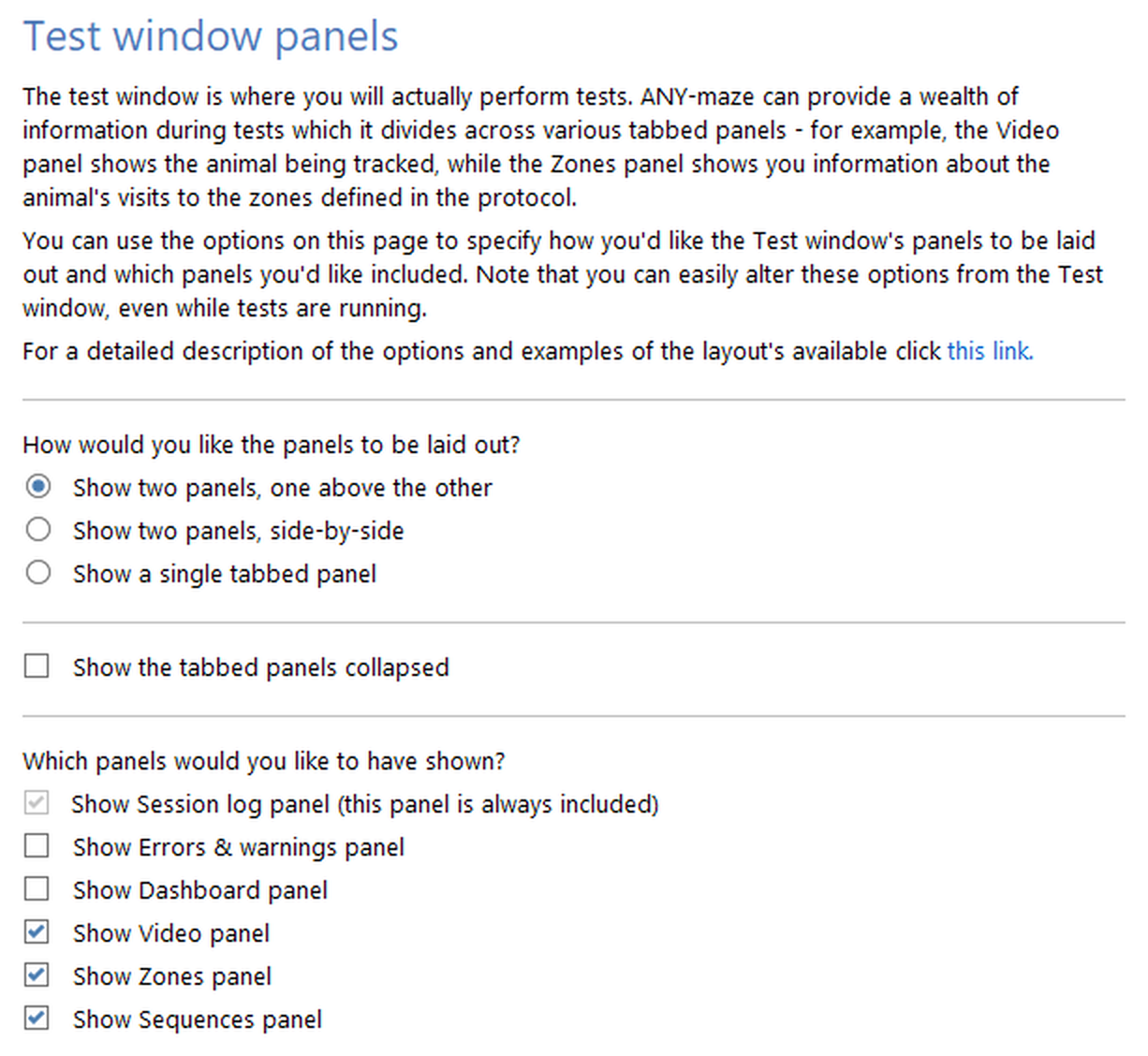
Figure 1. The Test window layout settings.
For more information on these options see each of the sections below.
| • | Panel layout |
| • | Panel visibility |
| • | Clearing the panels |
| • | Other information |
Panel layout
The top section of this page allows you to select how the panels are laid out. What you choose here will probably depend on how big a screen you have, how much of it is available for viewing the apparatus during a test, and how many apparatus you're testing in simultaneously. It might also depend on the type of experiment you're doing - if you're video tracking, for example, you're quite likely to want to see the video image and extra information on the screen at the same time; if you're just running an experiment with I/O, then the I/O Status panel might be enough on its own.
The following three figures show the way the test window will be laid out for each of the three options:
| • | Show two panels, one above the other (see figure 2) |
| • | Show two panels, side by side (see figure 3) |
| • | Show a single tabbed panel (see figure 4) |
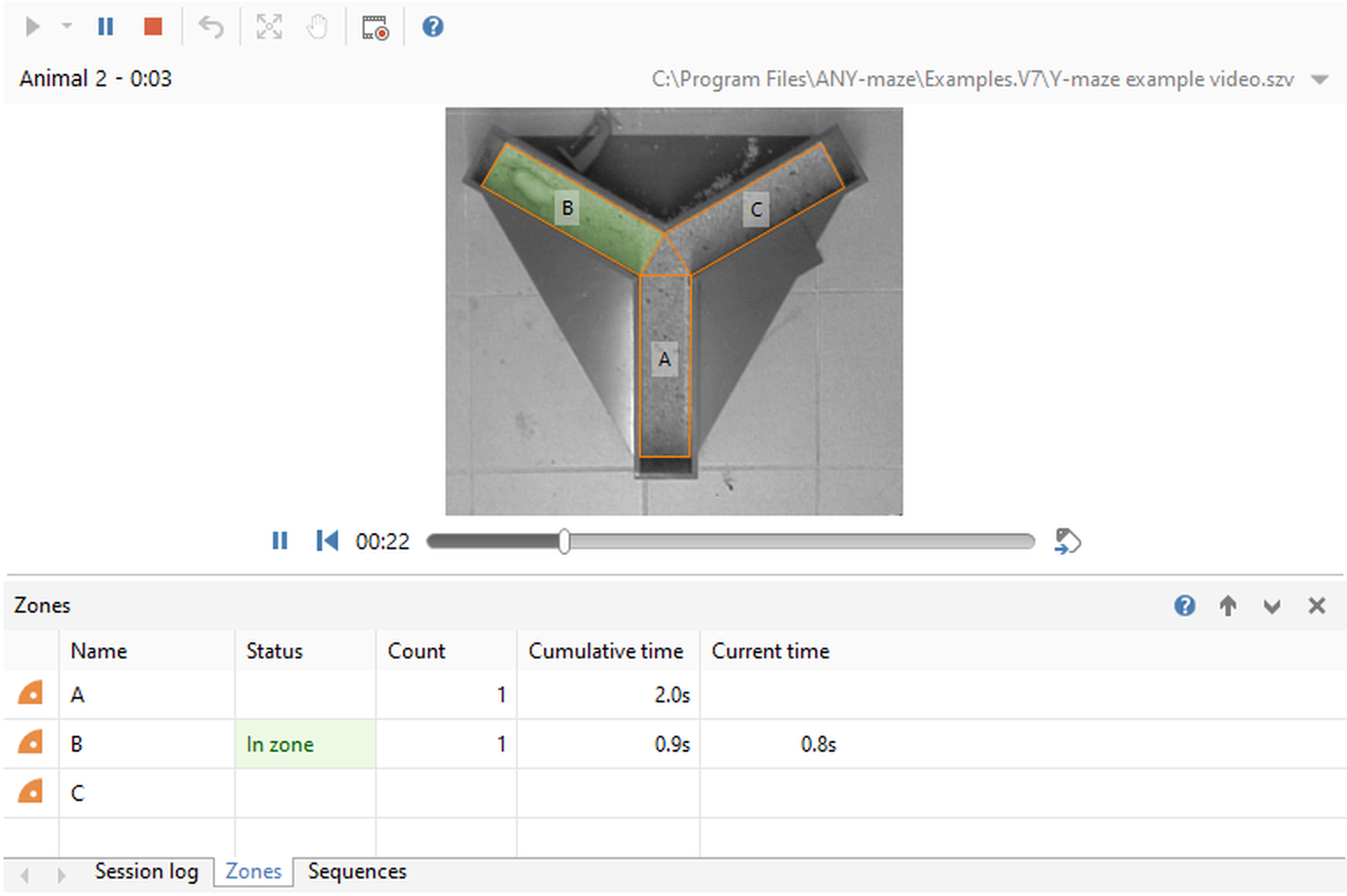
Figure 2. A Test window laid out with two panels, one above the other. The Video panel is the promoted panel.
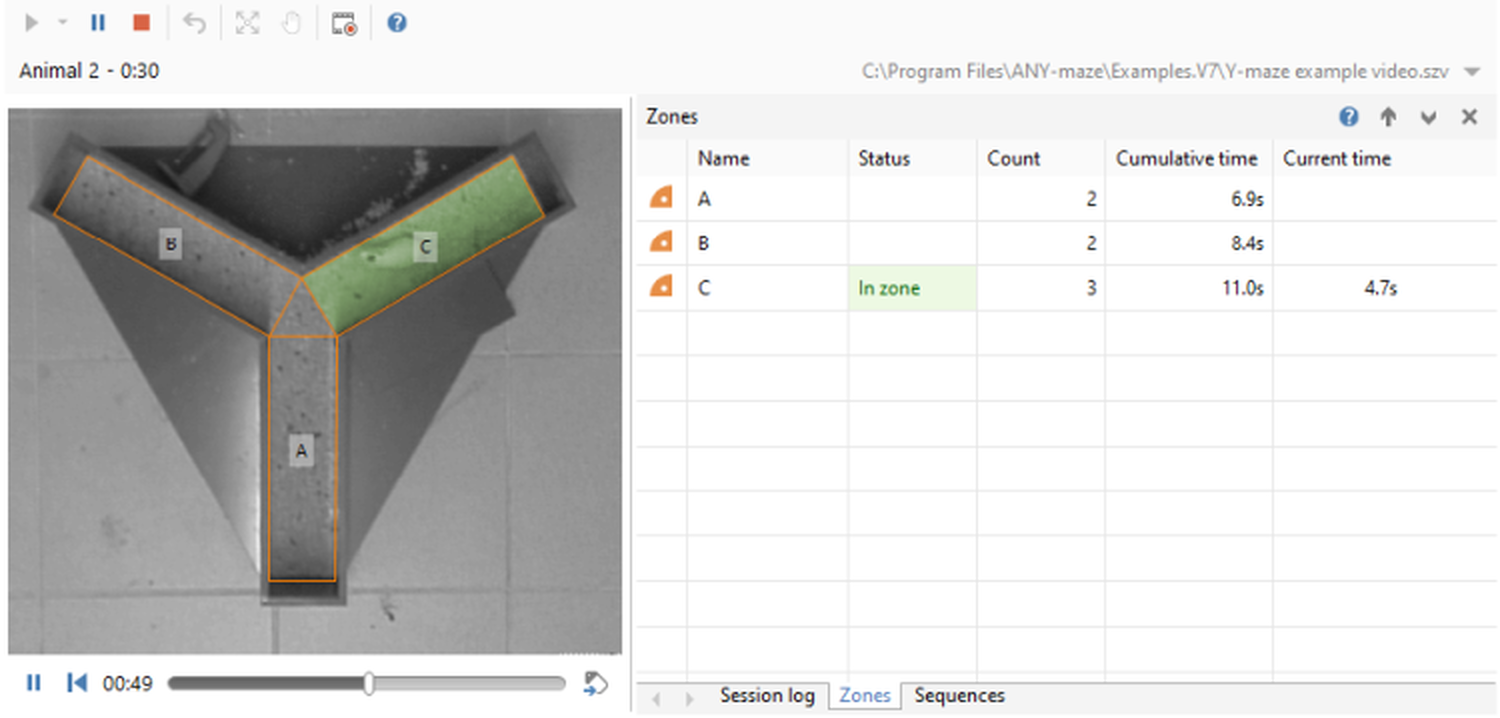
Figure 3. A Test window laid out with two panels, side-by-side. The Video panel is the promoted panel.
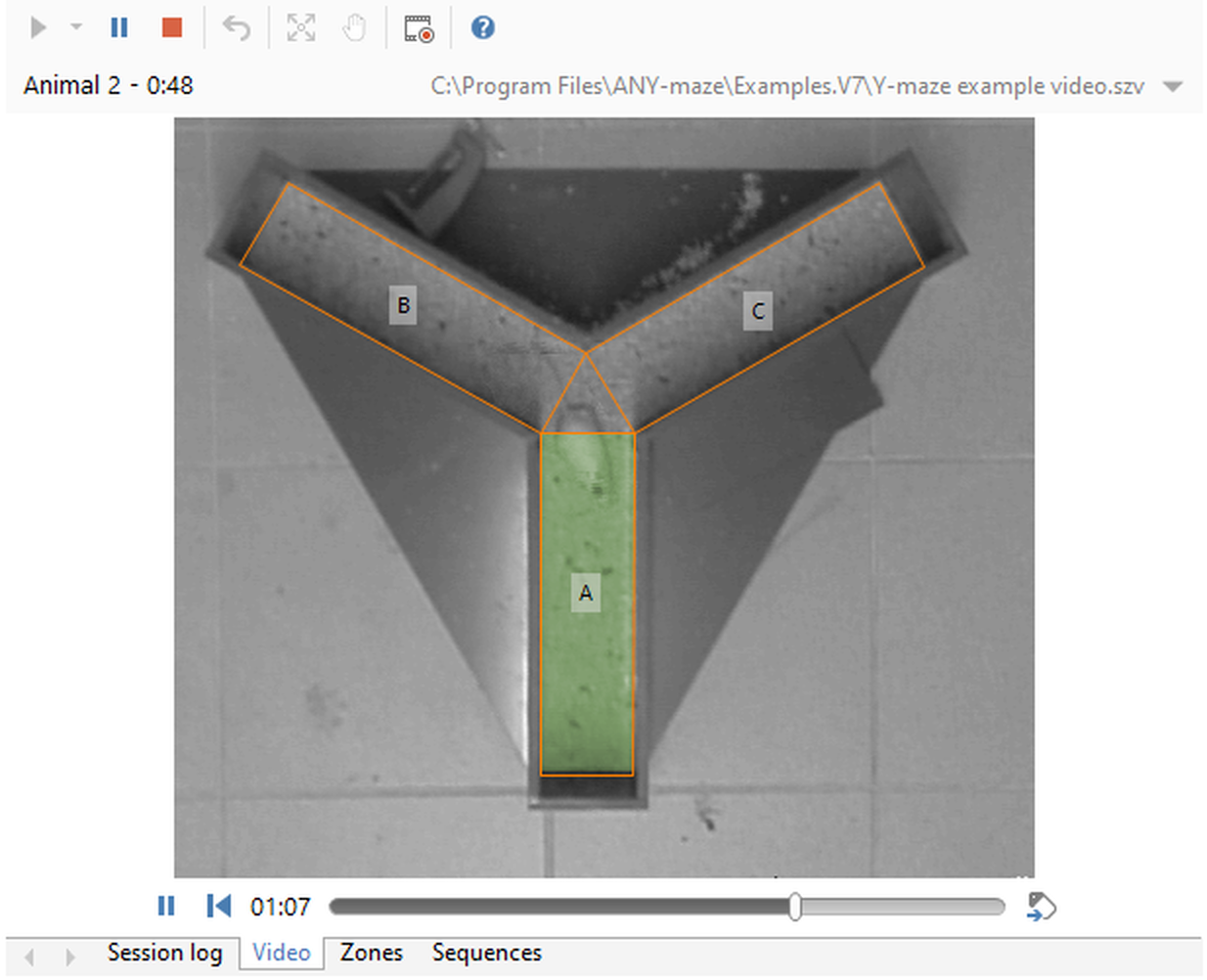
Figure 4. A Test window showing a single tabbed panel. The Video panel is the currently selected tab.
The advantage of having a single tabbed panel is that it gives more space for the main (promoted) panel; whether you choose one of the other two options (one above the other, or side-by-side) will probably depend on whether you have more space on your screen horizontally or vertically.
You can also opt to Show the tab panels collapsed - this allows you to temporarily give more space to the promoted panel, but still leaving the tabs available at the bottom of the window - so that clicking on a tab will bring the tabbed section back into use.
Panel visibility
There are a number of different panels available on the test window, so this section of the settings allows you to choose which ones you want visible. ANY-maze will choose the available panels automatically, based on how your protocol is set up - for example, if you haven't set up any keys to score behaviour, then the Keys panel won't be available. However, you can remove any available panels from being shown on the Test window here (or restore any that you removed previously).
The following list shows all the available panels; the list items are links which take you to a description of the panel in the context of the Test window.
| • | The Session log panel |
| • | The Errors & Warnings panel |
| • | The Video panel |
| • | The Dashboard panel |
| • | The Zones panel |
| • | The Sequences panel |
| • | The Activity panel |
| • | The Keys panel |
| • | The I/O Status panel |
| • | The Virtual Switches panel |
| • | The Charts panel |
Clearing the panels
All the information that is shown in the Test window panels will generally persist at the end of the test, although the options here give you some control over exactly when the panels will be cleared ready for the next test. You can find a full description of the options under Clearing test information ready for the next test.
Other information
The Test window panel settings are also available from the Tests page, via the  Panel settings on the ribbon bar - any changes you make here will be reflected there, and vice versa.
In addition, ANY-maze will remember any changes you make on the Test window itself - for example, changing which panel is the 'promoted' panel, or changing which is the currently selected tab.

© Copyright 2003-2026 Stoelting Co. All rights reserved
ANY-maze help topic T0579